 Billing Bazaar
How to create multiple companies in Vyapar
Vyapar lets one login run several businesses, each with its own items, parties, invoices and GST reports. This guide adds a second company in the Vyapar desktop app and shows how to switch between them.
| Time needed | 3 minutes |
|---|---|
| Steps | 7, each with a screenshot |
| Tested on | Vyapar Desktop for Mac, October 2026 |
| Last updated | 11 October 2026 |
Before you start
- Vyapar desktop installed and logged in with your mobile number.
- The new business's name, and a phone number and email to show on its invoices.
- Your plan allows more than one company: Vyapar Silver includes 3 companies and Gold includes 5.
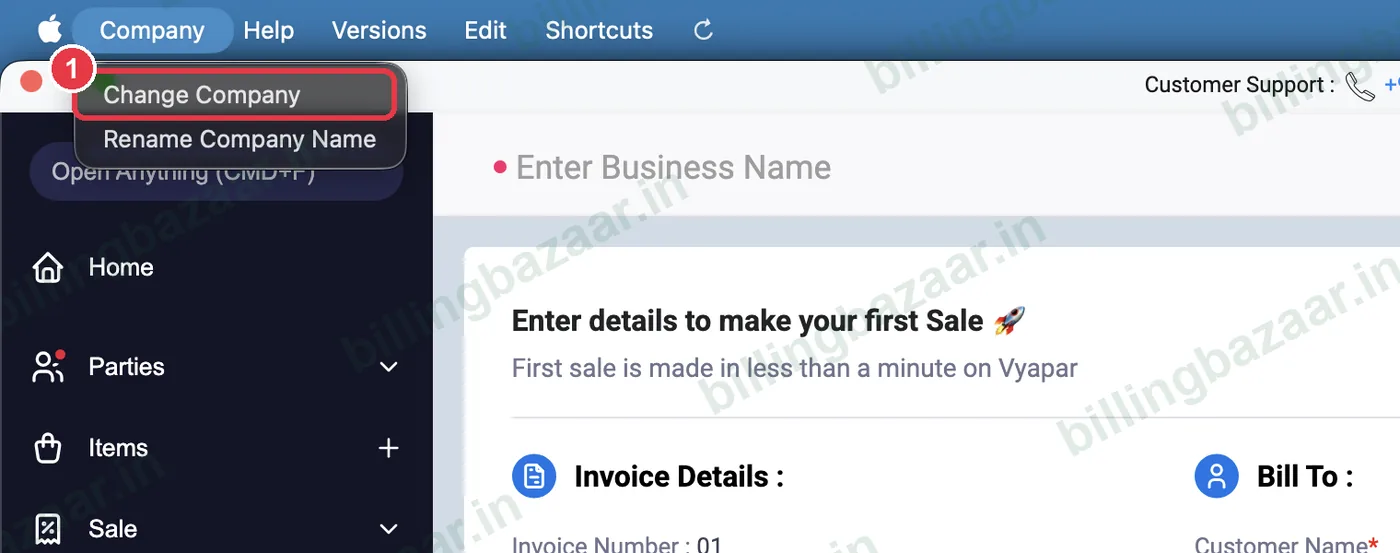
1Open Company > Change Company
In the menu bar at the top of the screen, click Company, then Change Company. This opens the Manage Companies screen.
2Click + Add New Company
Manage Companies lists every company on your login. Click the red + Add New Company button at the top right. Restore Backup next to it is for bringing back an old backup instead.

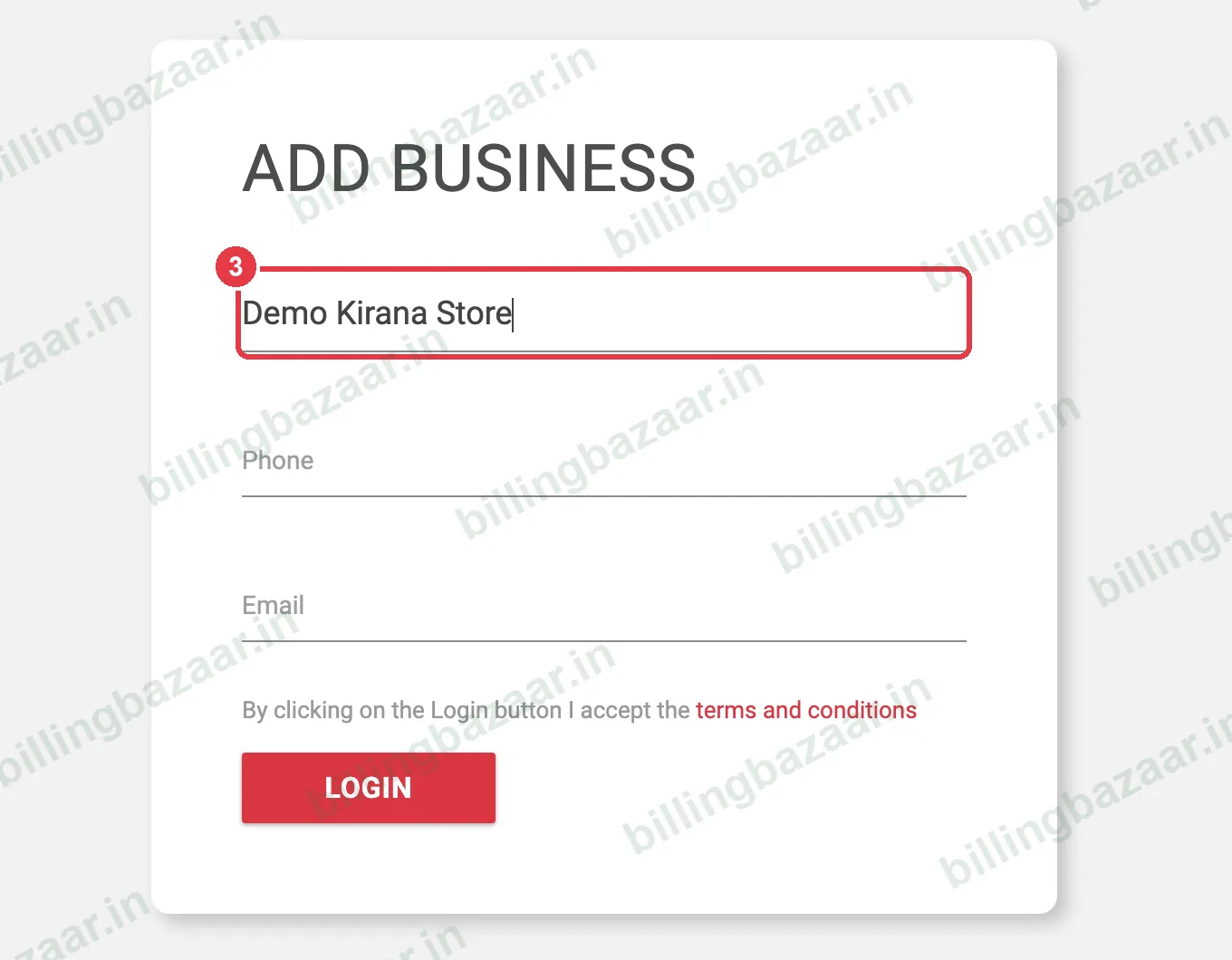
3Enter the business name
On the Add Business screen, type the name exactly as it should appear on invoices, for example Demo Kirana Store. You can change it later from Settings.
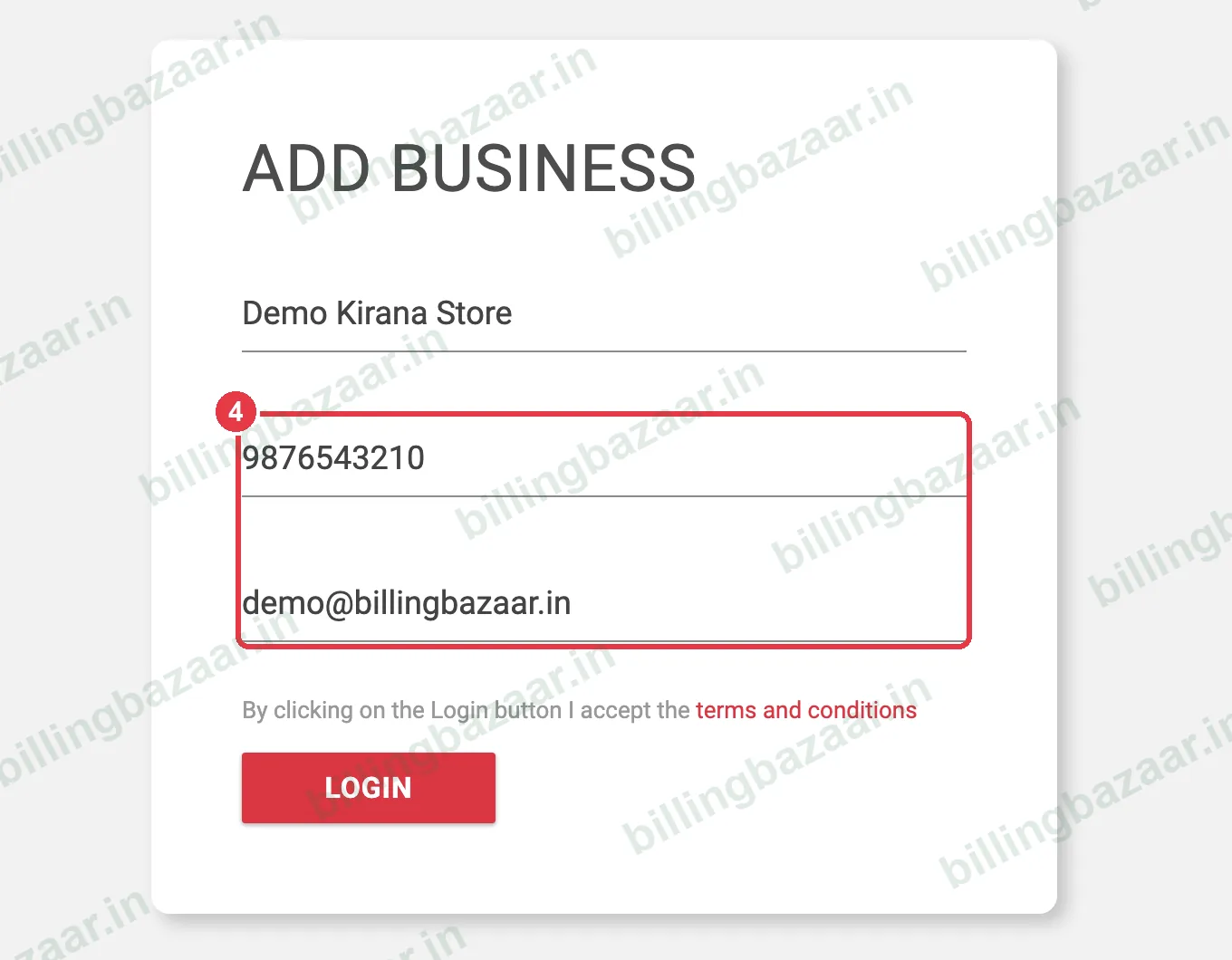
4Add the phone number and email
Enter the phone number and email for this business. They print on its invoices and are used for this company's details, so use the business contact, not necessarily your login number.
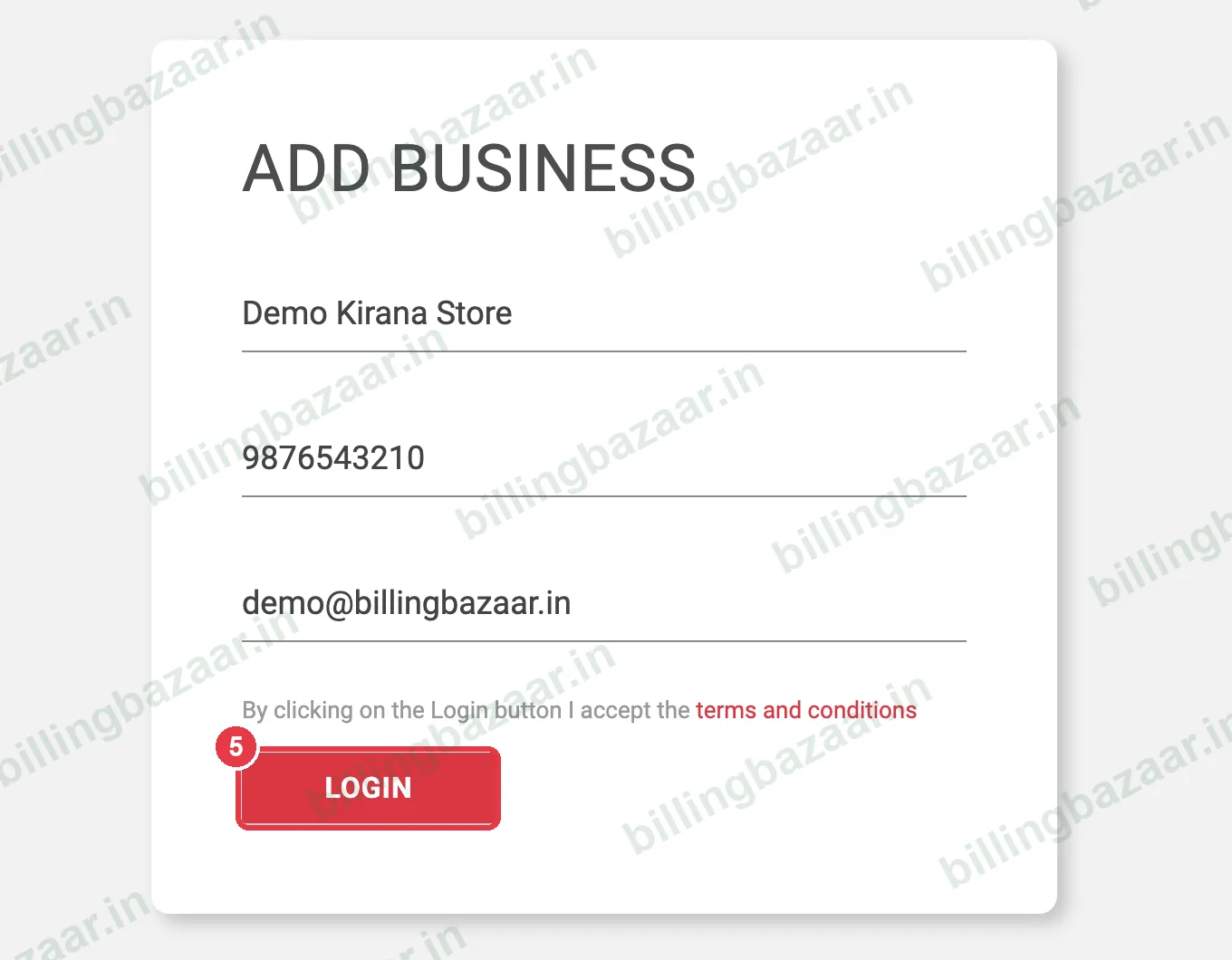
5Click Login to create the company
Click LOGIN. This accepts Vyapar's terms and creates the new company. It opens straight away, with a fresh invoice screen.
6Select India for tax setup
Vyapar asks for the country so it can set up taxes automatically. Choose India and click SELECT. This turns on GST tax rates and reports. Vyapar warns that the country cannot be changed later, so double-check it.
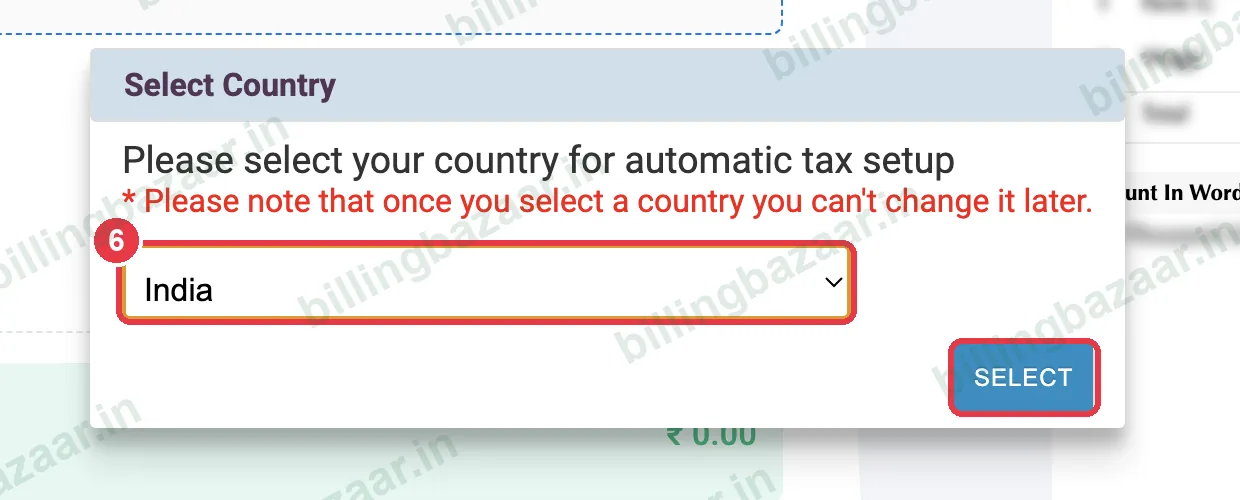
Tip: Choose the country where the business is registered for tax. It cannot be changed after this step.
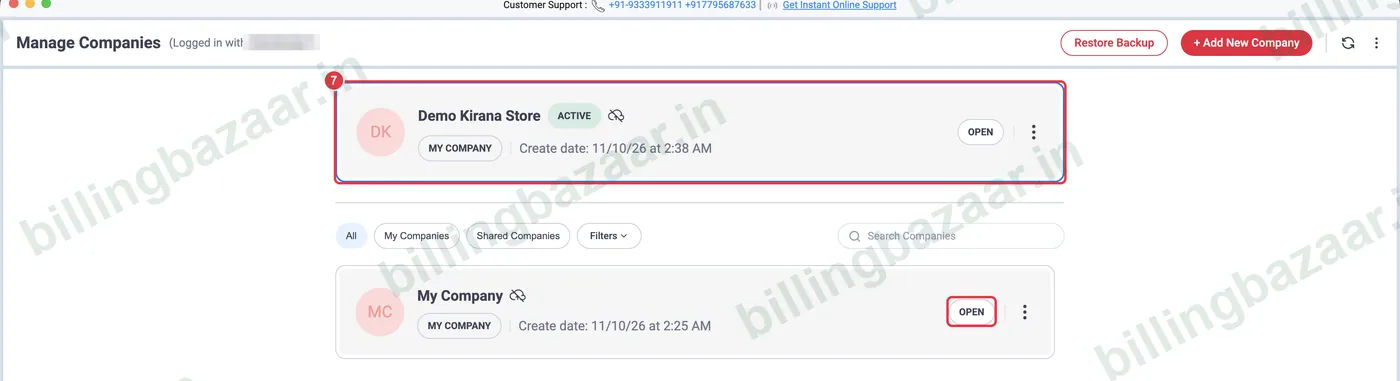
7Switch between companies
Open Company > Change Company again. The company you are working in is shown at the top as ACTIVE; every other company is listed below. Click OPEN next to a company to switch to it.
Good to know
- Each company keeps its own items, parties, invoices, stock and GST reports. Nothing is shared between them.
- Use a separate company for each GSTIN. Two shops under one GSTIN can usually stay in one company.
- Name each company clearly (for example Sharma Traders - Pune) so staff open the right one.
- Back up each company separately from Sync, Share & Backup.
Questions people ask
How many companies can I create in Vyapar?
Vyapar's Silver plan includes 3 companies and the Gold plan includes 5, as listed on its pricing page in October 2026. Check the current plan limits before adding more.
Do I need a separate login for each company?
No. All companies sit under the same Vyapar login. You switch between them from Company > Change Company.
Can I change the company name later?
Yes. Use Company > Rename Company Name, or edit the business name in Settings.
Can I change the country after creating the company?
No. Vyapar fixes the country for tax setup once it is selected, so choose India for a GST-registered Indian business.
Is data shared between companies?
No. Items, parties, invoices and reports are separate for each company.
Related guides
Screenshots are from a demo company in Vyapar Desktop for Mac, October 2026. Menus can move slightly between app versions. Guide by Billing Bazaar, a Vyapar partner.