 Billing Bazaar
How to create a GST invoice in Vyapar
Once your items and customers are set up, a GST invoice in Vyapar takes under a minute. Vyapar fills in the customer's address, works out the place of supply, applies the right GST and splits it into CGST and SGST (or IGST) on the printed invoice.
Using Vyapar on your phone? See the mobile app version of this guide.
| Time needed | 2 minutes |
|---|---|
| Steps | 8, each with a screenshot |
| Tested on | Vyapar Desktop for Mac, October 2026 |
| Last updated | 11 October 2026 |
Before you start
- Your business details and GSTIN added (see the business details guide).
- Items saved with HSN code and GST rate, and the customer saved as a party. You can also add them from the invoice screen.
1Click + Add Sale
On the Vyapar home screen, click the red + Add Sale button at the top. You can also use Sale > Sale Invoices in the sidebar. Close any tip pop-ups that appear the first time.

2Choose the customer
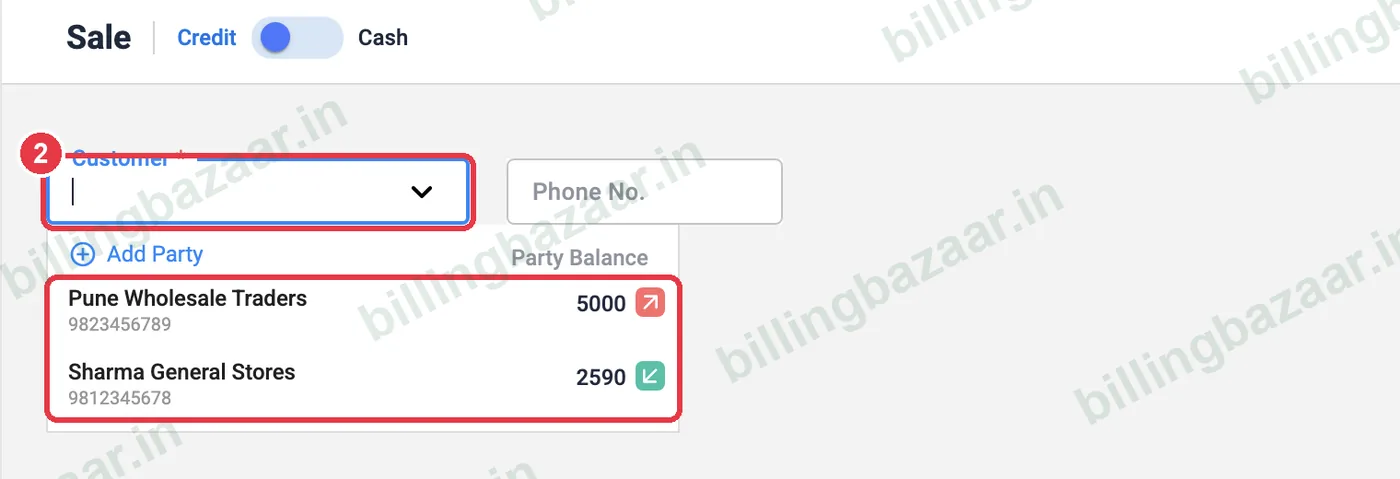
Click Customer and pick the party from the list. It shows each party's phone number and current balance. Use Add Party at the top of the list for a new customer. Use the Credit / Cash toggle for walk-in cash sales.
3Check address and state of supply
Vyapar fills in the phone number, Billing Address and the customer's balance, and sets State of supply from the customer's state. The invoice number and date are filled automatically.

Tip: If the State of supply is your own state, GST is split into CGST + SGST. For another state Vyapar charges IGST.
4Add the item
Click the first row under ITEM and type part of the item name. The list shows sale price, purchase price, stock in hand and location. Click the item to add it.

5Enter quantity and check tax
Type the QTY. Unit, price and the item's GST rate fill in from the item, and Vyapar calculates the tax amount and line amount. Add a discount % if needed, and click ADD ROW for more items.

6Record the payment received
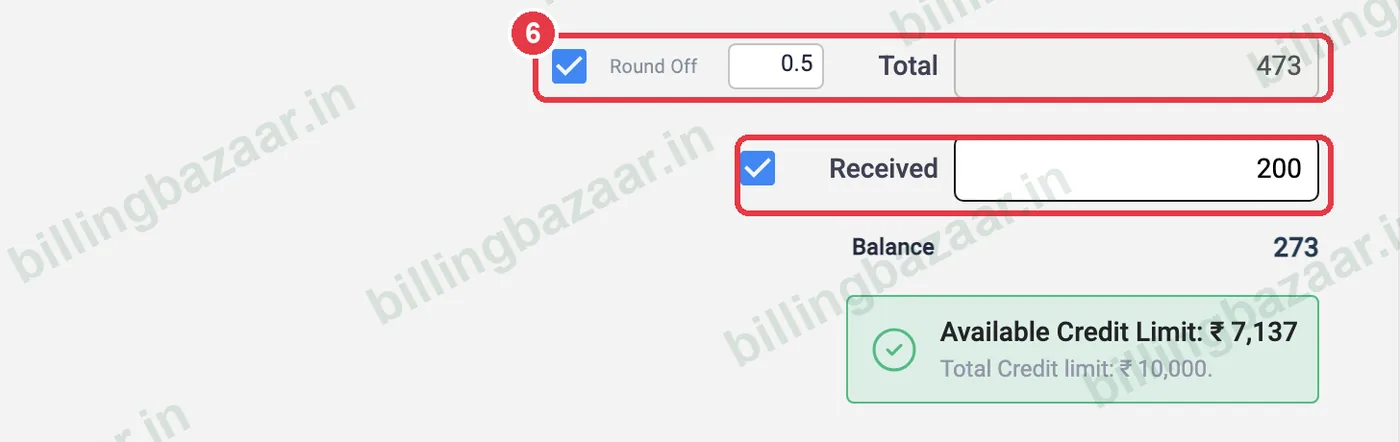
Vyapar shows the Total (rounded off). If the customer paid part now, tick Received and enter the amount; the Balance is added to their account. For customers with a credit limit, Vyapar shows how much credit is still available.
7Click Save
Click Save at the bottom right. If you use e-invoicing, Generate e-Invoice appears next to it.

8Print or share the invoice
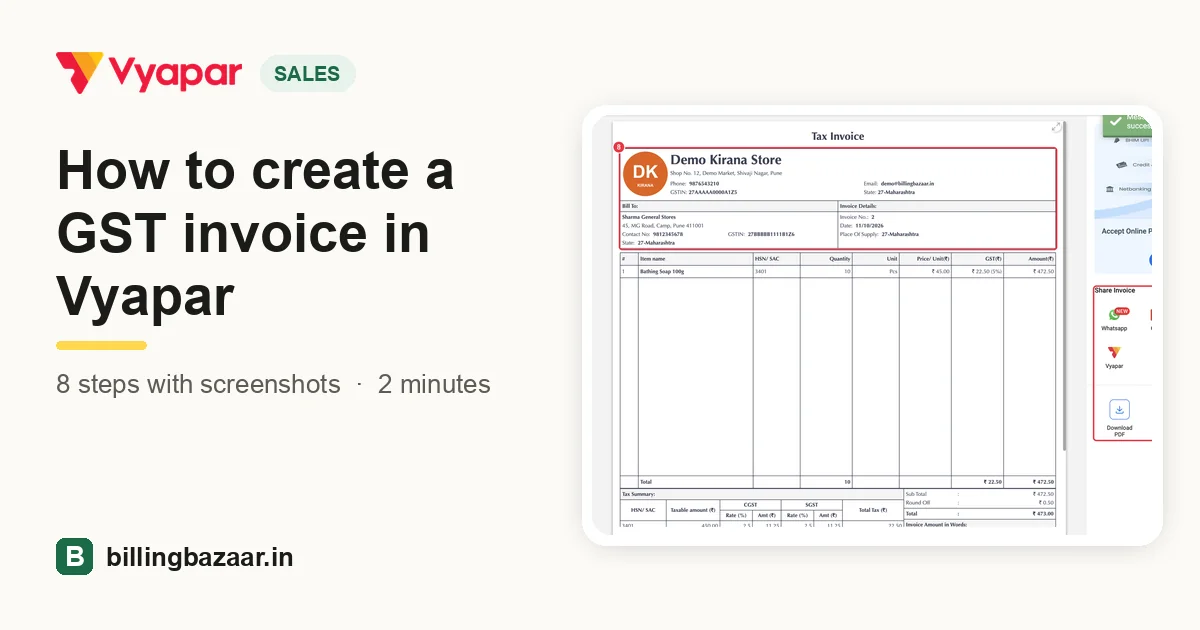
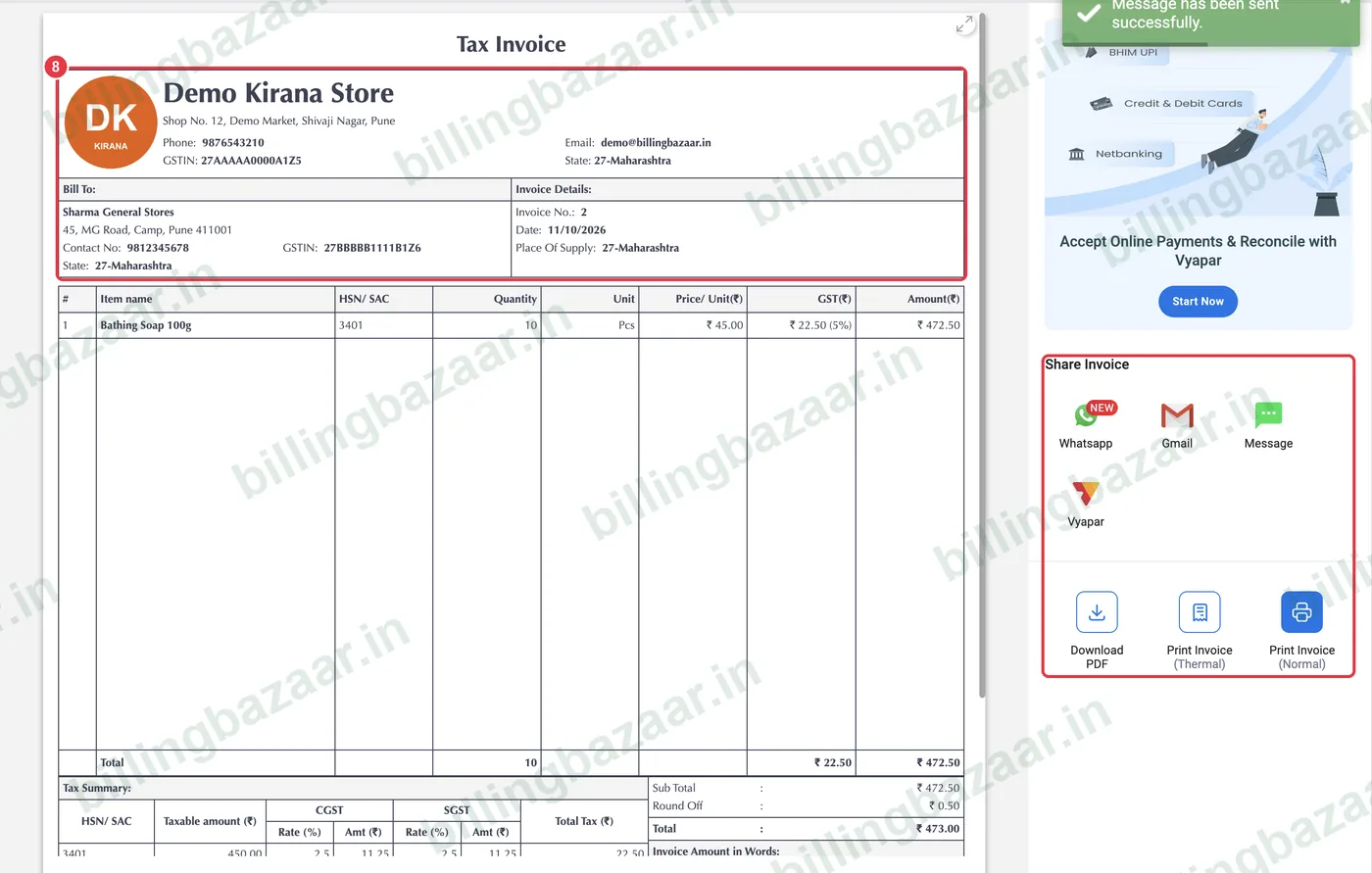
Vyapar opens the Tax Invoice preview with your logo, GSTINs, place of supply, HSN code and a CGST/SGST tax summary. Share it on WhatsApp, Gmail or SMS, Download PDF, or print on a normal or thermal printer. Choose a different look from the themes on the left.
Good to know
- Vyapar may send an automatic SMS to the customer when you save. Control it in Settings > Transaction Message.
- Use Cash mode for walk-in customers without saving them as parties.
- Save an invoice as a draft in a tab (+ at the top) to bill another customer and come back later.
- Edit or delete an invoice from Sale > Sale Invoices; Vyapar keeps an audit trail of changes.
Questions people ask
How do I make a GST bill in Vyapar?
Click Add Sale, choose the customer, add items with quantity, check the GST and total, enter any amount received and click Save. Vyapar then shows the tax invoice to print or share.
How does Vyapar decide CGST/SGST or IGST?
From the State of supply. If it matches your business state, tax is split into CGST and SGST; otherwise IGST is charged.
Can I give a discount on a Vyapar invoice?
Yes. Enter a discount % or amount on each item line, or a discount on the whole invoice.
How do I share a Vyapar invoice on WhatsApp?
After saving, click WhatsApp in the Share Invoice panel of the preview. You can also share later from the invoice list.
Is the invoice valid without a GSTIN?
Businesses that are not GST registered should issue a bill of supply instead of a tax invoice; Vyapar supports both.
Related guides
- How to add items with HSN code and GST rate in Vyapar
- How to add customers and suppliers in Vyapar
- How to share an invoice on WhatsApp from Vyapar
- How to print an invoice (A4 and thermal) in Vyapar
- How to change the invoice format and theme in Vyapar
- How to turn off or customise automatic SMS to customers in Vyapar
Useful for these businesses
- Vyapar for medical stores
- Vyapar for building material shops
- Vyapar for electronics shops
- Vyapar for mobile shops
- Vyapar for cosmetics shops
- Vyapar for furniture shops
More on Vyapar
Screenshots are from a demo company in Vyapar Desktop for Mac, October 2026. Menus can move slightly between app versions. Guide by Billing Bazaar, a Vyapar partner.