 Billing Bazaar
How to restore a backup in Vyapar
If you move to a new computer or need to recover data, restore your latest Vyapar backup. The backup brings back items, parties, transactions and settings as they were when it was taken.
| Time needed | 2 minutes |
|---|---|
| Steps | 3, each with a screenshot |
| Tested on | Vyapar Desktop for Mac, October 2026 |
| Last updated | 11 October 2026 |
Before you start
- The .vyb backup file, copied to the computer.
- Take a fresh backup of the current data first if you might need it.
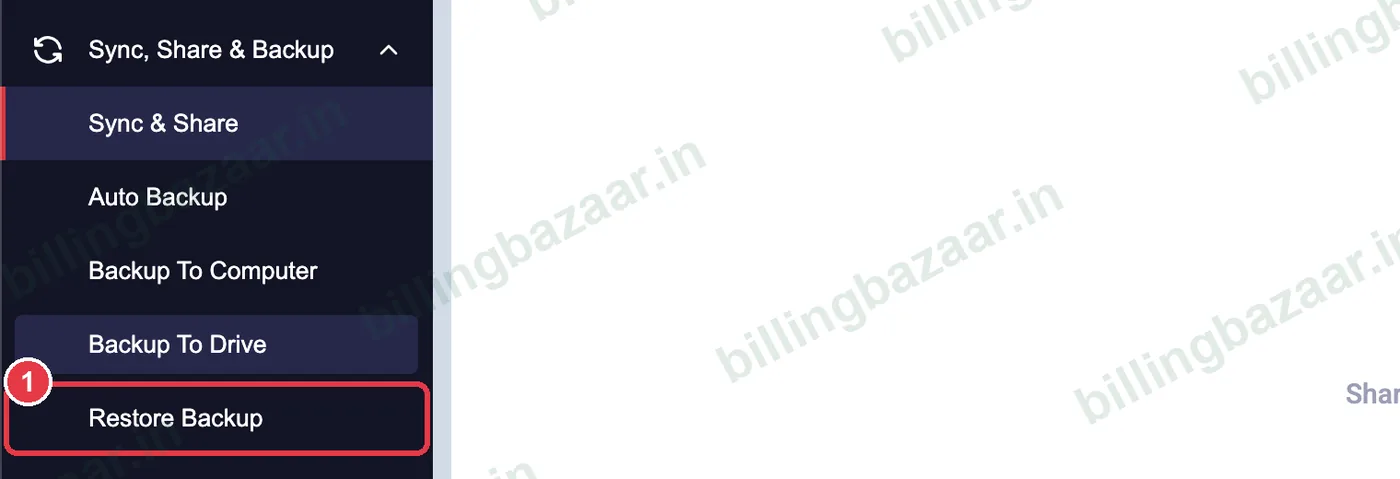
1Open Restore Backup
Click Sync, Share & Backup > Restore Backup.
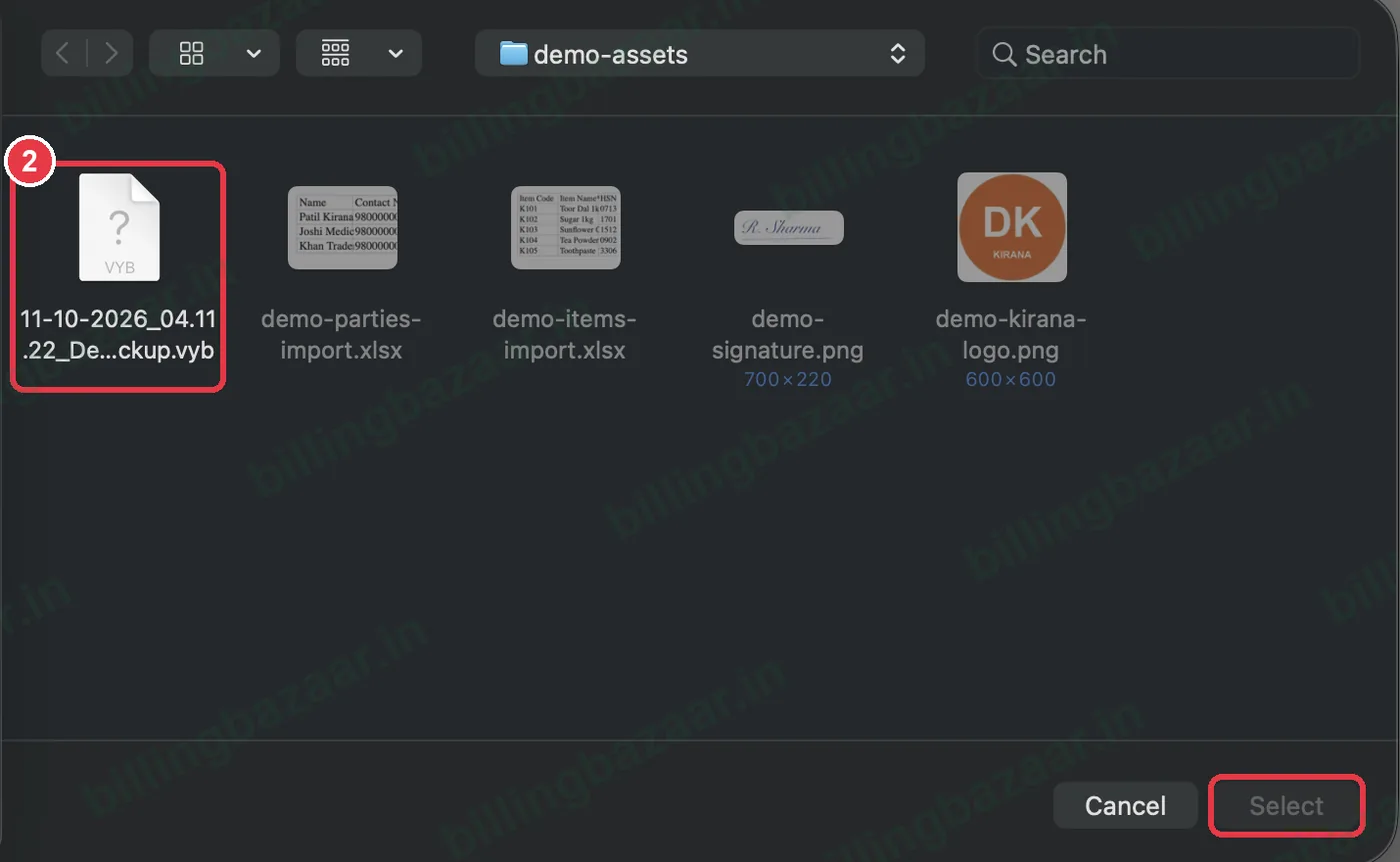
2Choose the backup file
Select the .vyb file (its name shows the date, time and company) and click Select. Follow the prompts to complete the restore.
3Or restore from Manage Companies
On a new computer, open Company > Change Company and click Restore Backup next to Add New Company.

Good to know
- Restore the most recent backup to lose the least data.
- Restoring may replace current data; back up first.
- Ask Vyapar support if a backup file will not open.
Questions people ask
How do I restore Vyapar backup?
Sync, Share & Backup > Restore Backup, select the .vyb file and confirm.
Can I restore on a new computer?
Yes. Install Vyapar, log in, and use Restore Backup from Manage Companies.
Will restoring delete my current data?
It can replace it, so take a backup of current data first.
Related guides
Screenshots are from a demo company in Vyapar Desktop for Mac, October 2026. Menus can move slightly between app versions. Guide by Billing Bazaar, a Vyapar partner.