 Billing Bazaar
How to switch between companies in Vyapar
If you run more than one business in Vyapar, each has its own data. Switching takes two clicks, and the active company is always shown in the sidebar so you do not bill from the wrong firm.
| Time needed | 1 minute |
|---|---|
| Steps | 4, each with a screenshot |
| Tested on | Vyapar Desktop for Mac, October 2026 |
| Last updated | 11 October 2026 |
Before you start
- At least two companies on your Vyapar login (see the multiple companies guide).
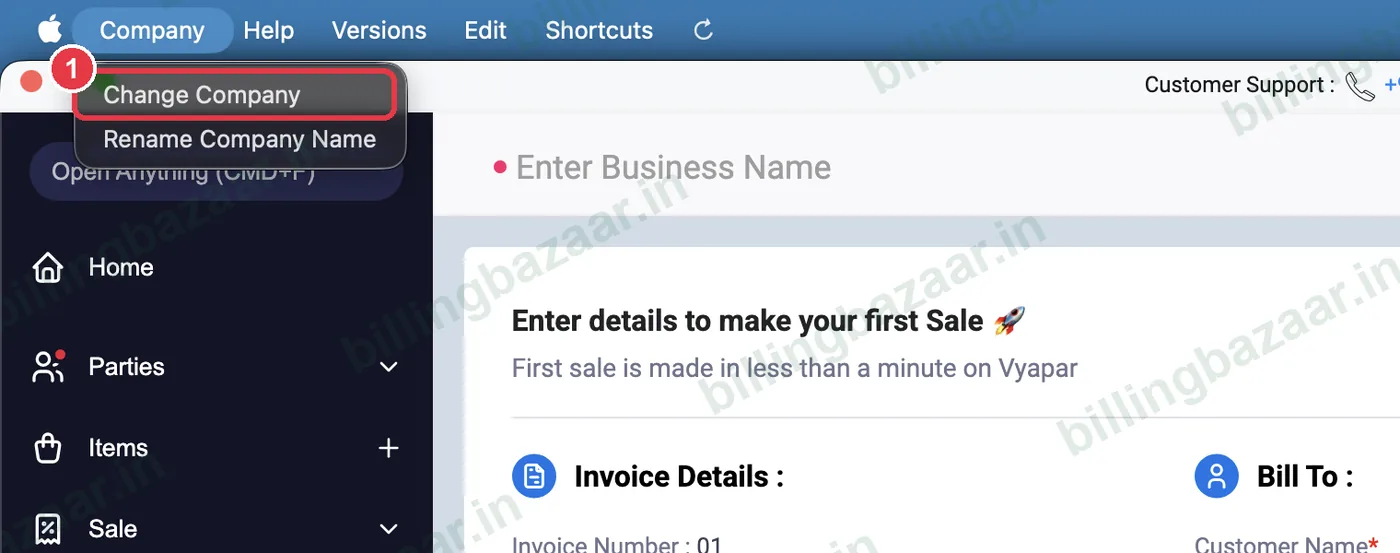
1Open Company > Change Company
In the menu bar click Company > Change Company.
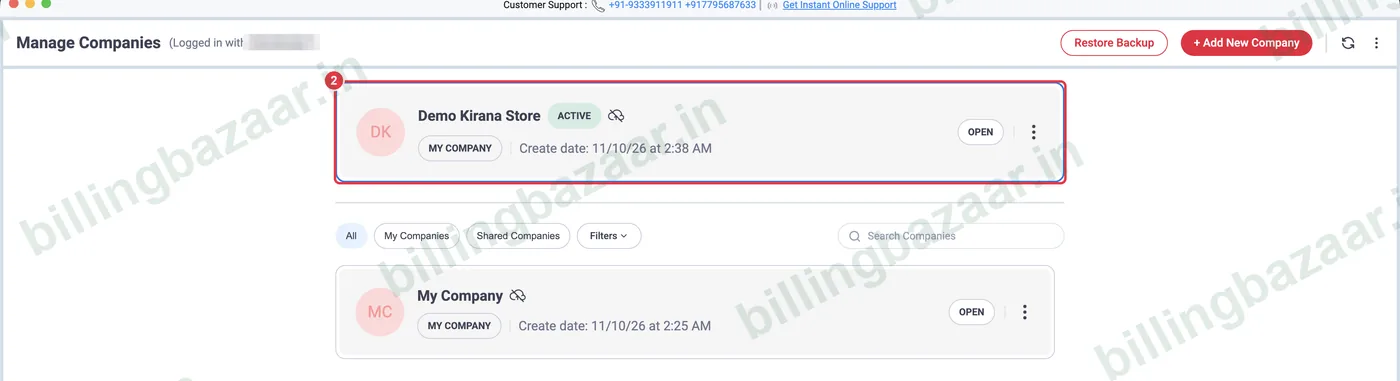
2See the active company
Manage Companies shows the company you are in at the top, marked ACTIVE.
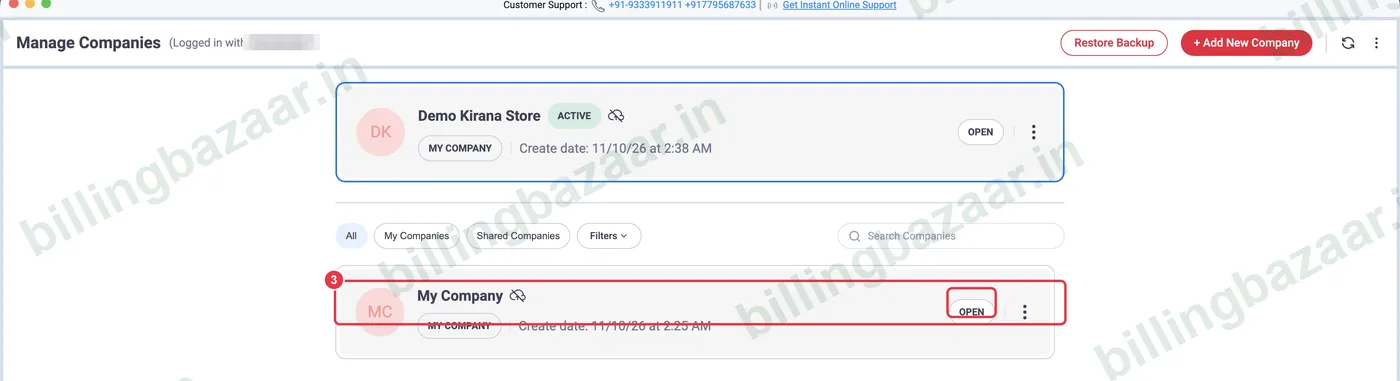
3Open another company
Below, find the company you want (use Search Companies if you have many) and click OPEN. Vyapar loads that company.
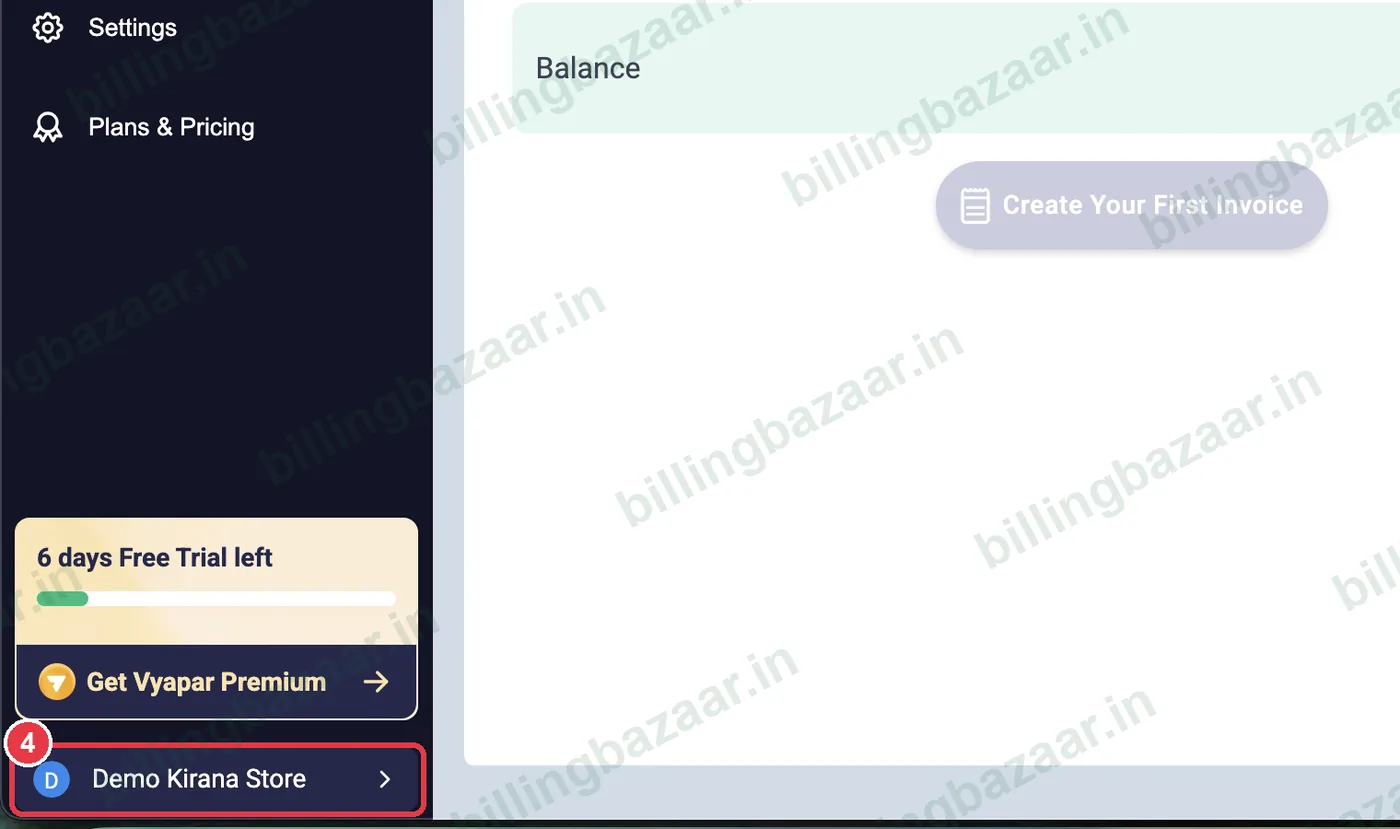
4Confirm in the sidebar
The company name at the bottom of the sidebar changes to the one you opened.
Good to know
- Shared Companies lists companies other users shared with you.
- Each company has its own backup.
- Close open invoices before switching; unsaved ones are discarded.
Questions people ask
How do I change company in Vyapar?
Company > Change Company, then click OPEN on the company you want.
How do I know which company I am in?
Its name is at the bottom of the sidebar and it is marked ACTIVE in Manage Companies.
Is data shared between companies?
No. Each company has separate items, parties and transactions.
Related guides
- How to create multiple companies in Vyapar
- How to take a backup in Vyapar
- How to add business details and GSTIN in Vyapar
Screenshots are from a demo company in Vyapar Desktop for Mac, October 2026. Menus can move slightly between app versions. Guide by Billing Bazaar, a Vyapar partner.