 Billing Bazaar
How to take a backup in Vyapar
Your billing data is your business record. Vyapar desktop stores it on your computer, so a regular backup protects you against a crashed disk, theft or a mistaken delete.
| Time needed | 2 minutes |
|---|---|
| Steps | 4, each with a screenshot |
| Tested on | Vyapar Desktop for Mac, October 2026 |
| Last updated | 11 October 2026 |
Before you start
- Enough disk space or a pen drive / cloud folder for the backup file.
1Open Backup To Computer
In the sidebar click Sync, Share & Backup > Backup To Computer.
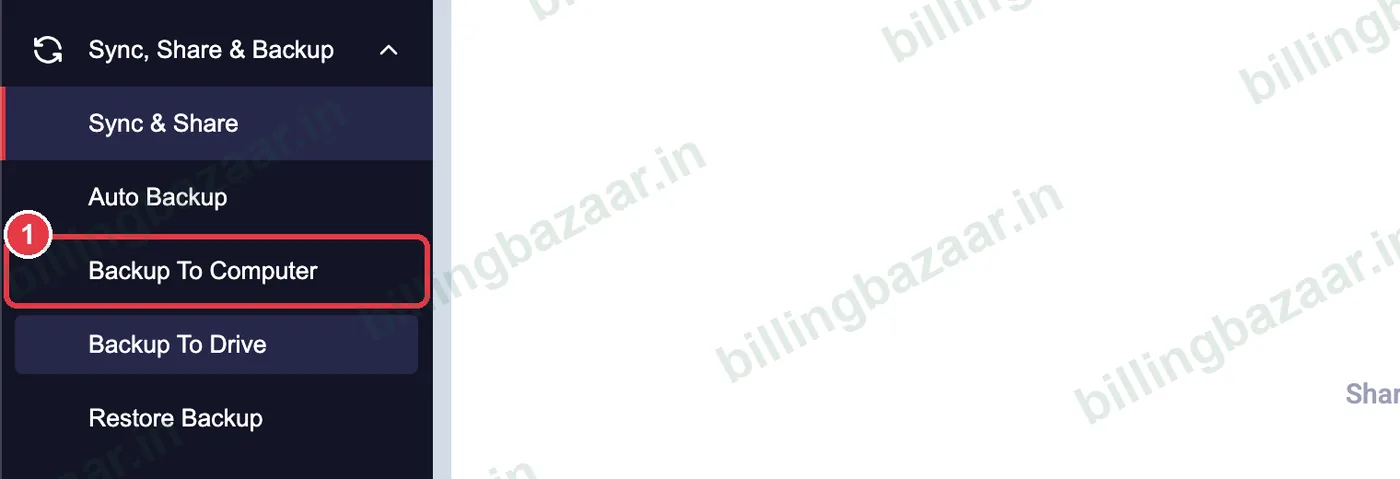
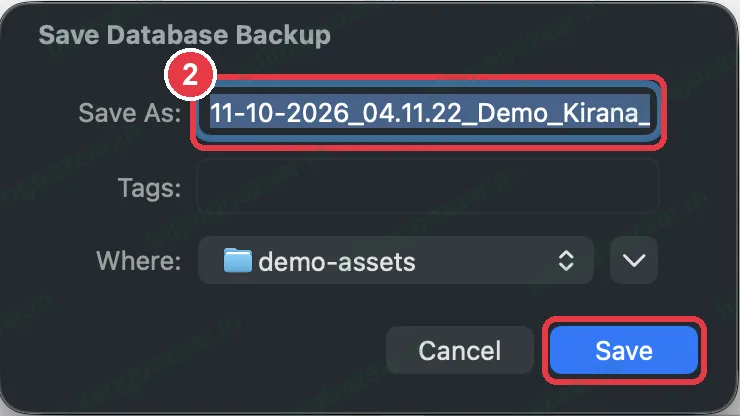
2Save the backup file
The Save Database Backup window suggests a name with the date, time and company (ending in VypBackup.vyb). Choose a folder, ideally a pen drive or cloud folder, and click Save.
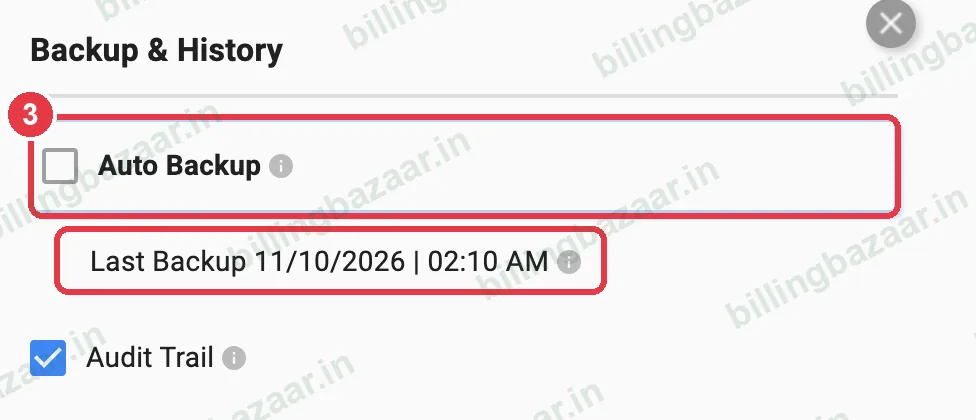
3Turn on Auto Backup
In Settings > GENERAL, tick Auto Backup under Backup & History. Vyapar shows the time of the last backup.
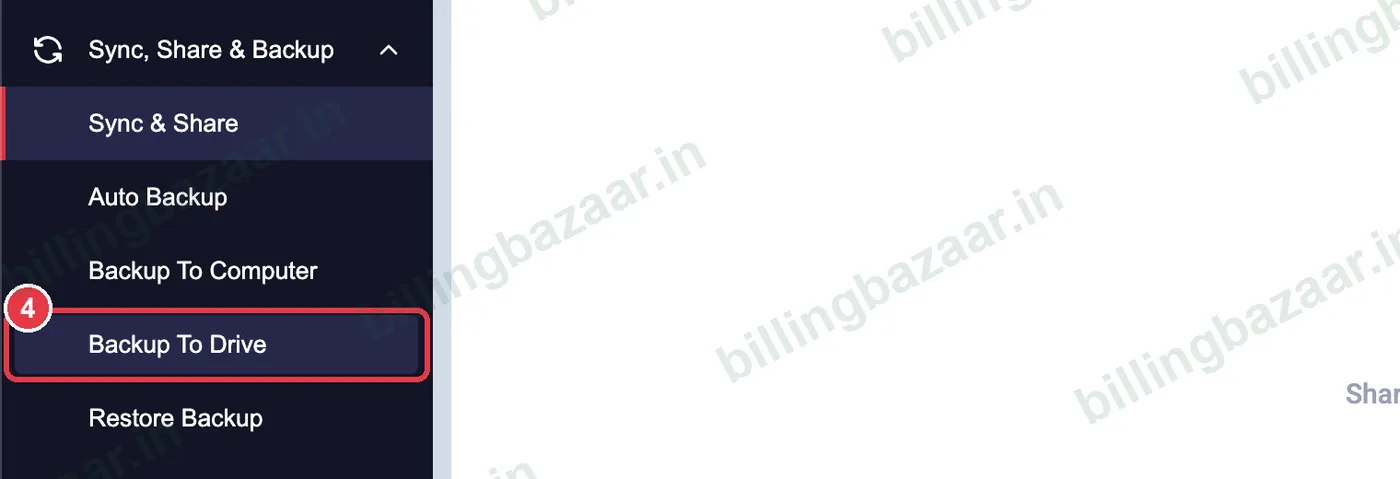
4Back up to Google Drive
Backup To Drive saves a copy to your Google Drive after you sign in with Google.
Good to know
- Keep backups in two places, for example the computer and Google Drive.
- Back up before updating Vyapar or changing computers.
- Each company is backed up separately; switch company and repeat.
Questions people ask
How do I back up Vyapar data?
Sync, Share & Backup > Backup To Computer, choose a folder and click Save.
What is a .vyb file?
Vyapar's backup file format. Restore it with Restore Backup.
Does Vyapar back up automatically?
Turn on Auto Backup in Settings > General.
Related guides
- How to restore a backup in Vyapar
- How to create multiple companies in Vyapar
- How to delete or cancel an invoice in Vyapar
Screenshots are from a demo company in Vyapar Desktop for Mac, October 2026. Menus can move slightly between app versions. Guide by Billing Bazaar, a Vyapar partner.