 Billing Bazaar
How to add your business logo and signature in Vyapar
A logo and an authorised signature make Vyapar invoices look professional and ready to send. Both are added from the same Edit Profile screen in the Vyapar desktop app.
| Time needed | 2 minutes |
|---|---|
| Steps | 7, each with a screenshot |
| Tested on | Vyapar Desktop for Mac, October 2026 |
| Last updated | 11 October 2026 |
Before you start
- Your logo as a PNG or JPG file, ideally square and at least 300 x 300 pixels.
- A signature image: sign on white paper, photograph or scan it, and crop it tight. A transparent PNG looks best.
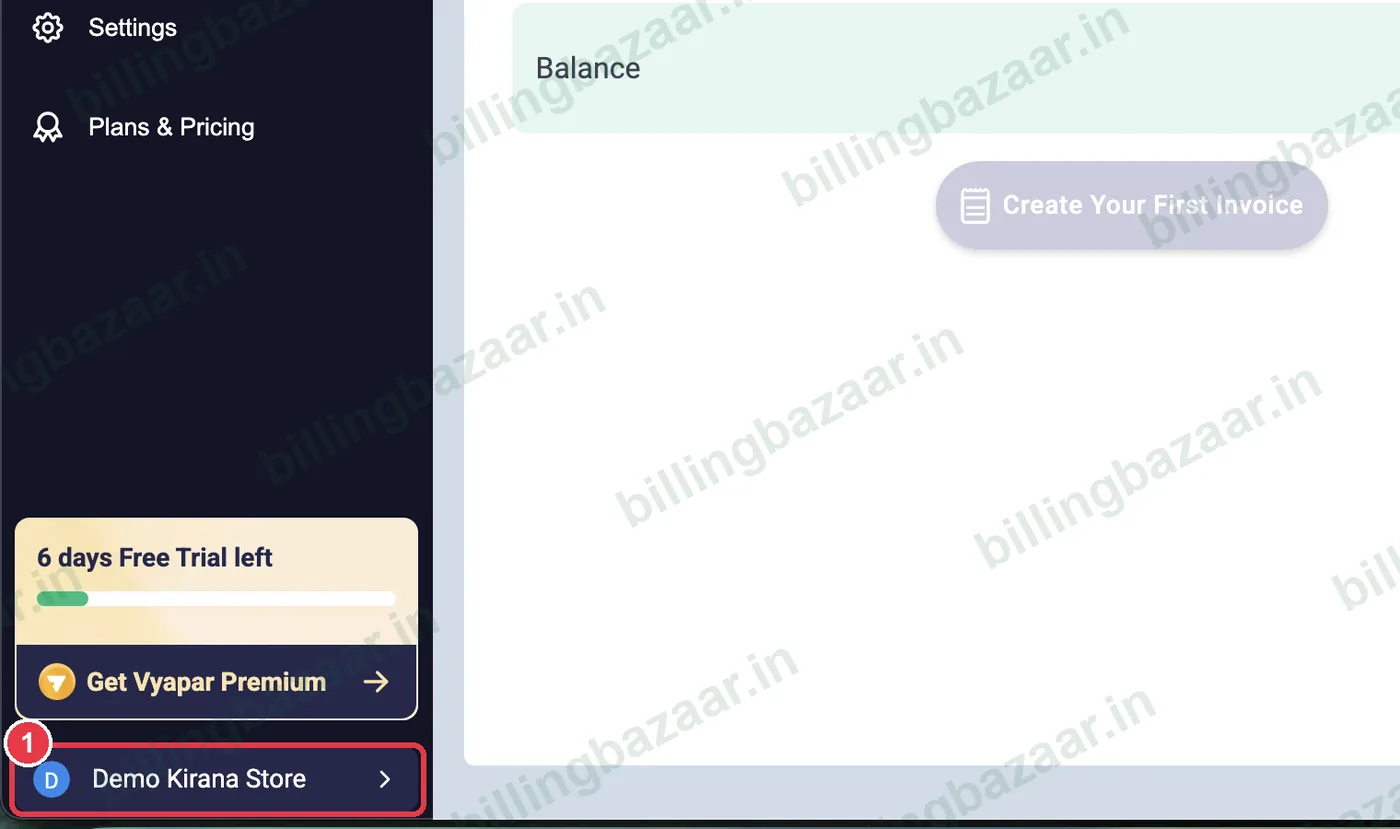
1Open Edit Profile
Click your company name at the bottom of the left sidebar. If an unsaved invoice is open, confirm with Ok to continue.
2Click Add Logo
At the top of Edit Profile, click the round Add Logo circle (or the small pencil icon on it).

3Choose your logo file
A file window opens. Go to the folder with your logo, select the image and click Select (or double-click the file).
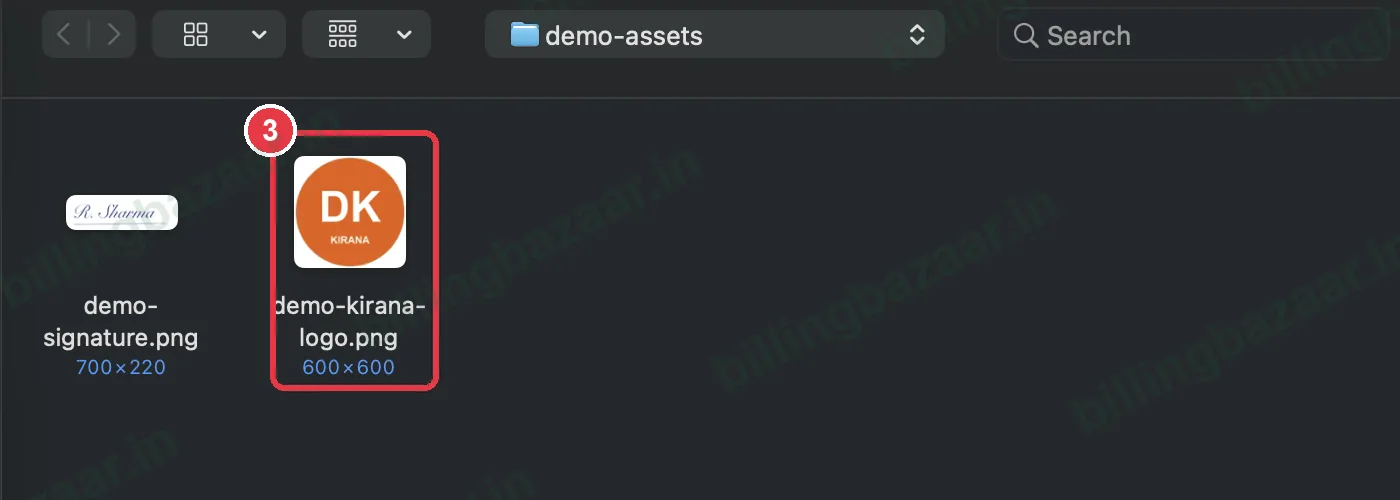
Tip: Square logos fit the round frame best. Very wide logos get shrunk.
4Check the logo
The logo now appears in the circle. If it looks blurry or cut off, click it again and choose a better image.

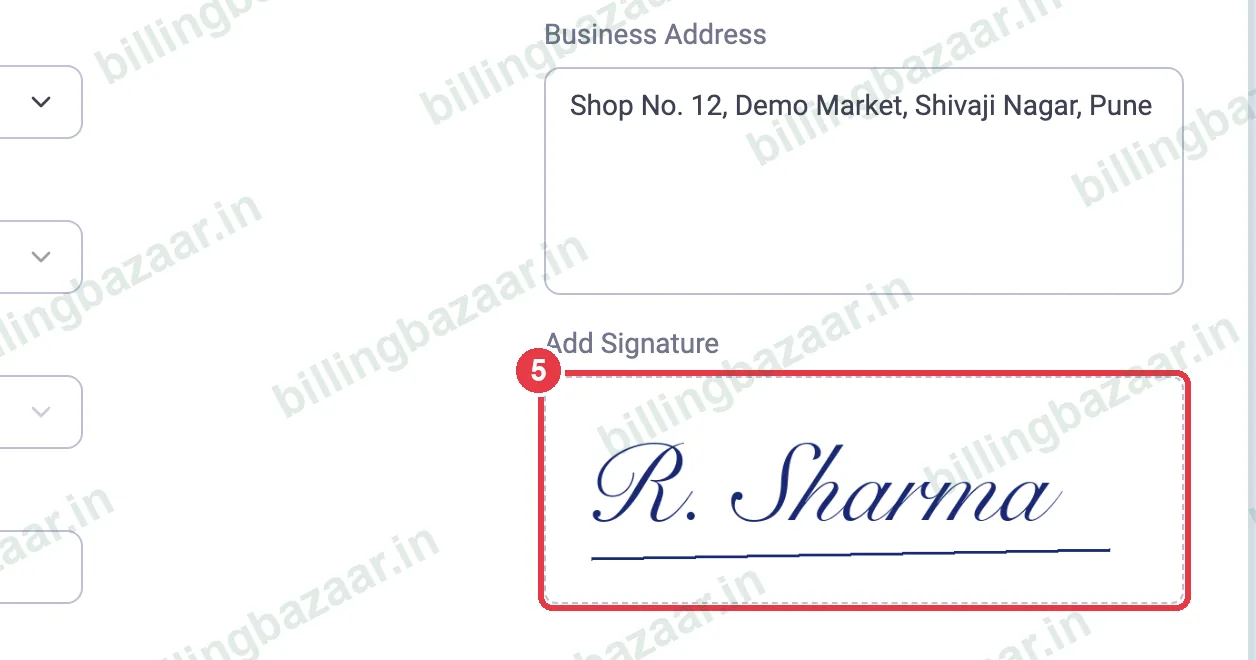
5Upload your signature
On the right, click Upload Signature under Add Signature and choose your signature image the same way. It prints above Authorised Signatory on invoices.
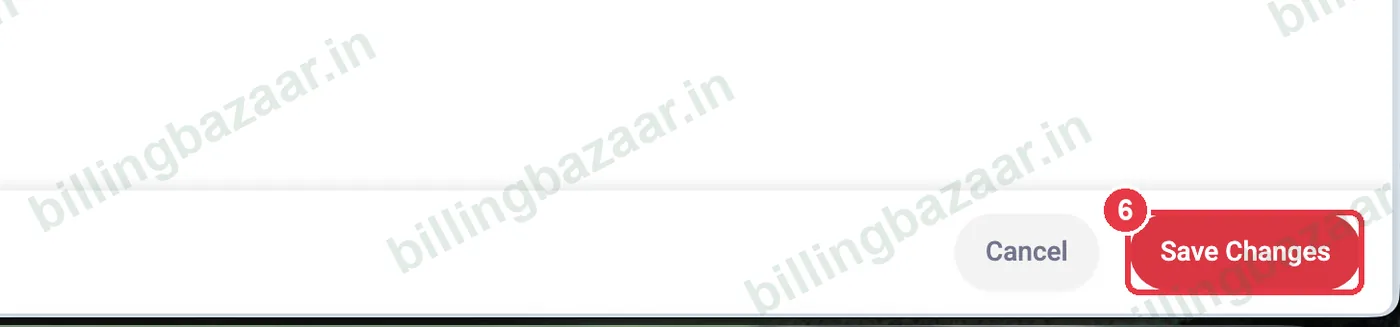
6Click Save Changes
Click the red Save Changes button at the bottom right.
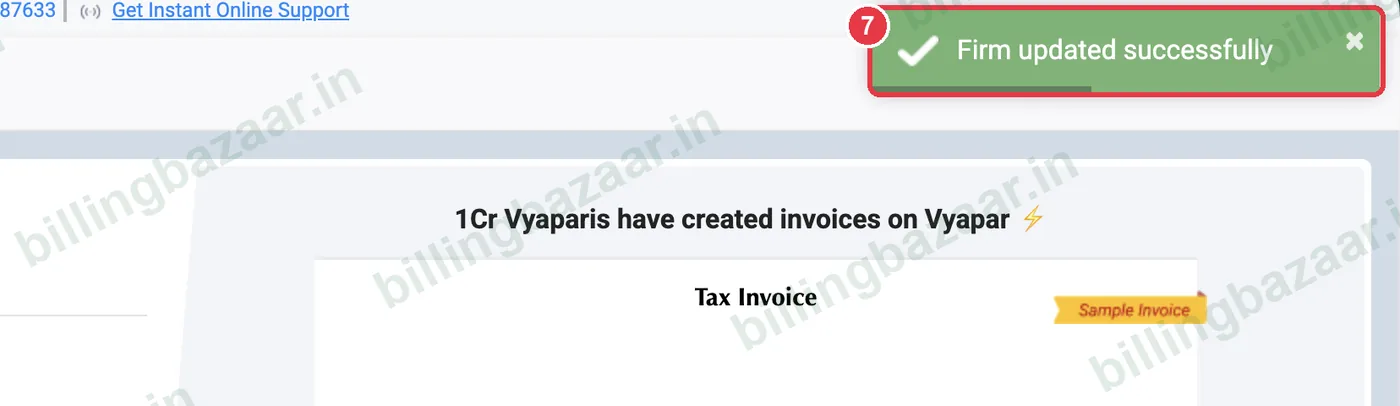
7Check the confirmation
Vyapar shows Firm updated successfully. New invoices now carry your logo and signature.
Good to know
- To replace the logo, click the logo circle again and pick a new file before saving.
- Keep the signature image small and tightly cropped; large white borders make it print tiny.
- If the logo does not show on invoices, check that the invoice theme you use includes a logo area.
Questions people ask
Where do I add a logo in Vyapar?
Click your company name at the bottom of the sidebar to open Edit Profile, click the Add Logo circle, choose the image and click Save Changes.
What size should the Vyapar logo be?
A square PNG or JPG of at least 300 x 300 pixels works well. It is shown in a round frame, so keep important parts in the centre.
How do I add a signature to Vyapar invoices?
In Edit Profile, click Upload Signature under Add Signature, choose a cropped image of your signature and click Save Changes.
Can I change the logo later?
Yes. Open Edit Profile, click the logo circle, choose a new image and save.
Related guides
- How to add business details and GSTIN in Vyapar
- How to change the invoice format and theme in Vyapar
- How to create a GST invoice in Vyapar
Screenshots are from a demo company in Vyapar Desktop for Mac, October 2026. Menus can move slightly between app versions. Guide by Billing Bazaar, a Vyapar partner.