 Billing Bazaar
How to record business expenses in Vyapar
Expenses such as shop rent, salaries, electricity and transport are not purchases of stock, but they reduce your profit. Record them under Expenses in Vyapar, grouped by category, so your profit and loss report shows the real picture.
| Time needed | 1 minute |
|---|---|
| Steps | 6, each with a screenshot |
| Tested on | Vyapar Desktop for Mac, October 2026 |
| Last updated | 11 October 2026 |
Before you start
- The expense amount and how you paid it (cash or bank).
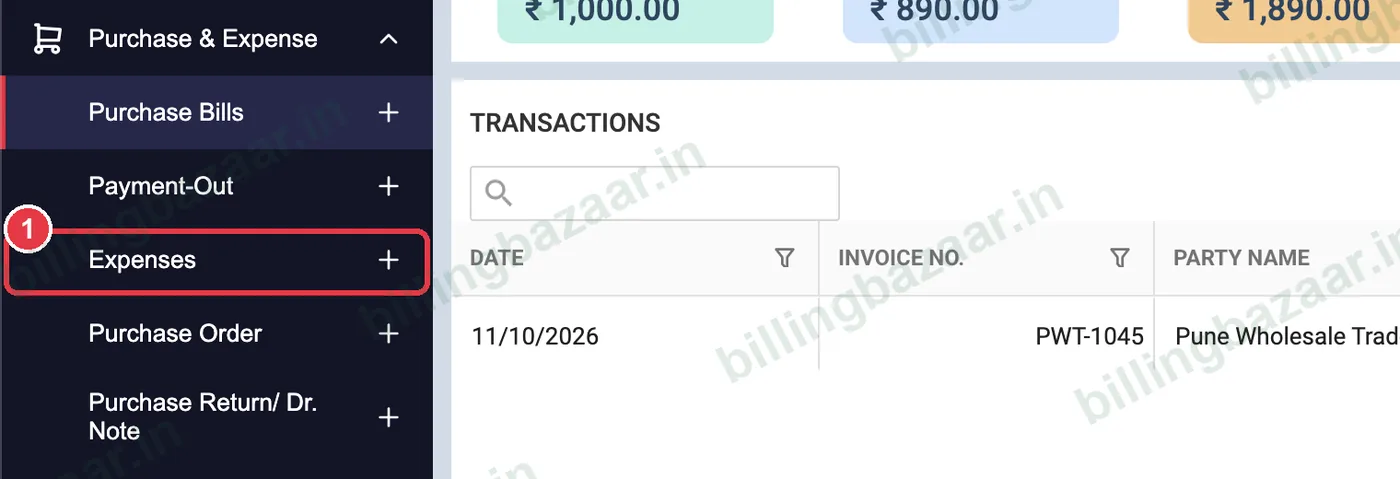
1Open Purchase & Expense > Expenses
In the sidebar click Purchase & Expense, then the + next to Expenses.
2Choose the expense category
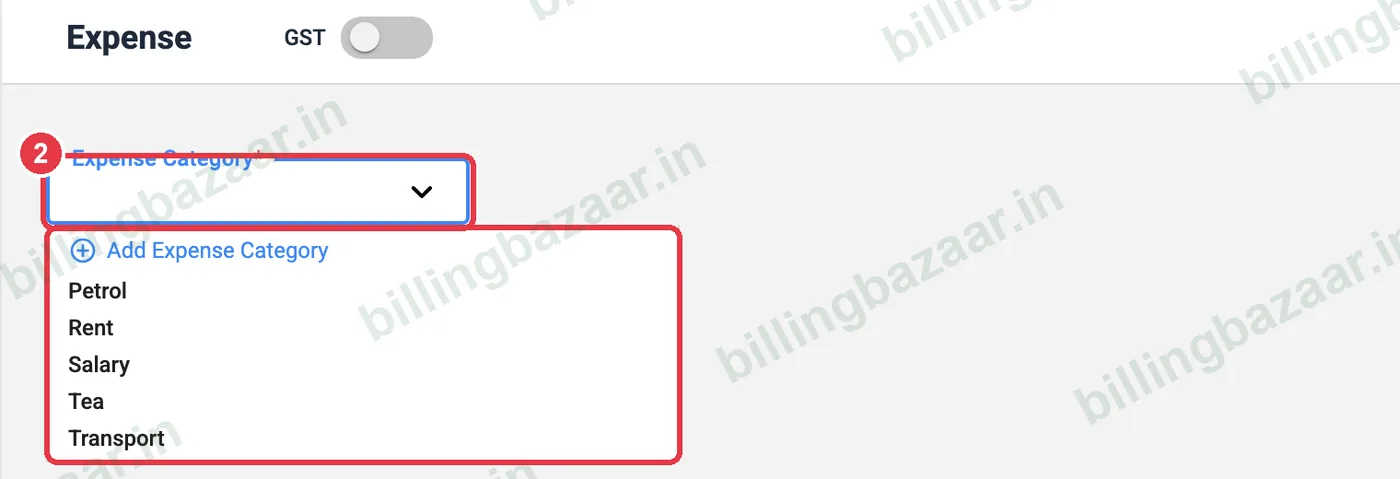
Open Expense Category. Vyapar includes Petrol, Rent, Salary, Tea and Transport; use Add Expense Category for others like Electricity or Internet.
3Turn on GST if there is a tax bill
Switch on GST at the top if the expense has a GST invoice (for example rent from a registered landlord). This adds a party and tax so you can claim input tax credit.

4Enter the details
Under ITEM describe the expense (for example Shop rent - October), enter QTY and PRICE/UNIT.

5Choose payment type and save
Pick the Payment Type (Cash or bank) and check the Total. Click Save.

6See expenses by category
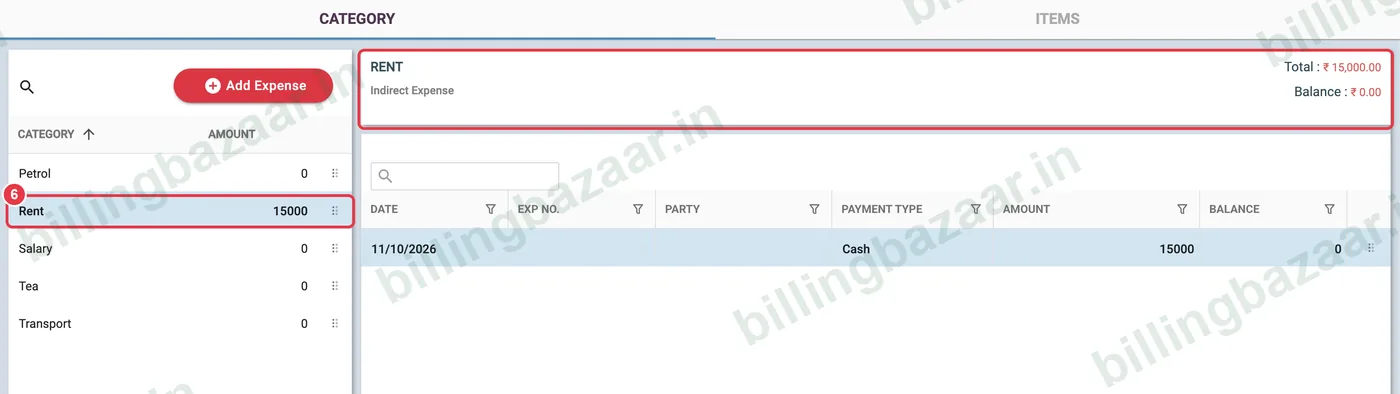
Purchase & Expense > Expenses shows the total spent in each category. Click a category to see its transactions.
Good to know
- Expenses appear in the profit and loss report as indirect or direct expenses.
- Use the ITEMS tab of Expenses to save expense items you repeat every month.
- Attach a photo of the bill with ADD IMAGE.
Questions people ask
How do I add an expense in Vyapar?
Go to Purchase & Expense > Expenses, choose a category, enter the description and amount, pick the payment type and click Save.
Can I add GST on an expense?
Yes. Turn on the GST toggle at the top of the expense to add the supplier and tax.
Where do I see total expenses?
In Purchase & Expense > Expenses by category, and in the profit and loss report.
How do I add a new expense category?
Open the Expense Category list and click Add Expense Category.
Related guides
- How to see the profit and loss report in Vyapar
- How to enter a purchase bill in Vyapar
- How to record a payment made (Payment Out) in Vyapar
Screenshots are from a demo company in Vyapar Desktop for Mac, October 2026. Menus can move slightly between app versions. Guide by Billing Bazaar, a Vyapar partner.