 Billing Bazaar
How to give staff and accountant access in Vyapar
Vyapar lets staff bill from their own devices and lets your accountant see your books, each with a role that controls what they can view or edit. Both features work through Vyapar Sync, which keeps your company in the cloud so several people can use it.
| Time needed | 2 minutes |
|---|---|
| Steps | 2, each with a screenshot |
| Tested on | Vyapar Desktop for Mac, October 2026 |
| Last updated | 11 October 2026 |
Before you start
- A Vyapar plan that includes Sync & Share (marked with a crown).
- Your staff's or CA's phone numbers.
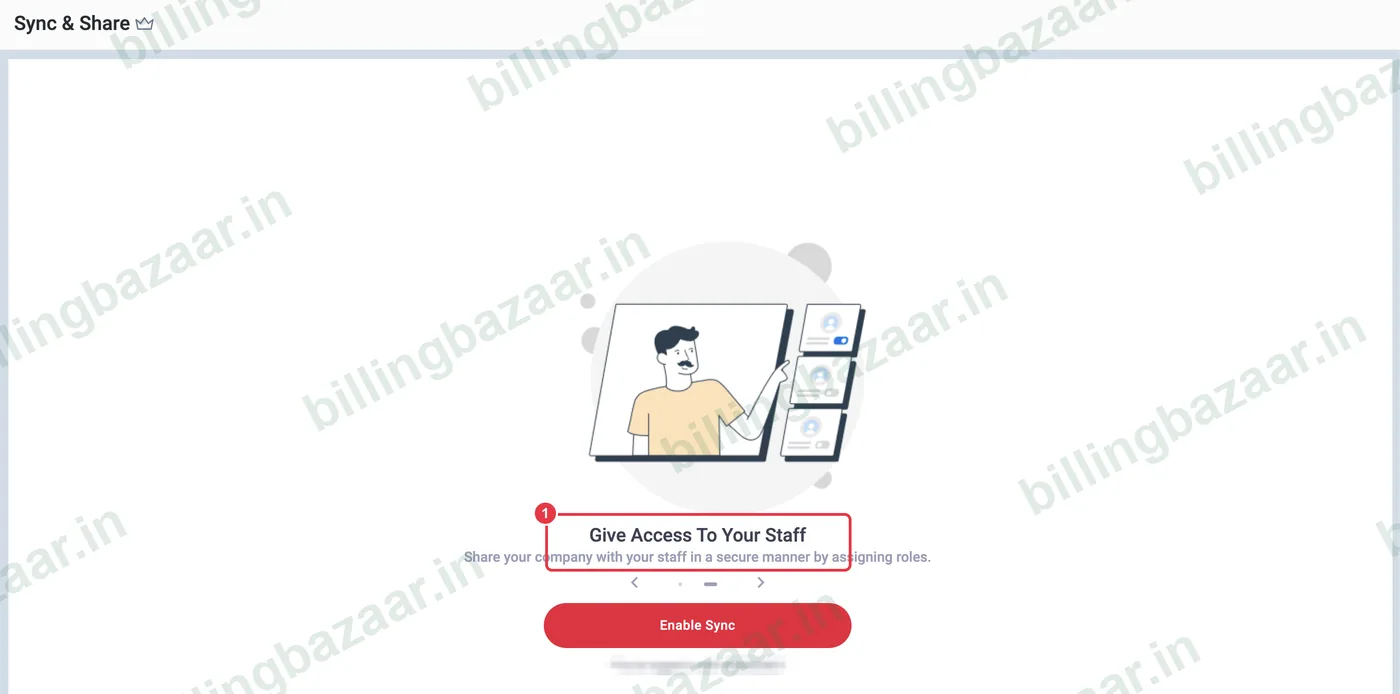
1Open Sync & Share
Click Sync, Share & Backup > Sync & Share. Vyapar explains Give Access To Your Staff: share your company securely by assigning roles. Click Enable Sync to turn on cloud sync for this company, then add users with their phone number and a role such as Salesman, Biller or Admin.
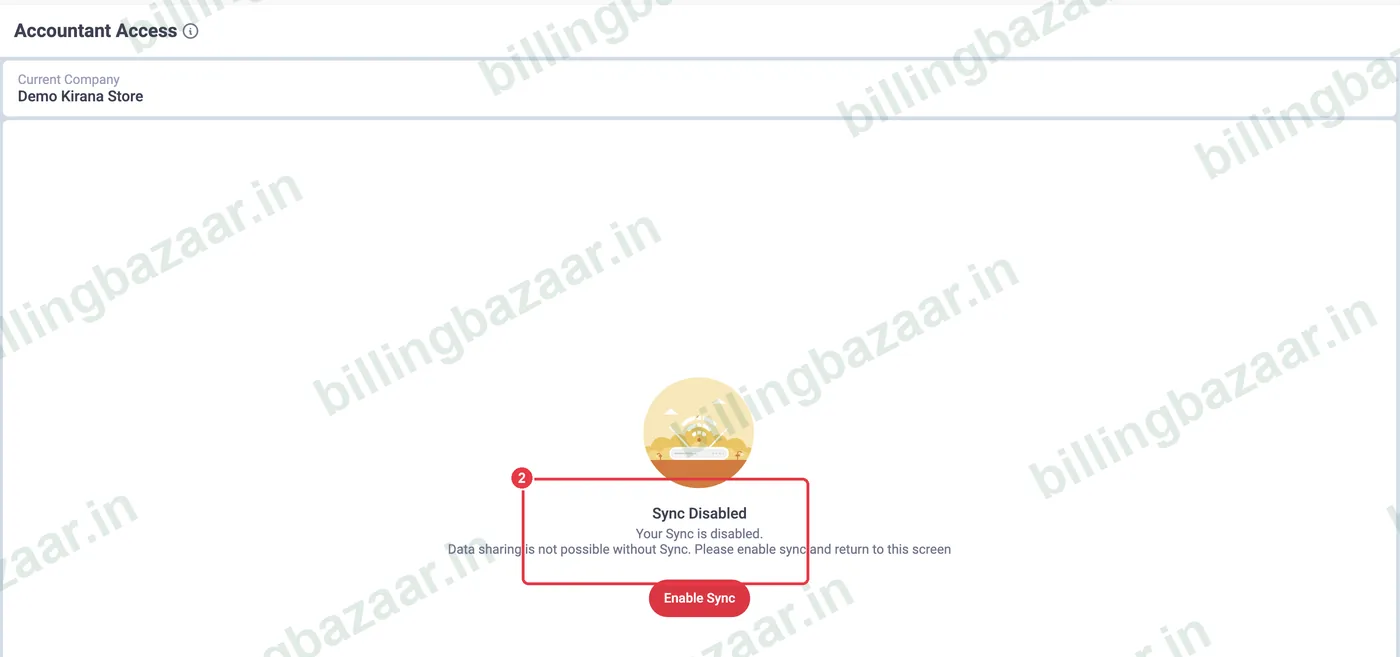
2Accountant Access
For your CA, open Utilities > Accountant Access. It also needs Sync enabled; once on, invite the accountant so they can view reports and records without changing your billing.
Good to know
- Give each person the lowest role they need.
- Remove a user when staff leave.
- Sync also lets you use the same company on mobile and desktop.
Questions people ask
How do I add staff in Vyapar?
Enable Sync in Sync, Share & Backup > Sync & Share, then add users with their phone numbers and roles.
Can my CA access my Vyapar data?
Yes, through Utilities > Accountant Access after Sync is enabled.
Is Sync free?
Sync & Share is part of Vyapar's paid features; check your plan.
Related guides
- How to take a backup in Vyapar
- How to switch between companies in Vyapar
- How to export data from Vyapar to Tally
Screenshots are from a demo company in Vyapar Desktop for Mac, October 2026. Menus can move slightly between app versions. Guide by Billing Bazaar, a Vyapar partner.