 Billing Bazaar
How to create a purchase order in Vyapar
A purchase order tells your supplier what you want to buy and by when. Vyapar keeps a list of open orders and lets you convert an order into a purchase bill when the goods arrive.
| Time needed | 2 minutes |
|---|---|
| Steps | 5, each with a screenshot |
| Tested on | Vyapar Desktop for Mac, October 2026 |
| Last updated | 11 October 2026 |
Before you start
- The supplier saved as a party.
- Sale/Purchase Order turned on in Settings (on by default).
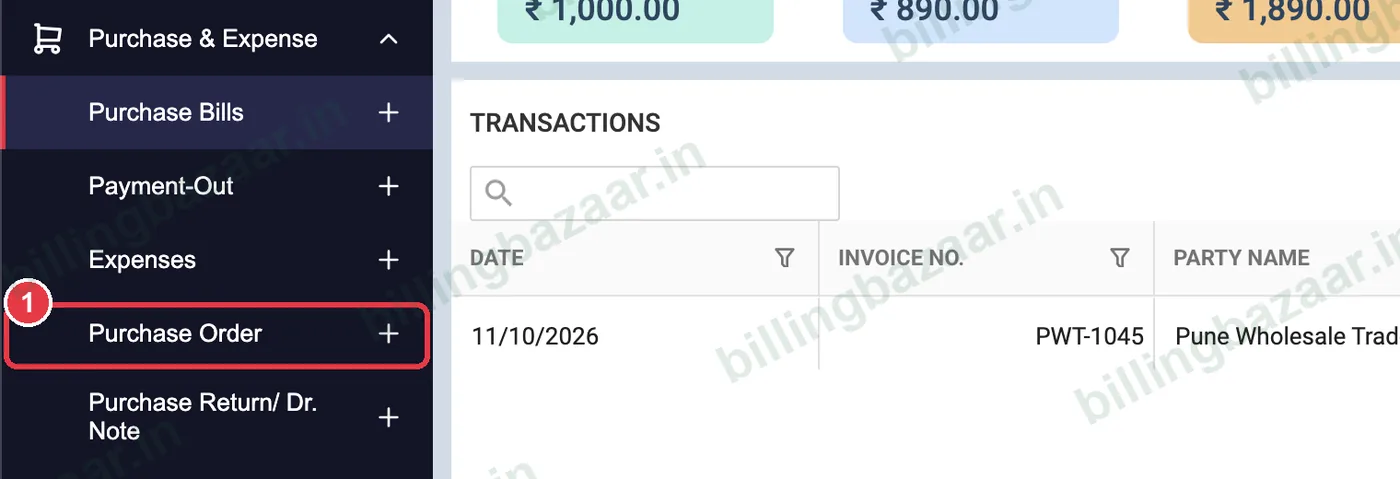
1Open Purchase & Expense > Purchase Order
In the sidebar click Purchase & Expense, then the + next to Purchase Order.
2Choose supplier and due date
Pick the supplier in Party. Vyapar sets the Order No.; set the Due Date by which you need the goods.

3Add items and quantity
Add the items and QTY you are ordering. The purchase price and GST fill in from the item.

4Record any advance and save
If you paid the supplier an advance, tick Advance amount and enter it. Click Save and share the order with the supplier.

5Track and convert orders
Purchase & Expense > Purchase Order lists orders with status such as Order Overdue. Click CONVERT TO PURCHASE when the goods arrive to create the purchase bill.

Good to know
- Purchase orders do not change stock until converted to a purchase.
- Use the low stock report to decide what to order.
- Share the order PDF on WhatsApp so the supplier has the exact list.
Questions people ask
How do I make a purchase order in Vyapar?
Go to Purchase & Expense > Purchase Order, choose the supplier, add items and quantity, set the due date and click Save.
Does a purchase order add stock?
No. Stock increases only when you convert the order into a purchase bill.
How do I convert a purchase order to a purchase bill?
Open Purchase & Expense > Purchase Order and click CONVERT TO PURCHASE on the order.
Related guides
- How to enter a purchase bill in Vyapar
- How to set low stock alerts in Vyapar
- How to create a sale order in Vyapar
Screenshots are from a demo company in Vyapar Desktop for Mac, October 2026. Menus can move slightly between app versions. Guide by Billing Bazaar, a Vyapar partner.