 Billing Bazaar
How to set low stock alerts in Vyapar
Running out of a fast-moving item loses sales. Vyapar warns you when an item falls to or below the minimum stock you set, both while billing and in the items list.
| Time needed | 1 minute |
|---|---|
| Steps | 3, each with a screenshot |
| Tested on | Vyapar Desktop for Mac, October 2026 |
| Last updated | 11 October 2026 |
Before you start
- A minimum quantity for each important item (for example two weeks of sales).
1Turn on the low stock warning
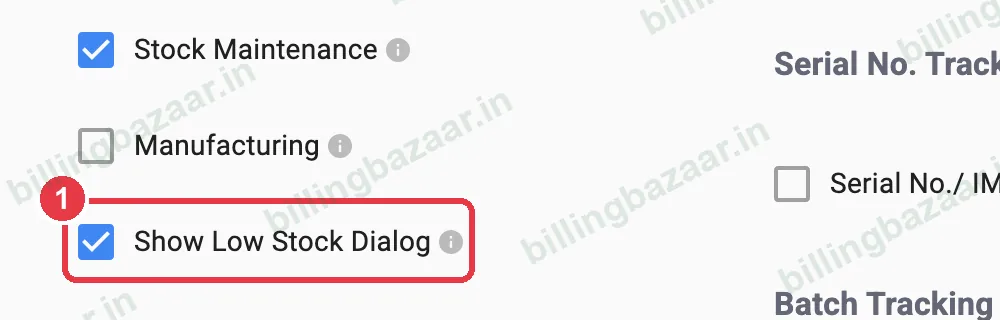
In Settings > ITEM, make sure Show Low Stock Dialog is ticked. Vyapar then warns you on invoices when an item goes low.
2Set Min Stock To Maintain
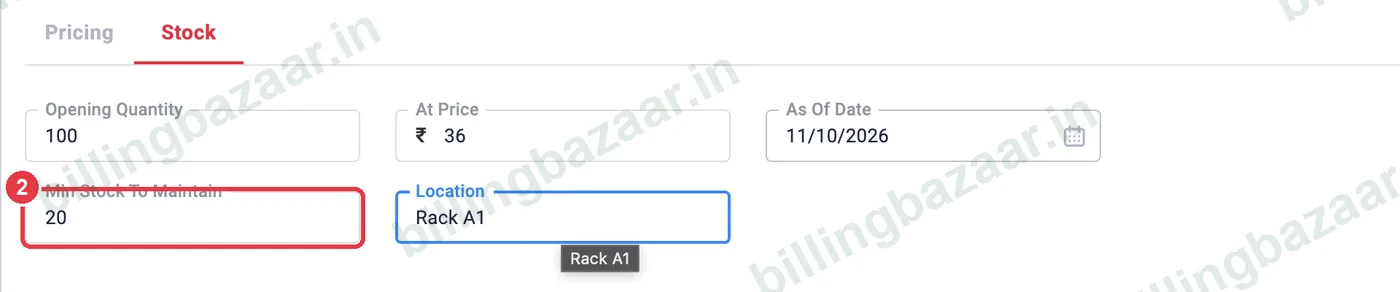
Open the item (Items > select > edit, or when adding it), go to the Stock tab and enter Min Stock To Maintain. Save.
3Watch for the warning
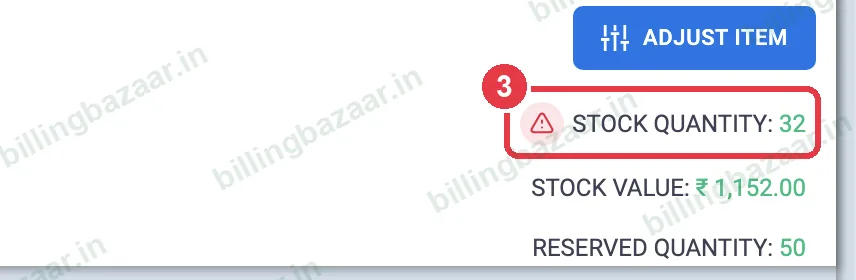
In Items, a red warning icon appears next to Stock Quantity when stock is near or below the minimum. The Low Stock Summary report lists every such item.
Good to know
- Use the Low Stock Summary report before placing purchase orders.
- Reserved quantity on open sale orders is shown separately, so check Available for Sale too.
- Review minimum levels each season.
Questions people ask
How do I get low stock alerts in Vyapar?
Set Min Stock To Maintain on each item and keep Show Low Stock Dialog ticked in Settings > Item.
Where do I see all low stock items?
Reports > Low Stock Summary under Item/ Stock report.
Does Vyapar stop sales when stock is low?
No, unless you tick Stop Sale on Negative Stock in Settings > General.
Related guides
- How to adjust stock in Vyapar
- How to create a purchase order in Vyapar
- How to see the stock summary report in Vyapar
Screenshots are from a demo company in Vyapar Desktop for Mac, October 2026. Menus can move slightly between app versions. Guide by Billing Bazaar, a Vyapar partner.