 Billing Bazaar
How to create a purchase return (debit note) in Vyapar
When you send goods back to a supplier, record a Purchase Return in Vyapar. It creates a debit note against the supplier's bill, removes the items from stock, reverses the input tax credit and reduces what you owe.
| Time needed | 2 minutes |
|---|---|
| Steps | 5, each with a screenshot |
| Tested on | Vyapar Desktop for Mac, October 2026 |
| Last updated | 11 October 2026 |
Before you start
- The supplier's bill number and date for the original purchase.
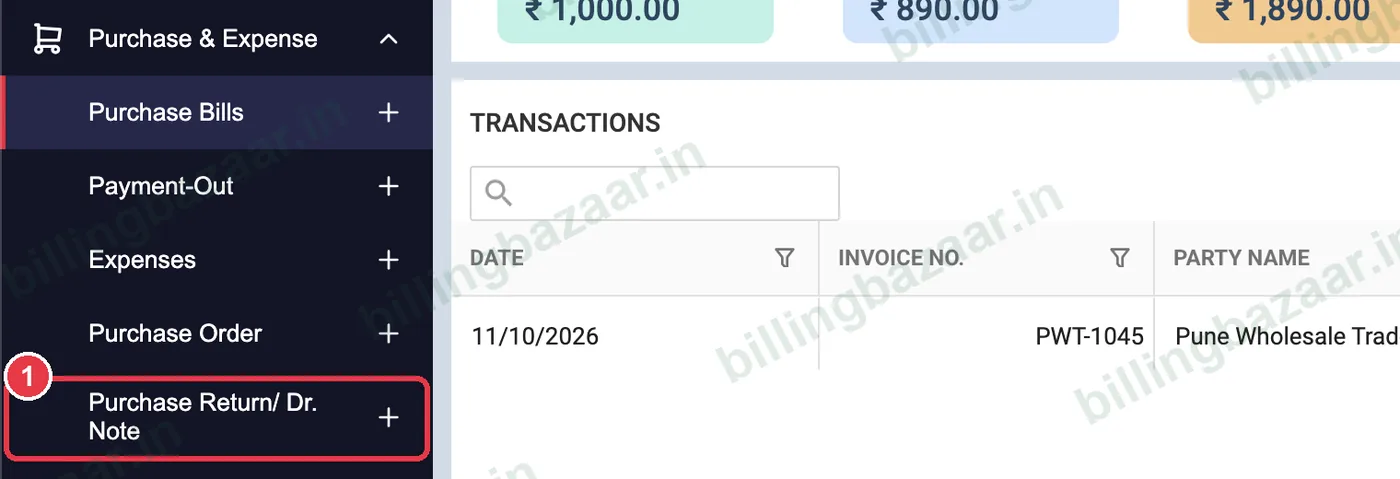
1Open Purchase Return/ Dr. Note
In the sidebar click Purchase & Expense, then the + next to Purchase Return/ Dr. Note.
2Choose supplier and bill
Pick the supplier in Party. Vyapar sets the Return No.; enter the supplier's Bill Number and Bill Date of the original purchase.

3Add the returned items
Add the items and QTY you are sending back. GST and the Eligible for ITC setting carry over so the credit is reversed correctly.

4Record any refund
If the supplier refunded money now, tick Received and enter it. Otherwise the amount is taken off your balance with the supplier.

5Save
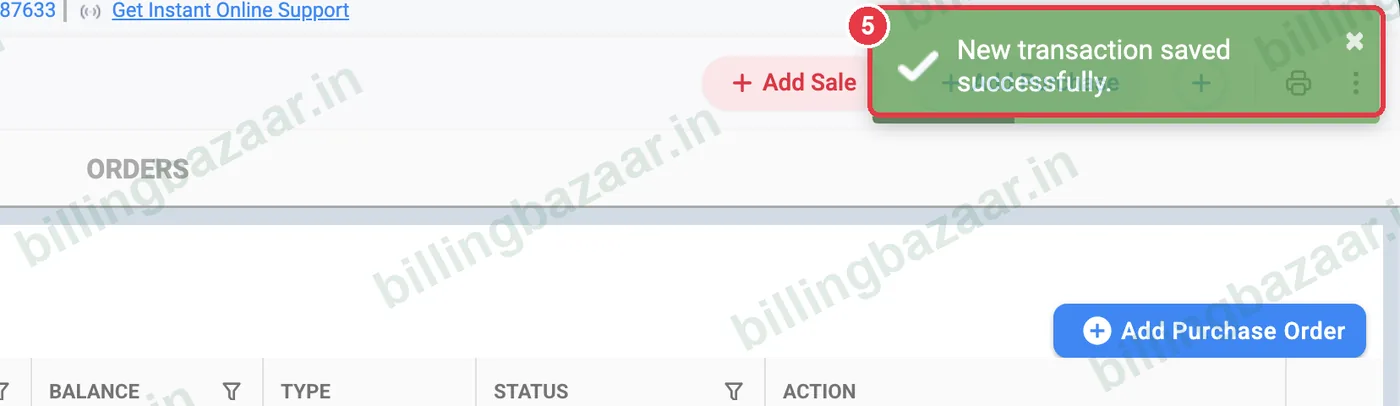
Click Save. Vyapar confirms New transaction saved successfully, reduces stock and updates the supplier's balance.
Good to know
- Debit notes reduce your input tax credit in GSTR-3B for the month.
- Keep the supplier's credit note to match against your debit note.
- For goods your customer returns to you, use Sale Return / Credit Note instead.
Questions people ask
How do I return goods to a supplier in Vyapar?
Go to Purchase & Expense > Purchase Return/ Dr. Note, choose the supplier, enter the bill number, add the items being returned and click Save.
Does a purchase return reduce stock?
Yes. The returned quantity is removed from stock.
What happens to GST input credit on a return?
The debit note reverses the input tax credit for the returned goods.
Related guides
- How to enter a purchase bill in Vyapar
- How to create a sale return (credit note) in Vyapar
- How to generate the GSTR-3B report in Vyapar
Screenshots are from a demo company in Vyapar Desktop for Mac, October 2026. Menus can move slightly between app versions. Guide by Billing Bazaar, a Vyapar partner.