 Billing Bazaar
How to generate and print barcodes in Vyapar
Barcode labels speed up billing and avoid wrong items at the counter. Vyapar's Barcode Generator turns each item code into a barcode and prints labels with your shop name, item name and price.
| Time needed | 3 minutes |
|---|---|
| Steps | 4, each with a screenshot |
| Tested on | Vyapar Desktop for Mac, October 2026 |
| Last updated | 11 October 2026 |
Before you start
- Items with an Item Code (assign one on the item, or import codes from Excel).
- A label printer (or A4 label sheets for a regular printer).
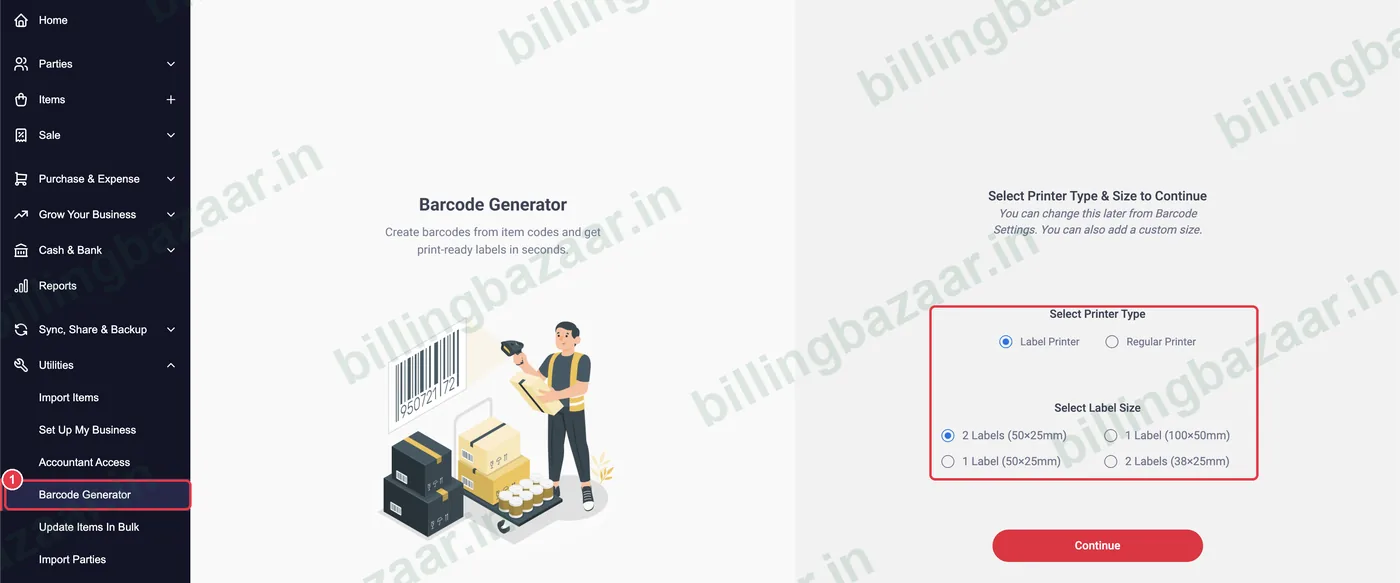
1Open Utilities > Barcode Generator
Click Utilities > Barcode Generator. Choose Label Printer or Regular Printer and the label size, for example 2 Labels (50x25mm), then click Continue.
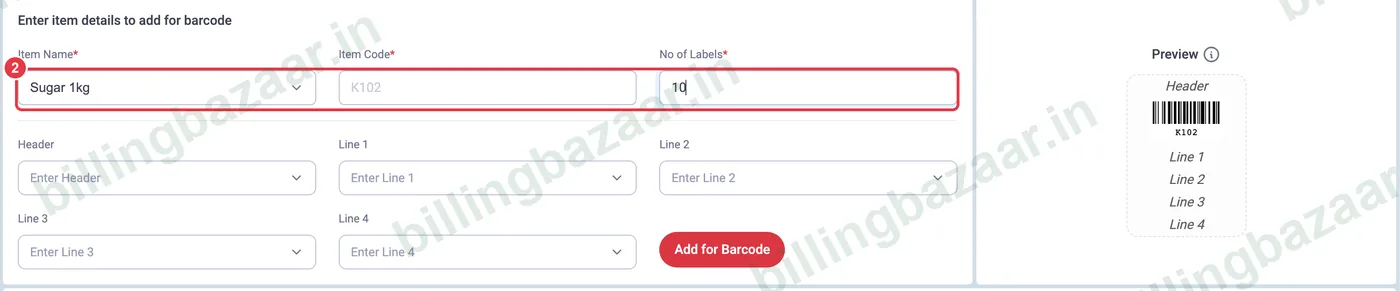
2Choose the item and number of labels
Select the Item Name; the Item Code fills in and becomes the barcode. Enter No of Labels, usually your stock quantity.
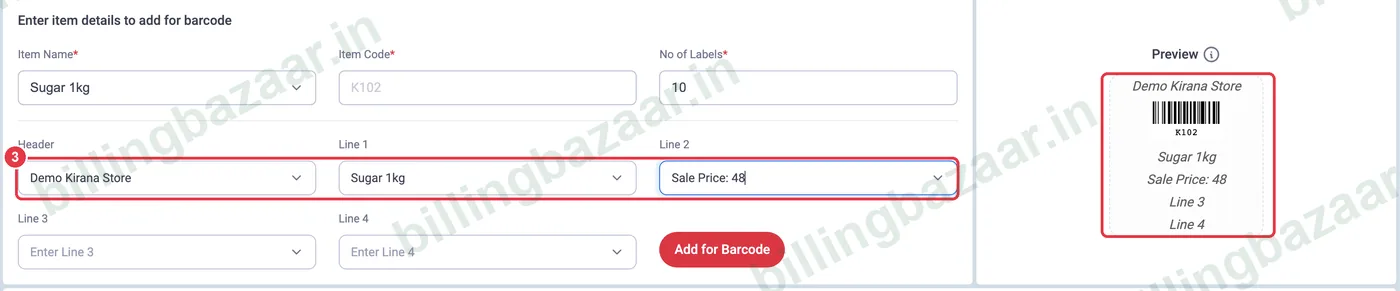
3Set the label text
Choose what prints on the label: Header (for example Company Name) and Line 1-4 (Item Name, Sale Price, Discount, Batch No., Mfg/Exp Date or Serial No.). The Preview on the right shows the layout. Click Add for Barcode.
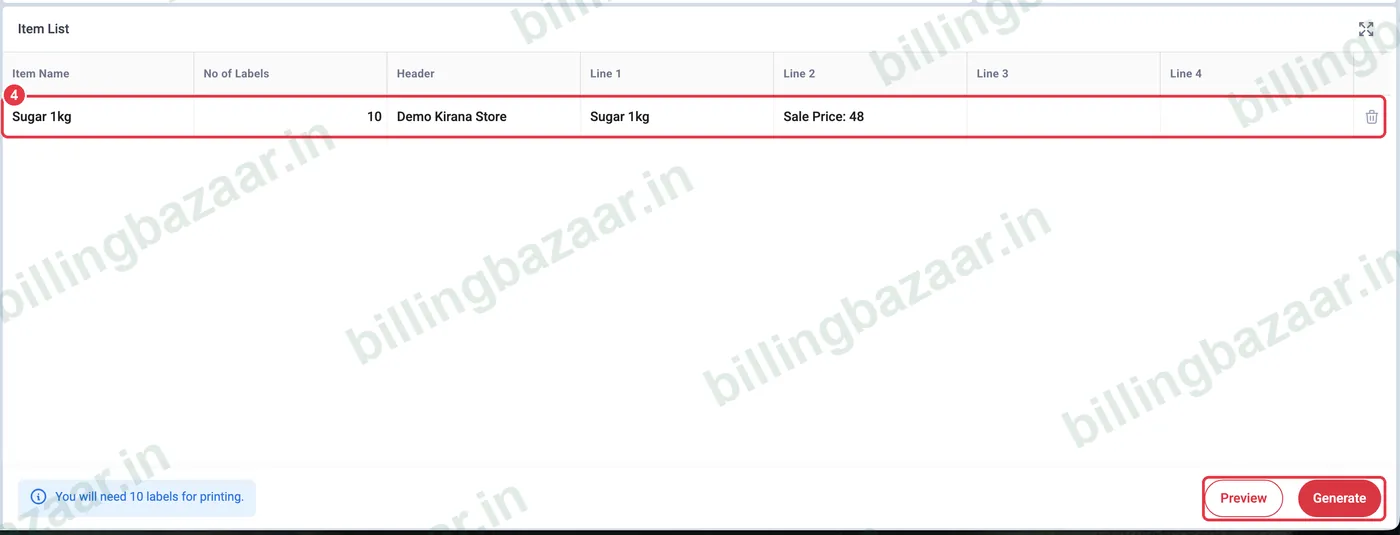
4Generate and print
The item appears in the Item List and Vyapar tells you how many labels you need. Add more items, then click Generate to create the labels for printing (Preview to check them first).
Good to know
- Use the item code you scan on invoices; a barcode scanner types it into the item field.
- Change printer or label size later from the settings icon in Barcode Generator.
- Products with manufacturer barcodes can use those codes as the Item Code instead.
Questions people ask
How do I print barcodes in Vyapar?
Utilities > Barcode Generator, choose printer and label size, add items with number of labels and label text, and click Generate.
What does the barcode contain?
The item's Item Code. Assign codes on each item or import them from Excel.
Can I print price on the barcode label?
Yes. Choose Sale Price for one of the label lines.
Related guides
- How to add items with HSN code and GST rate in Vyapar
- How to import items from Excel in Vyapar
- How to track serial and IMEI numbers in Vyapar
Screenshots are from a demo company in Vyapar Desktop for Mac, October 2026. Menus can move slightly between app versions. Guide by Billing Bazaar, a Vyapar partner.