 Billing Bazaar
How to track serial and IMEI numbers in Vyapar
Mobile shops and electronics dealers need to know exactly which unit went to which customer, for warranty and returns. Vyapar stores each serial or IMEI number, lets you pick the exact unit while billing and prints it on the invoice.
| Time needed | 3 minutes |
|---|---|
| Steps | 6, each with a screenshot |
| Tested on | Vyapar Desktop for Mac, October 2026 |
| Last updated | 11 October 2026 |
Before you start
- The serial or IMEI number of each unit in stock (a barcode scanner makes entry faster).
1Turn on Serial No. tracking
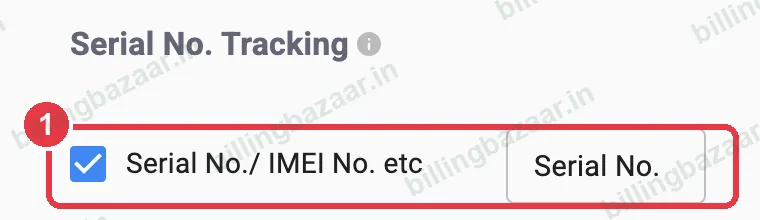
Open Settings > ITEM and tick Serial No./ IMEI No. etc under Serial No. Tracking. You can rename the field (for example to IMEI) in the box next to it.
2Select Serial No. Tracking on the item
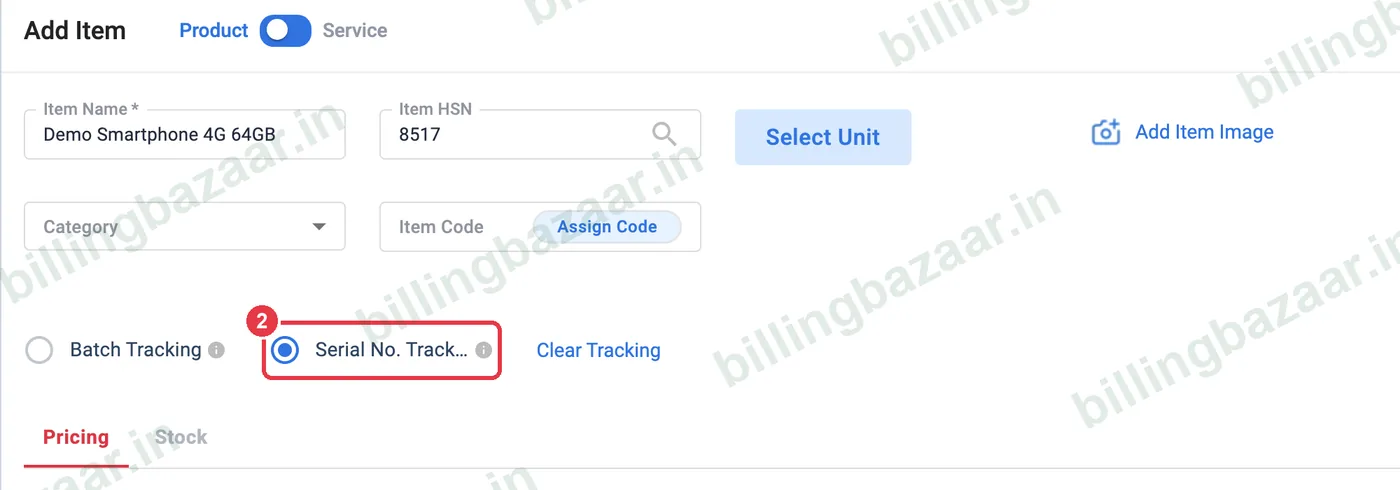
In Items > +, enter the item details and prices, then select Serial No. Tracking under the item name.
3Open serial entry for opening stock
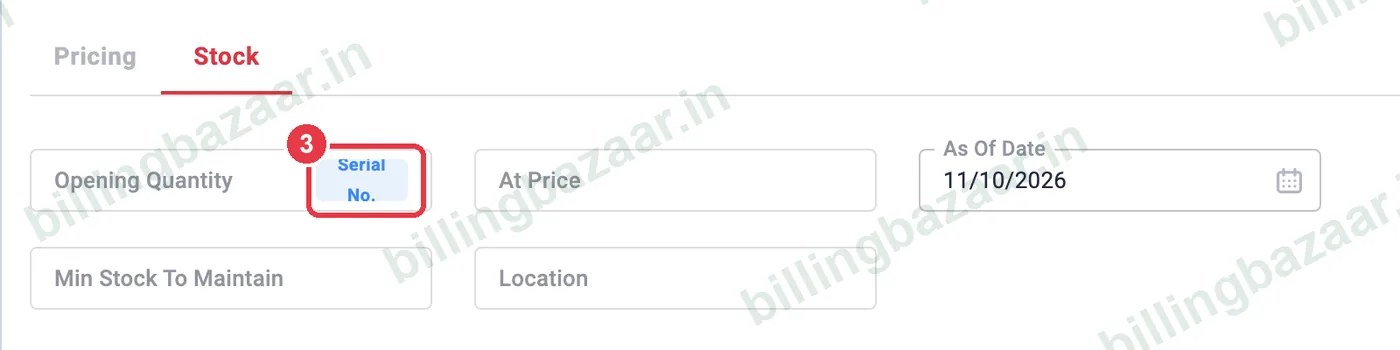
On the Stock tab, click Serial No. inside the Opening Quantity box.
4Enter or scan each serial number
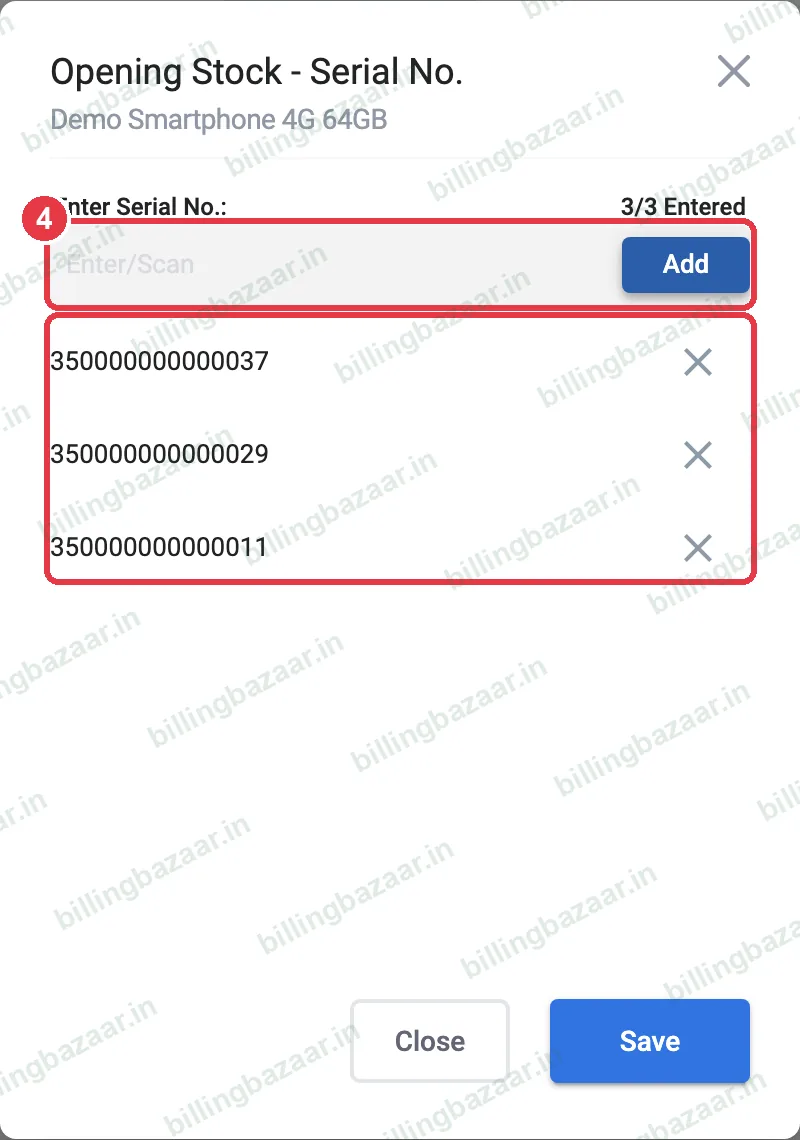
Type or scan each serial or IMEI in Enter Serial No. and click Add. Vyapar counts them (for example 3/3 Entered) and sets the opening quantity. Click Save, then save the item.
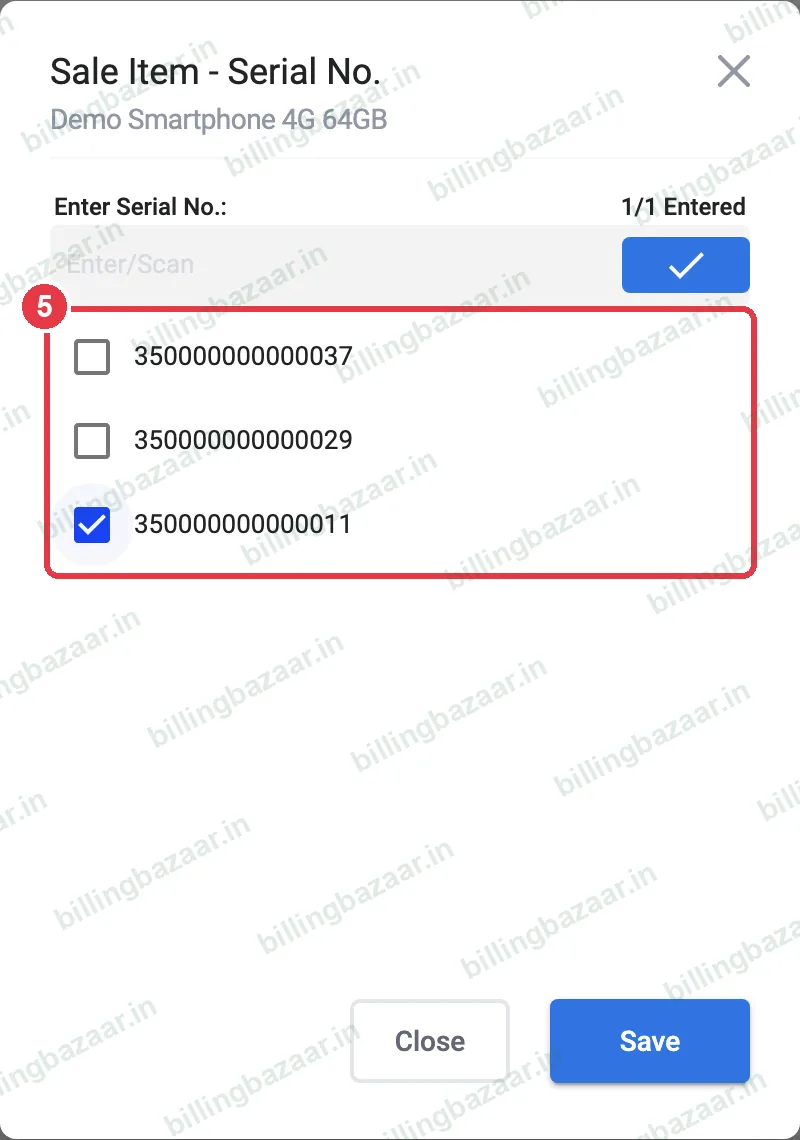
5Pick the serial when you sell
When you add the item to a sale, Sale Item - Serial No. lists the serials in stock. Tick the one you are selling (or scan it) and click Save.
6Check the invoice
The printed invoice shows Serial No. under the item name, which customers need for warranty claims.

Good to know
- A barcode scanner can type the IMEI straight into the Enter Serial No. box.
- Sold serials disappear from the picker, so the same unit cannot be sold twice.
- Add new units with serials on purchase bills.
Questions people ask
How do I add IMEI numbers in Vyapar?
Tick Serial No./ IMEI No. in Settings > Item, select Serial No. Tracking on the item, and enter each IMEI from the Serial No. button in the stock tab or on purchase bills.
Does the IMEI print on the invoice?
Yes. Vyapar prints the serial number under the item name on the invoice.
Can I scan serial numbers?
Yes. A barcode scanner can enter serials into the Enter Serial No. box.
Can I search which customer bought a serial number?
Yes. Use the transaction search or the item's transactions to find the invoice with that serial.
Related guides
- How to track batch number and expiry date in Vyapar
- How to add items with HSN code and GST rate in Vyapar
- How to generate and print barcodes in Vyapar
Screenshots are from a demo company in Vyapar Desktop for Mac, October 2026. Menus can move slightly between app versions. Guide by Billing Bazaar, a Vyapar partner.