 Billing Bazaar
How to import items from Excel in Vyapar
Typing hundreds of items one by one takes days. Vyapar can import your whole item list from an Excel file with names, codes, HSN, prices, opening stock, minimum stock, location and GST rate.
| Time needed | 5 minutes |
|---|---|
| Steps | 7, each with a screenshot |
| Tested on | Vyapar Desktop for Mac, October 2026 |
| Last updated | 11 October 2026 |
Before you start
- Your item list in Excel (.xlsx or .xls) with one row per item.
- Column headings similar to Vyapar's sample: Item Code, Item Name, HSN, Sale Price, Purchase Price, Opening Stock Quantity, Minimum Stock Quantity, Item Location, Tax Rate, Tax Inclusive.
1Open Utilities > Import Items
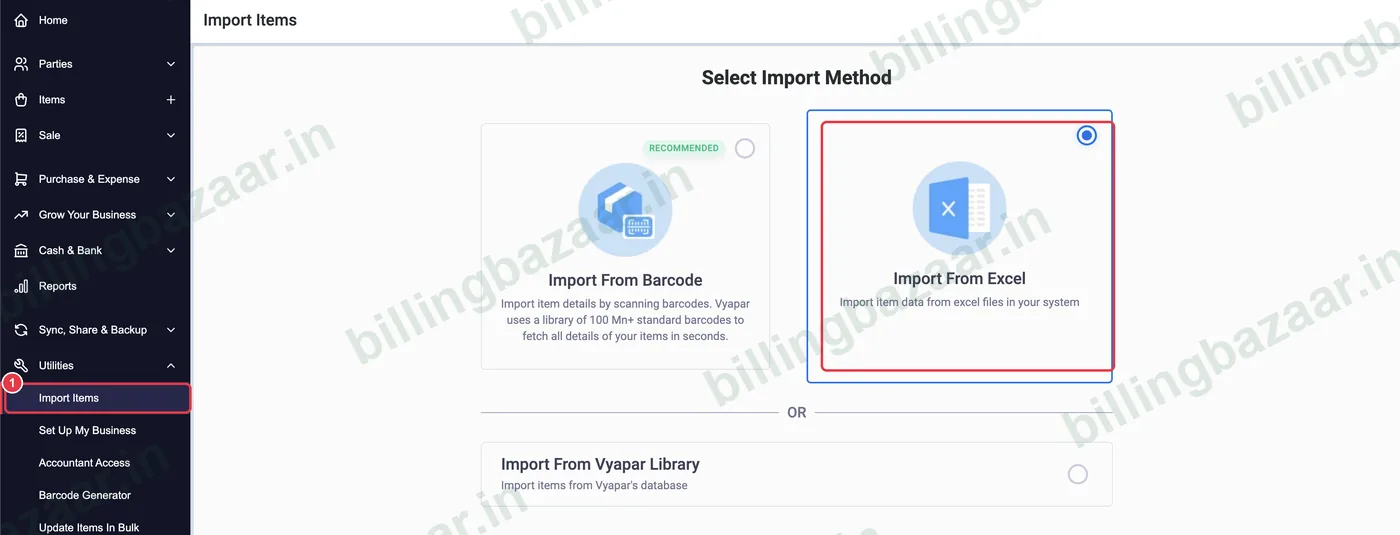
In the sidebar click Utilities > Import Items. Choose Import From Excel and click Continue. (Import From Barcode and Vyapar Library are other options.)
2Check the Excel format
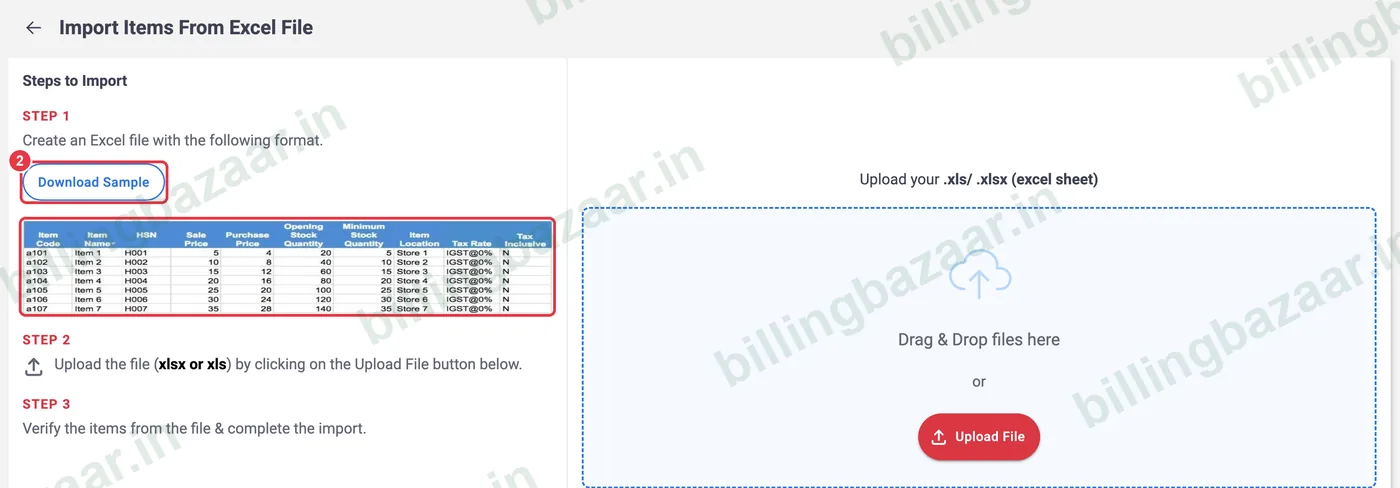
Click Download Sample for a template, or match your sheet to the format shown: Item Code, Item Name, HSN, Sale Price, Purchase Price, Opening Stock Quantity, Minimum Stock Quantity, Item Location, Tax Rate (for example GST@5%) and Tax Inclusive (Y/N).
3Upload the file
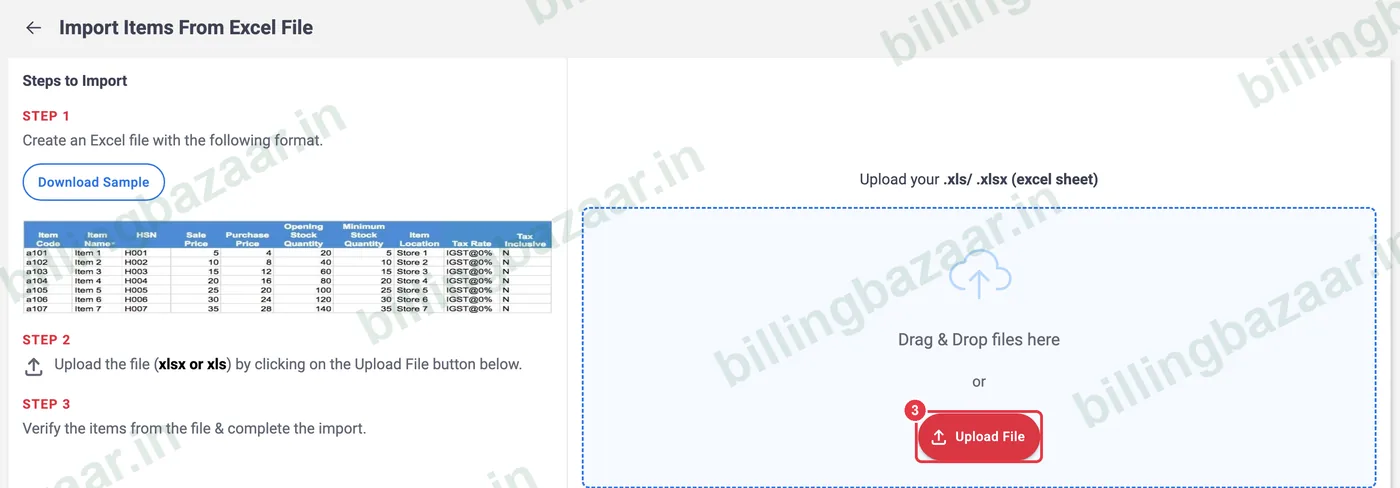
Click Upload File (or drag and drop) and choose your .xlsx file.
4Map the columns
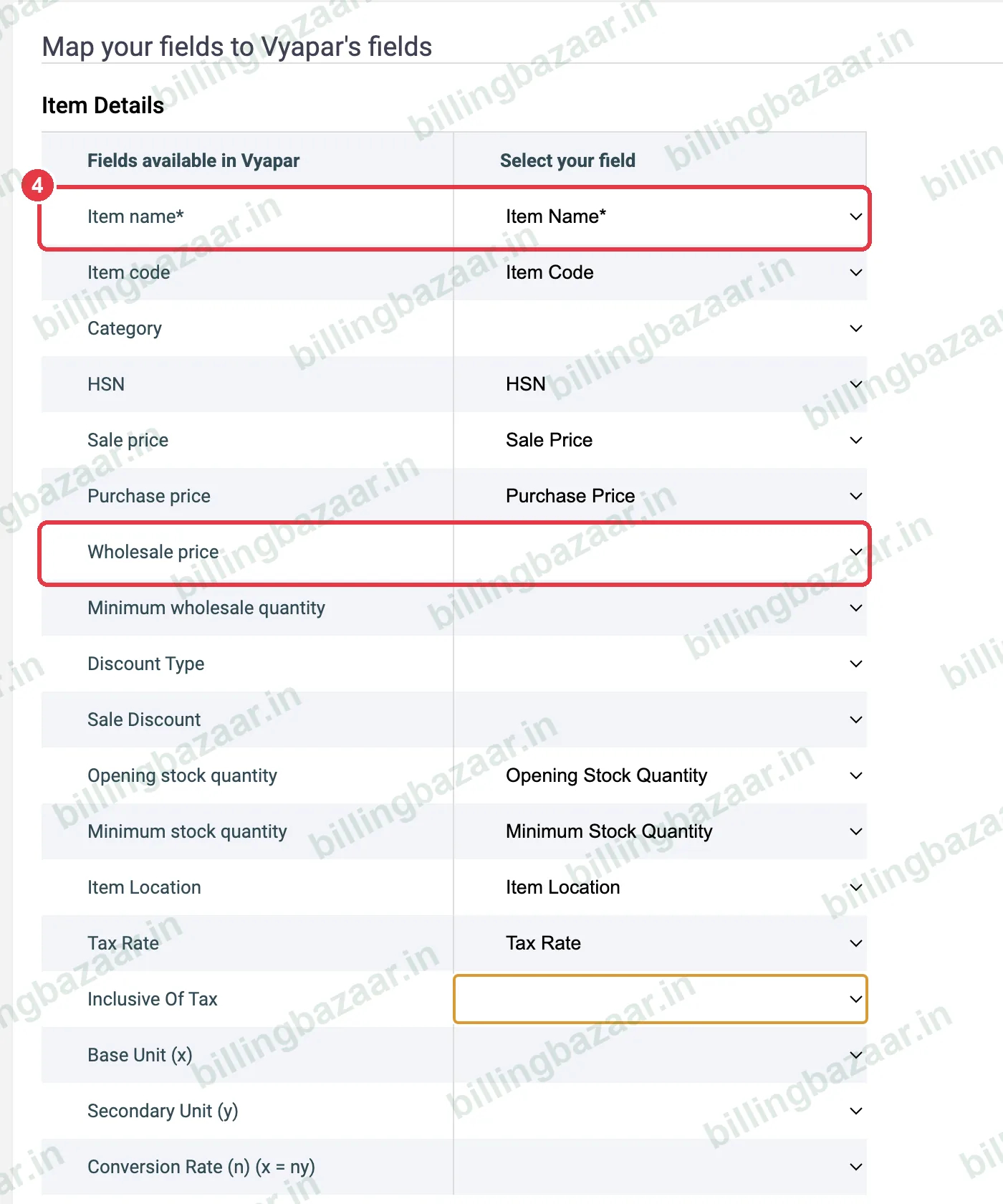
Vyapar matches your column headings to its fields. Check every row in Select your field; leave a field empty if your sheet does not have it. Then click Proceed.
5Fix any errors
If Vyapar shows items with errors, click See Items With Error. Problems are marked in red. In our test, Wholesale price had been auto-mapped to the Sale Price column, so every row needed a minimum wholesale quantity (N/A). Going back and unmapping Wholesale price fixed all rows.

6Verify and import
Check the preview table. When the button shows the right count, click Import Valid Items.
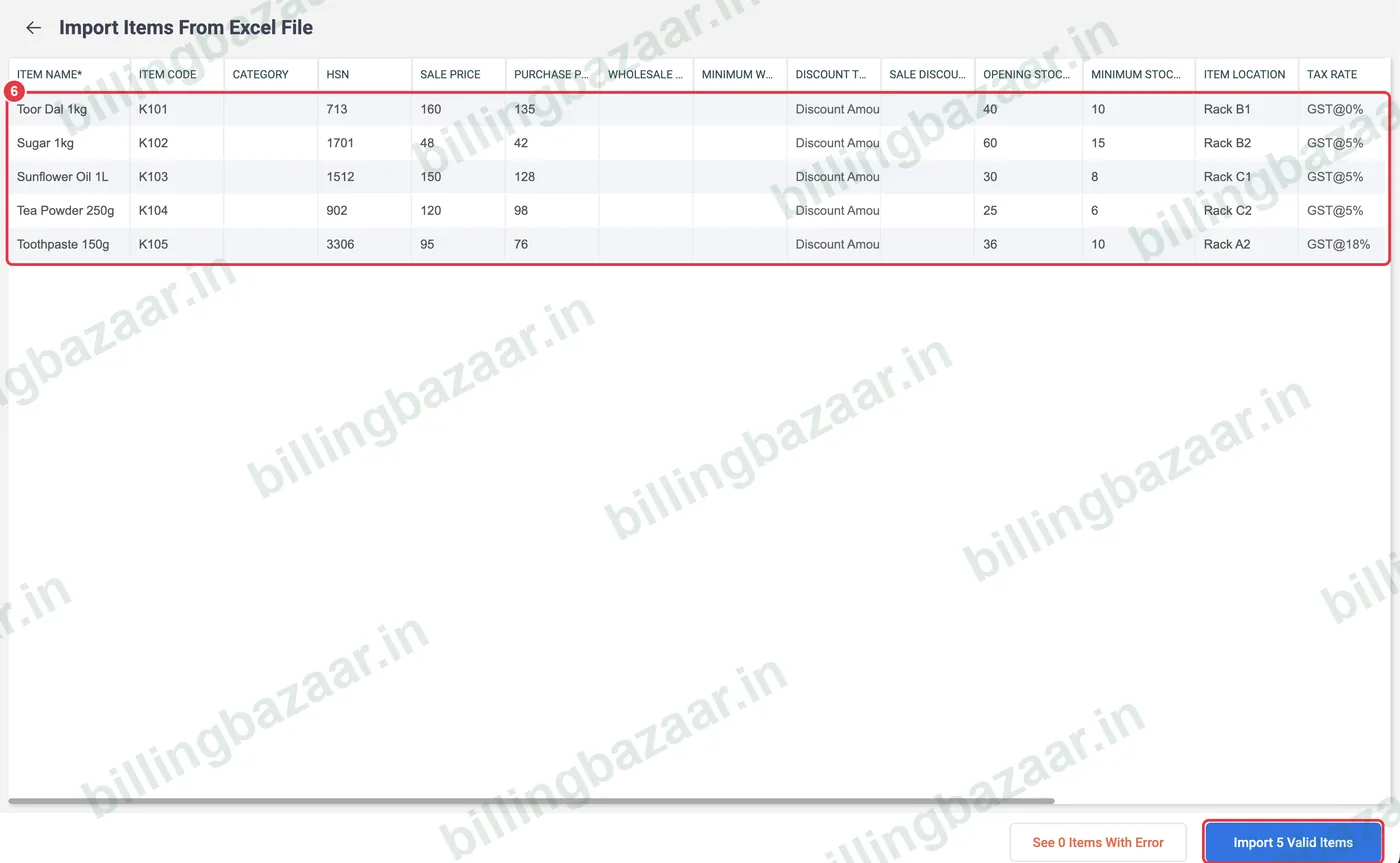
7Done
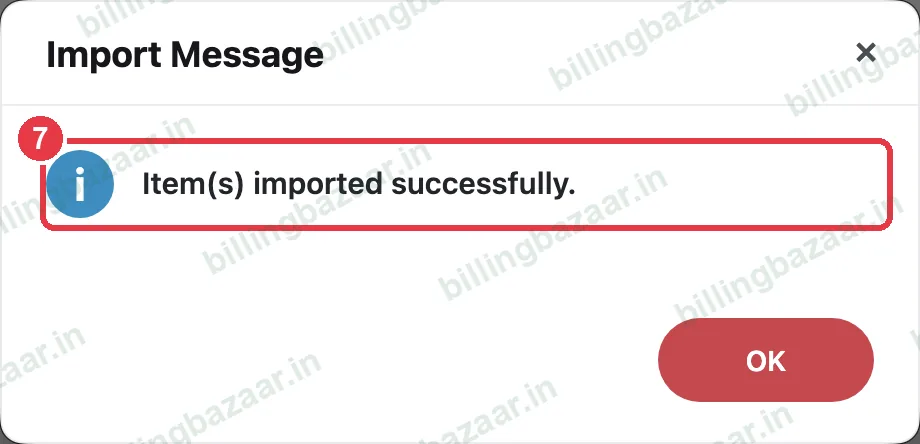
Vyapar shows Item(s) imported successfully. The items appear in Items with stock, prices and tax ready to bill.
Good to know
- Format the HSN column as Text in Excel, or codes like 0713 lose the leading zero.
- Use the exact tax rate text Vyapar uses, such as GST@18%.
- Import a few rows first as a test, then the full list.
- Update prices for many items later with Utilities > Update Items In Bulk.
Questions people ask
Can I import items into Vyapar from Excel?
Yes. Utilities > Import Items > Import From Excel, upload the file, map columns and import.
Why do my items show errors when importing?
Usually a column is mapped wrongly or a required value is missing, for example wholesale price without minimum wholesale quantity. Check See Items With Error.
What format should the tax rate be in?
Use Vyapar's names such as GST@5%, GST@18% or IGST@12%.
Can I import opening stock?
Yes. Map the Opening Stock Quantity column.
Related guides
- How to add items with HSN code and GST rate in Vyapar
- How to import customers from Excel in Vyapar
- How to generate and print barcodes in Vyapar
Screenshots are from a demo company in Vyapar Desktop for Mac, October 2026. Menus can move slightly between app versions. Guide by Billing Bazaar, a Vyapar partner.