 Billing Bazaar
How to print an invoice (A4 and thermal) in Vyapar
Vyapar prints invoices on regular printers (A4/A5) and on thermal receipt printers used at shop counters. Pick the matching theme and print straight from the preview or later from the invoice list.
| Time needed | 1 minute |
|---|---|
| Steps | 4, each with a screenshot |
| Tested on | Vyapar Desktop for Mac, October 2026 |
| Last updated | 11 October 2026 |
Before you start
- A printer connected to your computer.
1Use the print buttons in the preview
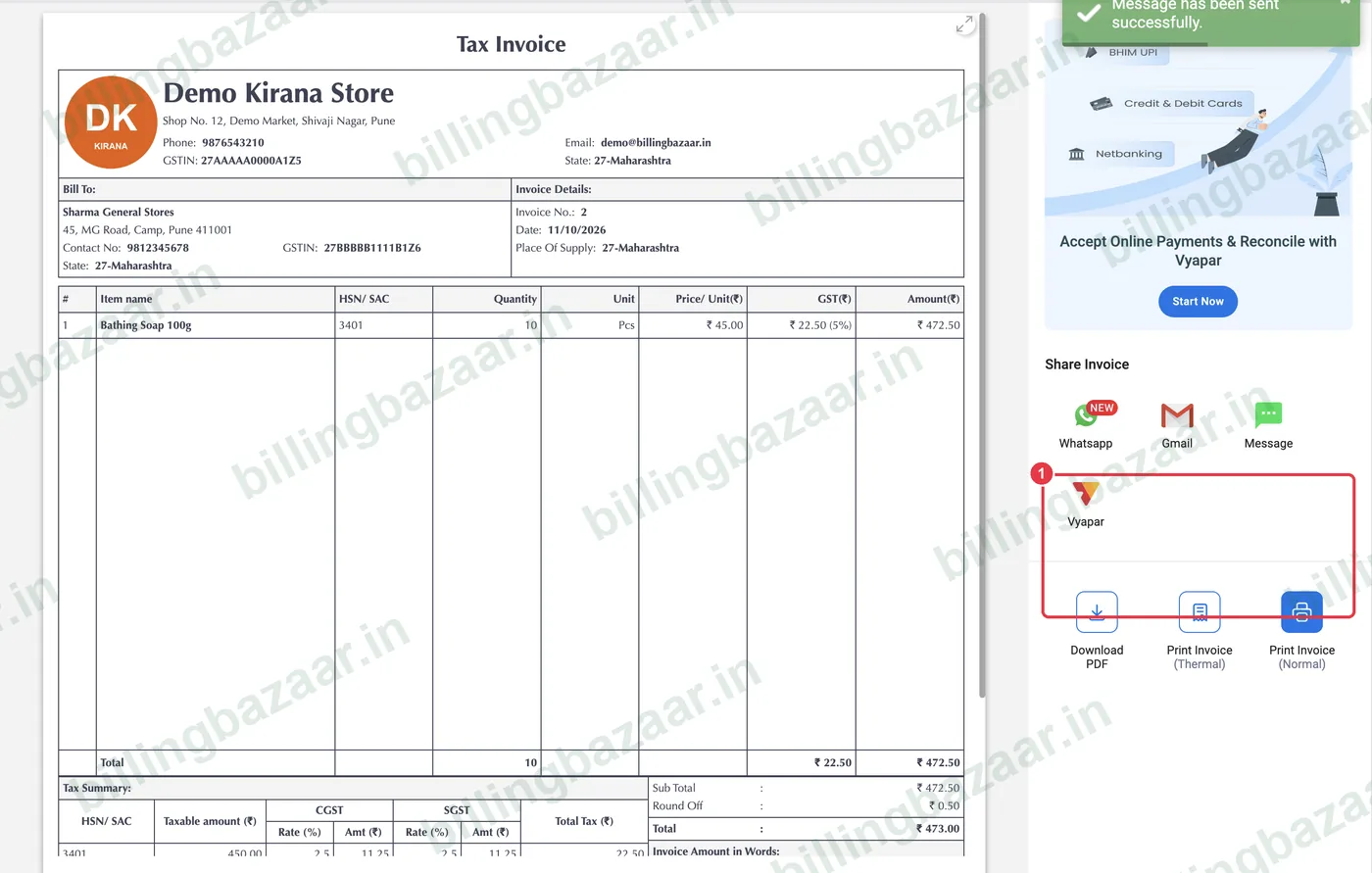
After saving an invoice, the preview shows Print Invoice (Normal) for A4/A5 printers and Print Invoice (Thermal) for receipt printers, plus Download PDF.
2Choose the theme first
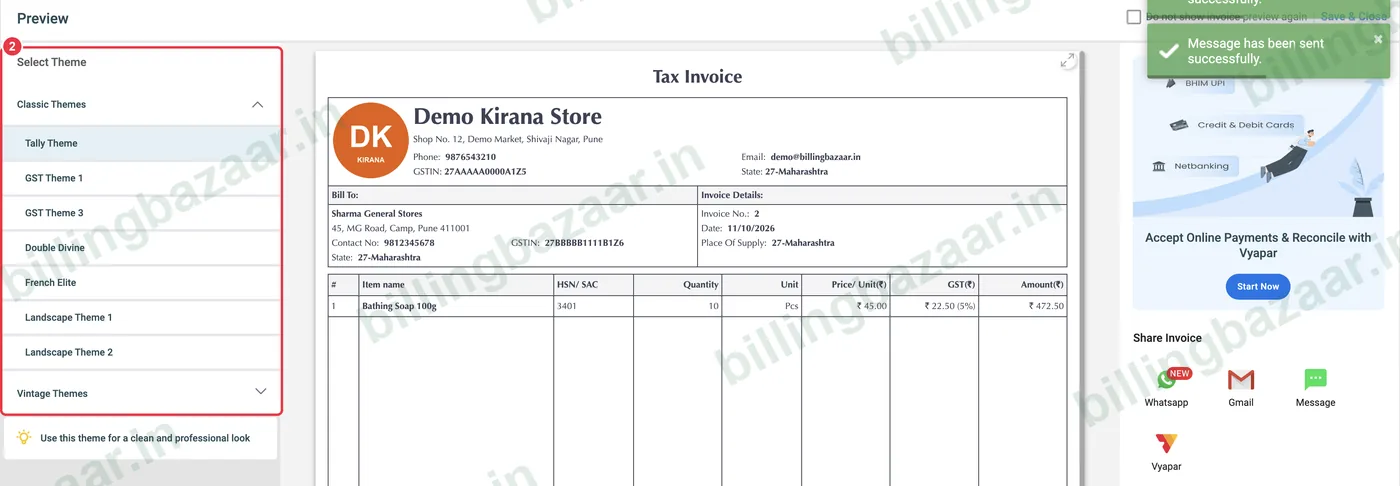
Pick a layout under Select Theme on the left. Tally Theme and GST Themes suit A4 tax invoices.
3Use a thermal theme for receipts
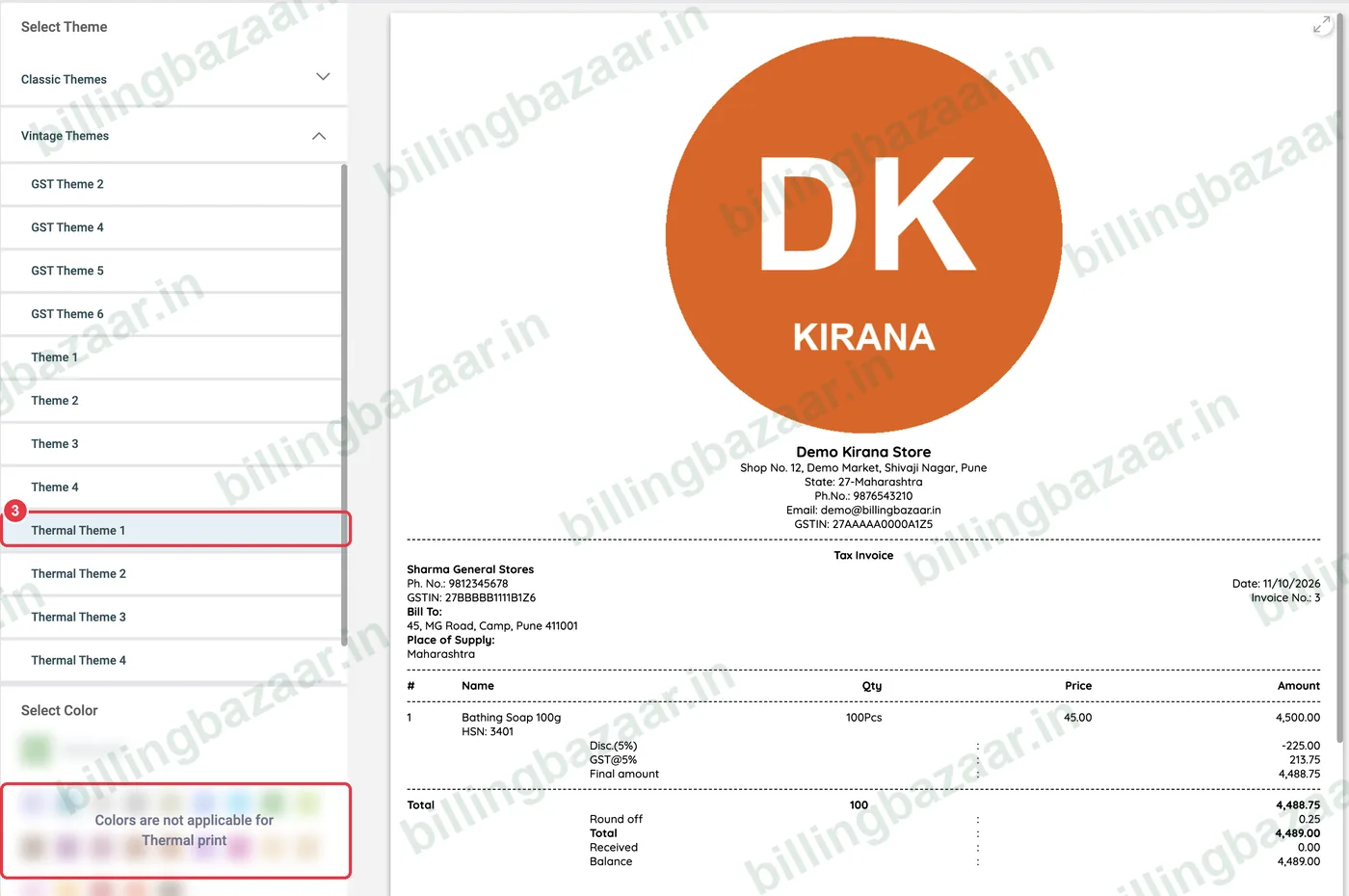
For receipt printers choose Thermal Theme 1-4; colours do not apply. Then use Print Invoice (Thermal).
4Reprint an old invoice
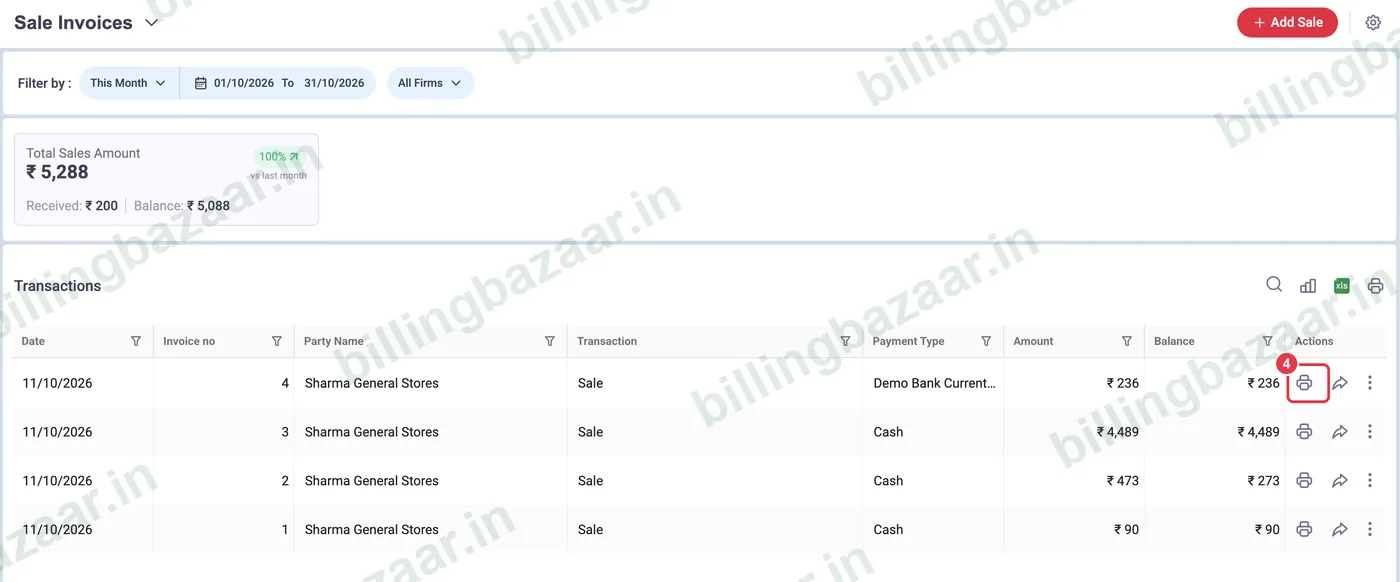
Go to Sale > Sale Invoices and click the print icon on the invoice row.
Good to know
- Set paper size and what prints (logo, signature, bank details) in Settings > Print.
- Tick Do not Show Invoice Preview in Settings > Transaction to print faster.
- Print two copies for B2B customers who need an original and duplicate.
Questions people ask
How do I print an invoice in Vyapar?
Save the invoice and click Print Invoice (Normal) or (Thermal) in the preview, or use the print icon in Sale Invoices.
Does Vyapar support thermal printers?
Yes. Use a thermal theme and Print Invoice (Thermal).
Can I print an invoice again later?
Yes. Use the print icon in Sale > Sale Invoices.
Related guides
- How to change the invoice format and theme in Vyapar
- How to share an invoice on WhatsApp from Vyapar
- How to use POS (point of sale) billing in Vyapar
Screenshots are from a demo company in Vyapar Desktop for Mac, October 2026. Menus can move slightly between app versions. Guide by Billing Bazaar, a Vyapar partner.