 Billing Bazaar
How to see party-wise profit in Vyapar
Not every customer is equally profitable. Vyapar's party-wise profit and loss report shows total sales and profit for each customer, based on the purchase price of what you sold them.
| Time needed | 1 minute |
|---|---|
| Steps | 3, each with a screenshot |
| Tested on | Vyapar Desktop for Mac, October 2026 |
| Last updated | 11 October 2026 |
Before you start
- Some sales and purchases recorded in Vyapar.
1Open Party wise Profit & Loss
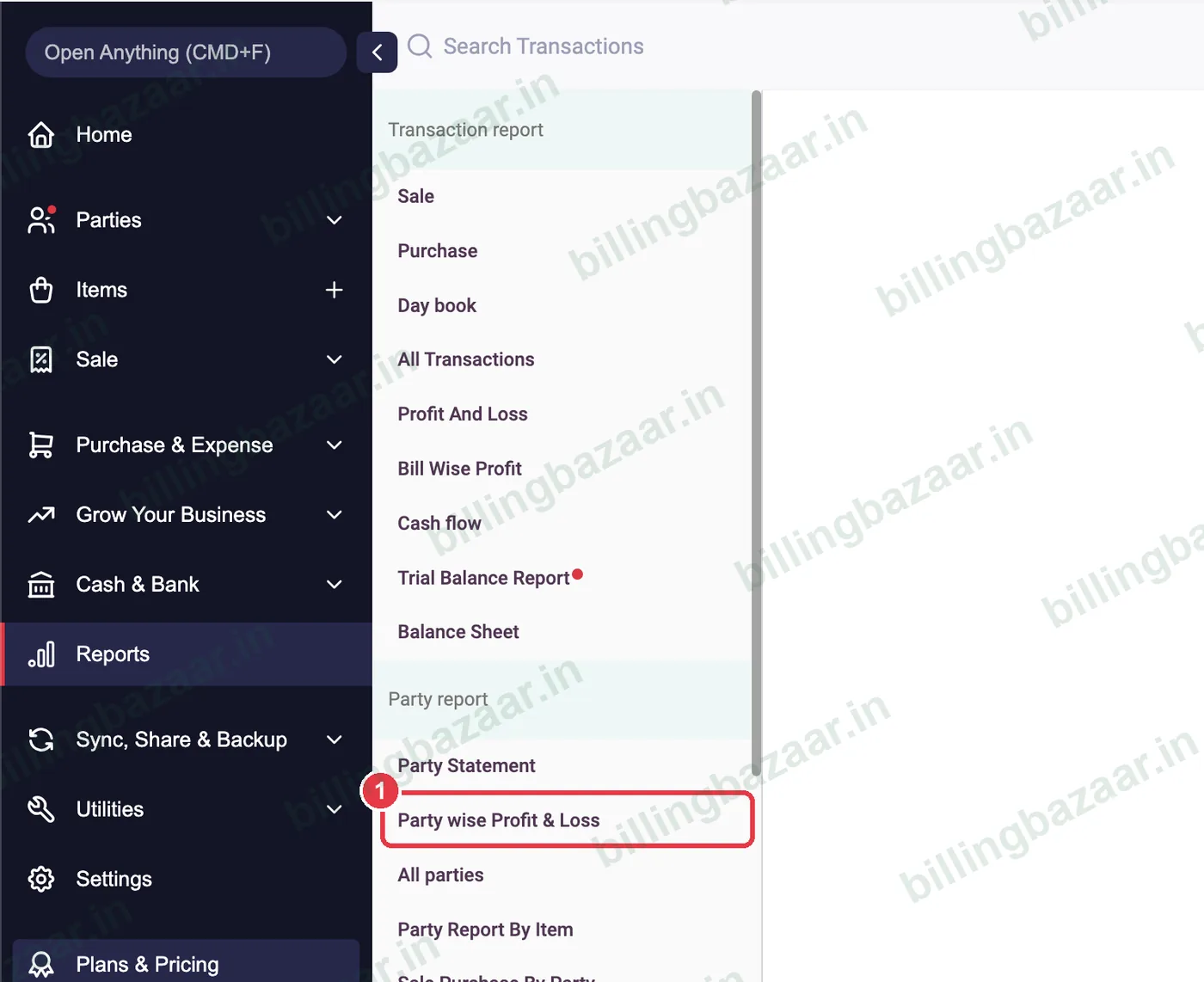
Click Reports, then Party wise Profit & Loss.
2Choose period and parties
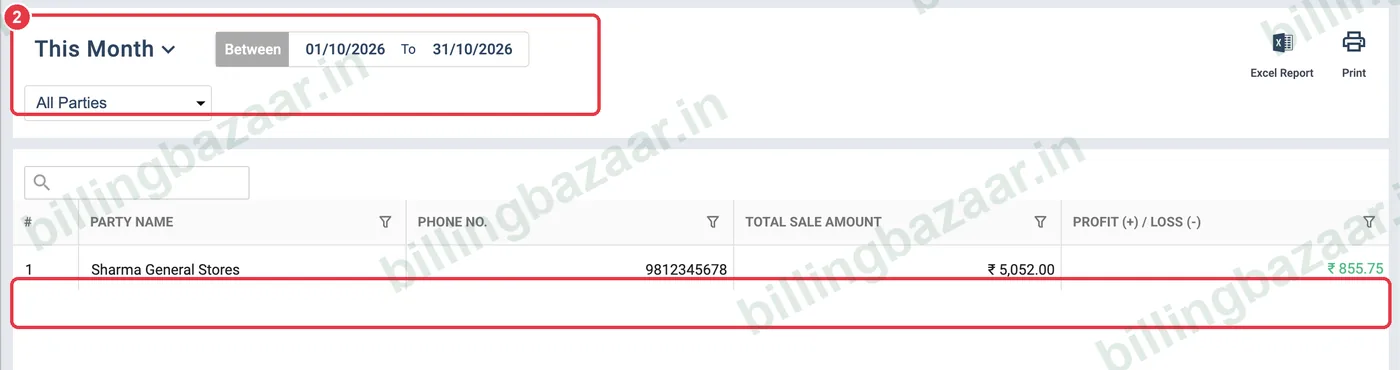
Set the period and keep All Parties or pick one. Each row shows the party, phone number, Total Sale Amount and Profit (+) / Loss (-).
3Check the totals
The bottom shows total sale amount and total profit or loss for all parties in the period.

Good to know
- Profit is calculated from the item's purchase price, so keep purchase prices accurate.
- Use this report to decide who gets discounts or credit.
- Party-wise profit and loss is part of Vyapar's paid plans.
Questions people ask
How do I see profit per customer in Vyapar?
Open Reports > Party wise Profit & Loss and choose the period.
How does Vyapar calculate party profit?
Sale value minus the purchase cost of the items sold to that party.
Can I see profit per item instead?
Yes. Use Item Wise Profit And Loss under Item/Stock report.
Related guides
- How to see the profit and loss report in Vyapar
- How to see and share a party statement (ledger) in Vyapar
- How to give item and invoice discounts in Vyapar
Screenshots are from a demo company in Vyapar Desktop for Mac, October 2026. Menus can move slightly between app versions. Guide by Billing Bazaar, a Vyapar partner.