 Billing Bazaar
How to see sales reports in Vyapar
The sale report shows how much you sold in a period, how much was received and how much is still due, with every invoice and credit note listed.
| Time needed | 1 minute |
|---|---|
| Steps | 3, each with a screenshot |
| Tested on | Vyapar Desktop for Mac, October 2026 |
| Last updated | 11 October 2026 |
Before you start
- Some sales and purchases recorded in Vyapar.
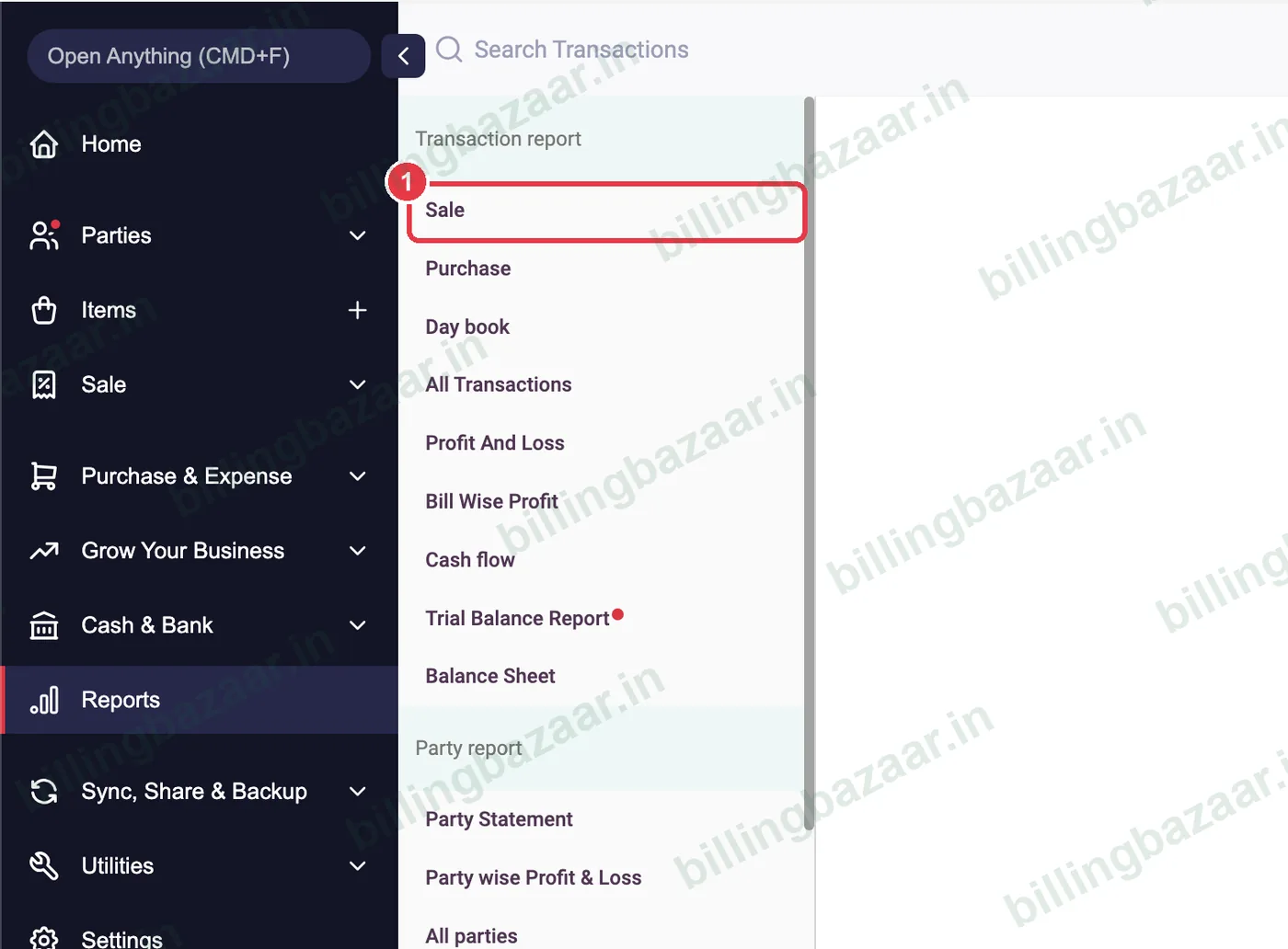
1Open Reports > Sale
Click Reports, then Sale under Transaction report.
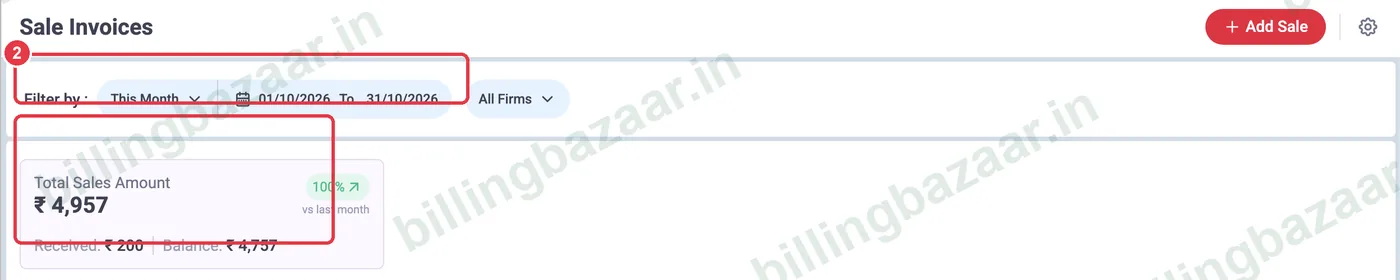
2Set filters and read the totals
Choose the period (This Month, custom dates) and firm. The card shows Total Sales Amount, how much was Received and the Balance still due.
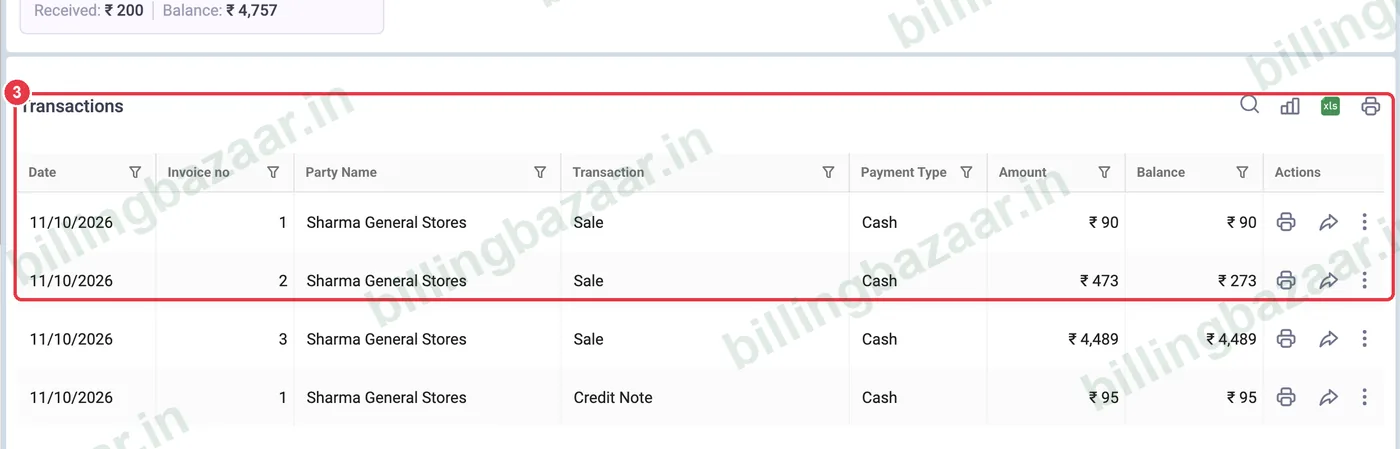
3Review each invoice
The list shows date, invoice number, party, type (Sale or Credit Note), payment type, amount and balance. Use the icons on each row to print, share or open the invoice.
Good to know
- Credit notes appear in the list and reduce the total.
- Use + Add Sale on this screen to bill straight away.
- Download the list to Excel for your CA.
Questions people ask
How do I see total sales in Vyapar?
Open Reports > Sale and choose the period; the card shows the total sales amount.
Can I see unpaid invoices?
Yes. The Balance column shows what is still due on each invoice.
Does the sale report include returns?
Yes. Credit notes are listed and reduce the total.
Related guides
- How to create a GST invoice in Vyapar
- How to see the day book in Vyapar
- How to see and share a party statement (ledger) in Vyapar
Screenshots are from a demo company in Vyapar Desktop for Mac, October 2026. Menus can move slightly between app versions. Guide by Billing Bazaar, a Vyapar partner.