 Billing Bazaar
How to see the stock summary report in Vyapar
The stock summary shows how much of each item you have, how much is reserved for open orders and what the stock is worth. It updates automatically with every sale, purchase and return.
| Time needed | 1 minute |
|---|---|
| Steps | 3, each with a screenshot |
| Tested on | Vyapar Desktop for Mac, October 2026 |
| Last updated | 11 October 2026 |
Before you start
- Some sales and purchases recorded in Vyapar.
1Open Reports > Stock summary
Click Reports and scroll to Item/ Stock report, then click Stock summary.
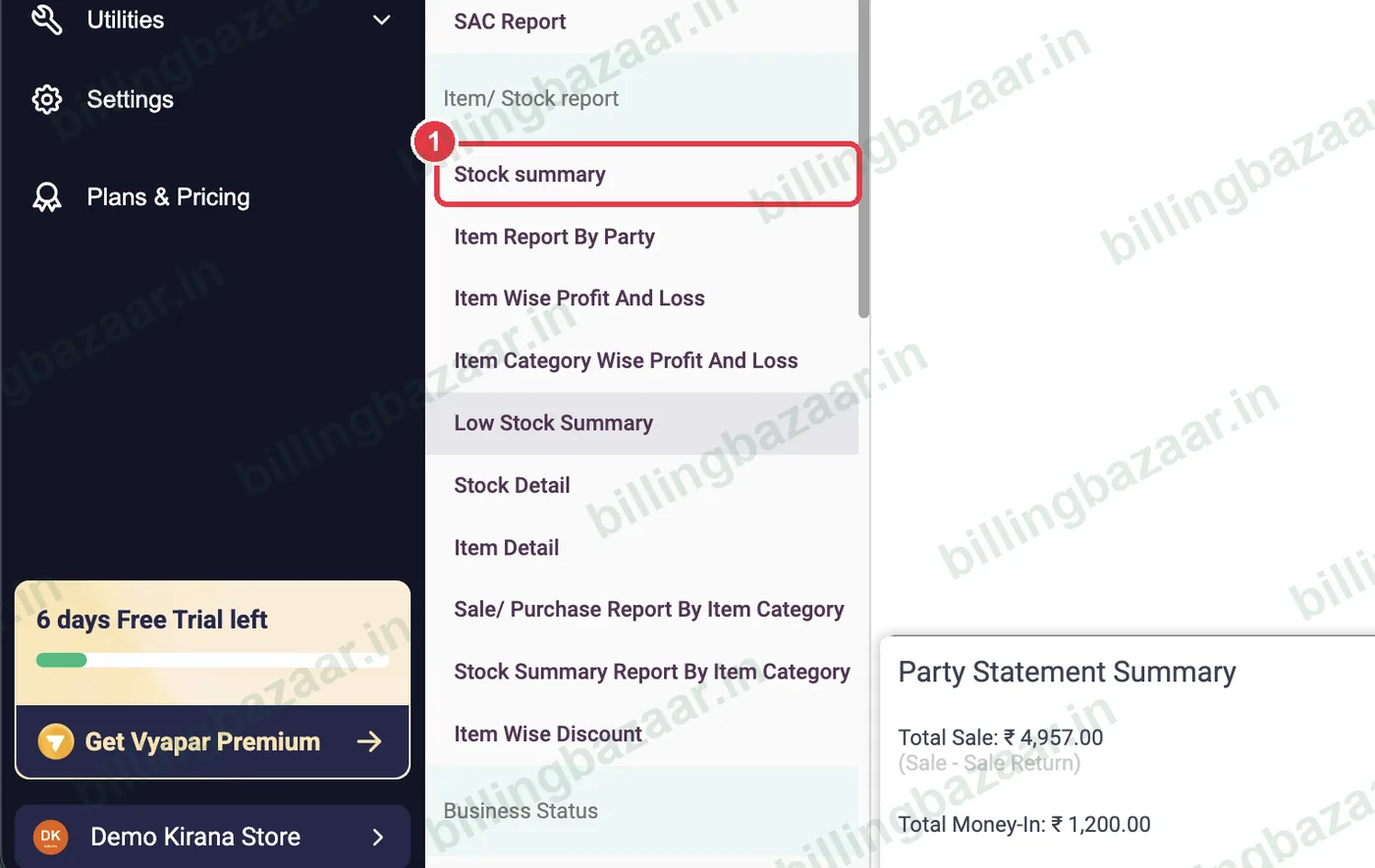
2Set filters
Choose a category or All Categories, set the date, and tick Show items in stock to hide items with zero stock.

3Read quantity and value
Each item shows sale price, purchase price, Stock Qty, Available Qty For Sale, Reserved Qty (on open sale orders) and Stock Value.

Good to know
- Reserved quantity comes from open sale orders and challans.
- Use Low Stock Summary to see items below their minimum stock.
- Stock value uses purchase price, so it matches your closing stock in profit and loss.
Questions people ask
How do I check stock in Vyapar?
Reports > Stock summary shows quantity and value for every item.
What is reserved quantity?
Stock promised to customers on open sale orders or challans.
Where are low stock items shown?
Reports > Low Stock Summary lists items below the minimum stock you set.
Related guides
- How to add items with HSN code and GST rate in Vyapar
- How to set low stock alerts in Vyapar
- How to adjust stock in Vyapar
- How to see the profit and loss report in Vyapar
Screenshots are from a demo company in Vyapar Desktop for Mac, October 2026. Menus can move slightly between app versions. Guide by Billing Bazaar, a Vyapar partner.