 Billing Bazaar
How to set party-wise item rates in Vyapar
Many shops sell to regular buyers at special rates. With party-wise rates, Vyapar remembers the price you last charged each customer for each item, so staff do not have to remember who gets which price.
| Time needed | 1 minute |
|---|---|
| Steps | 4, each with a screenshot |
| Tested on | Vyapar Desktop for Mac, October 2026 |
| Last updated | 11 October 2026 |
Before you start
- Agreed rates for your regular customers.
1Turn on Party Wise Item Rate
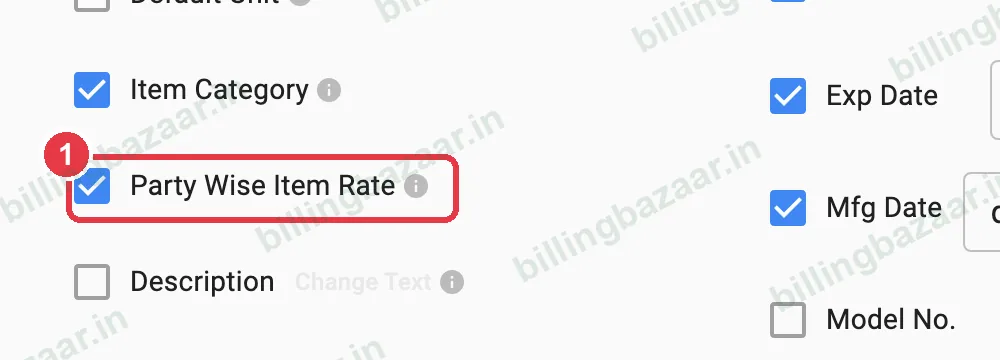
In Settings > ITEM, tick Party Wise Item Rate.
2Bill the party at their special rate
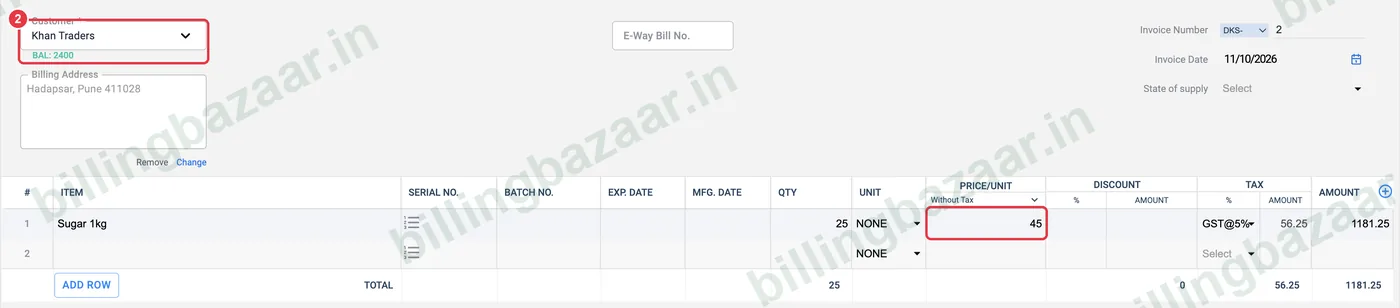
Create a sale for the customer and type their agreed price in PRICE/UNIT (here 45 instead of the list price 48). Save.
3Note the list price
The item search still shows the normal Sale Price (48) for everyone else.

4See the rate remembered
Next time you bill the same party and pick the item, Vyapar fills their rate (45) automatically.

Good to know
- Use wholesale price for quantity-based discounts and party-wise rates for customer-specific prices.
- Change the rate on any invoice; the new rate is remembered for next time.
- Works for purchases too, remembering each supplier's rate.
Questions people ask
How do I set a special price for a customer in Vyapar?
Turn on Party Wise Item Rate in Settings > Item, then bill the customer at the special price once; Vyapar remembers it.
Does it change the price for other customers?
No. Others still get the item's normal sale price.
Can I see a party's rate before billing?
Yes. Pick the party and the item; the remembered rate fills in.
Related guides
- How to set wholesale and retail prices in Vyapar
- How to give item and invoice discounts in Vyapar
- How to create party groups in Vyapar
Screenshots are from a demo company in Vyapar Desktop for Mac, October 2026. Menus can move slightly between app versions. Guide by Billing Bazaar, a Vyapar partner.