 Billing Bazaar
How to track batch number and expiry date in Vyapar
Medical stores, FMCG distributors and food businesses need to know which batch they sold and when it expires. Vyapar tracks stock batch by batch, shows each batch's quantity when you bill and prints batch, expiry and manufacturing dates on the invoice.
| Time needed | 3 minutes |
|---|---|
| Steps | 8, each with a screenshot |
| Tested on | Vyapar Desktop for Mac, October 2026 |
| Last updated | 11 October 2026 |
Before you start
- The batch number, manufacturing date, expiry date and quantity for each batch you hold.
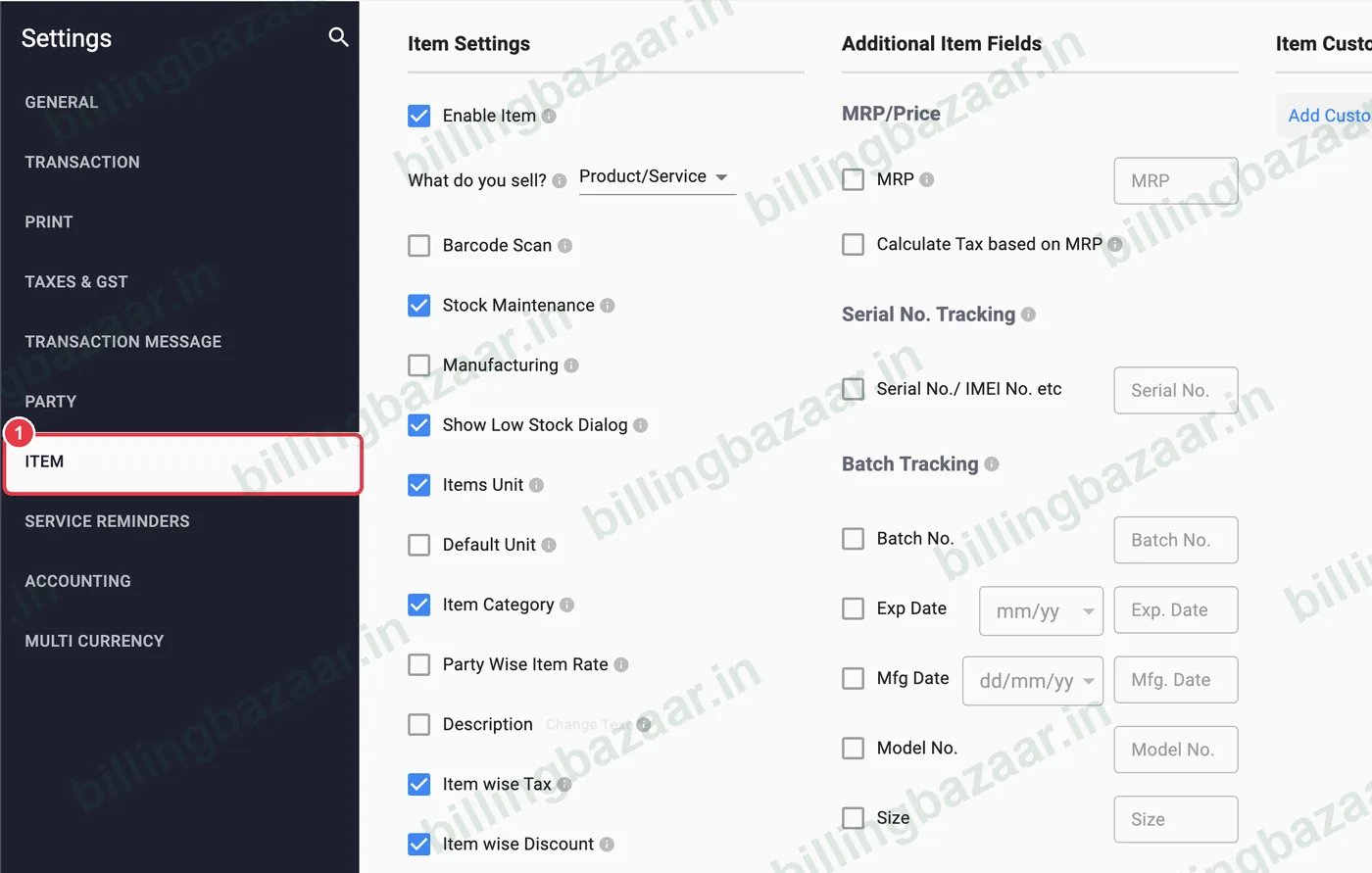
1Open Settings > Item
Click Settings in the sidebar and choose the ITEM tab.
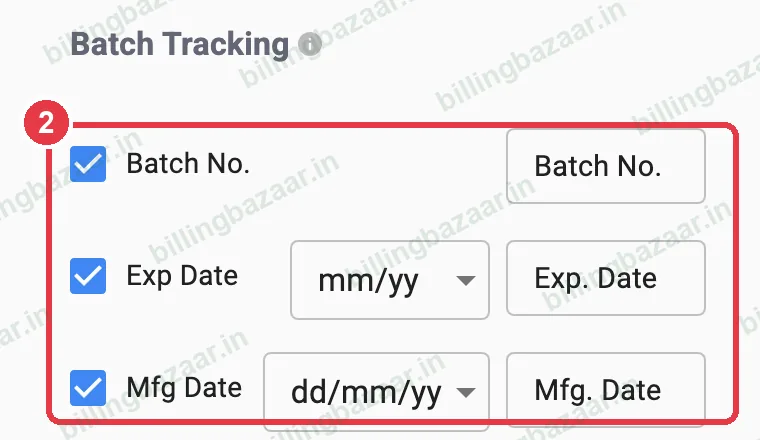
2Turn on batch fields
Under Batch Tracking, tick Batch No., Exp Date and Mfg Date. Choose the expiry format (mm/yy is common for medicines). You can rename each field in the box on the right.
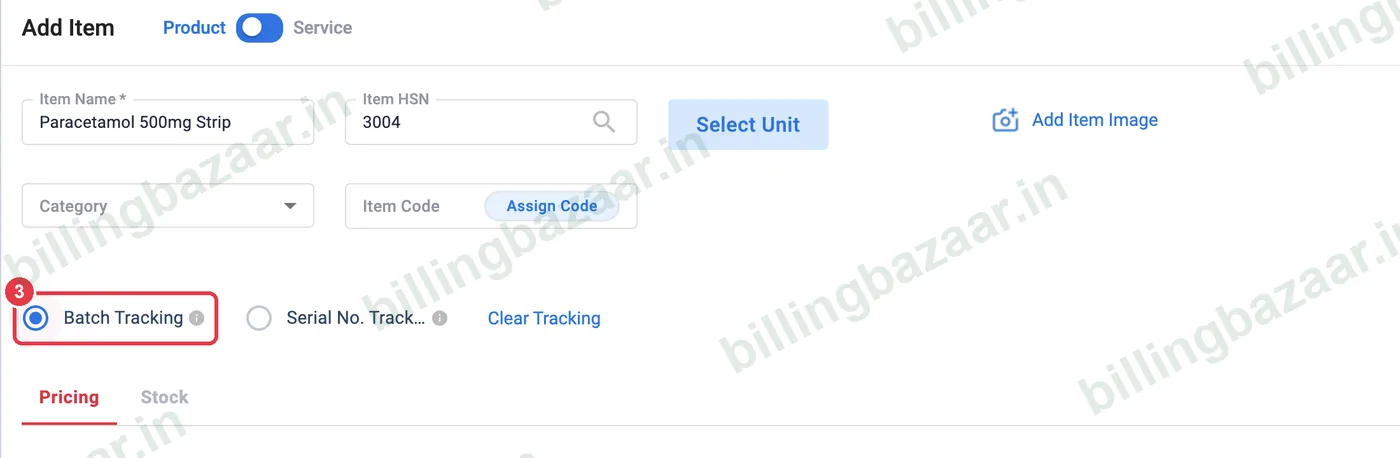
3Enable batch tracking on the item
Open Items > + (or edit an item). Select Batch Tracking under the item name.
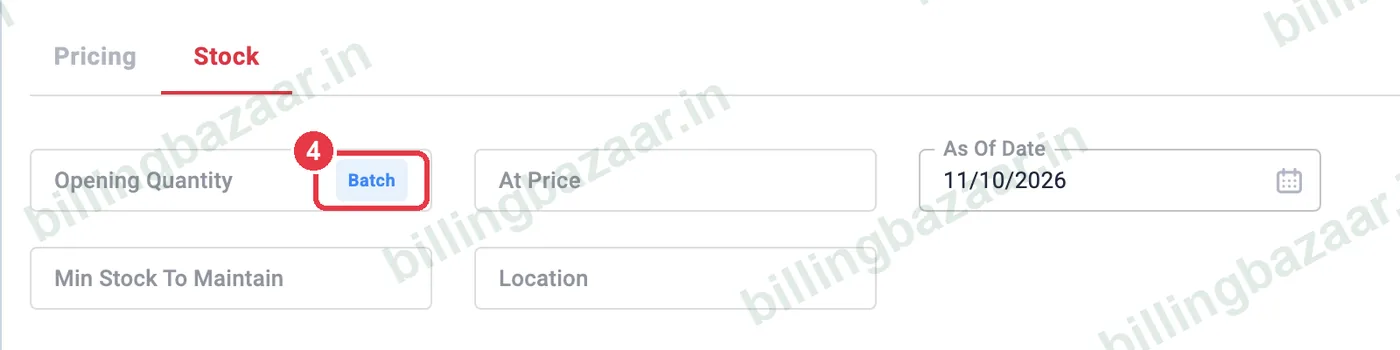
4Open batch entry
On the Stock tab, click Batch inside the Opening Quantity box.
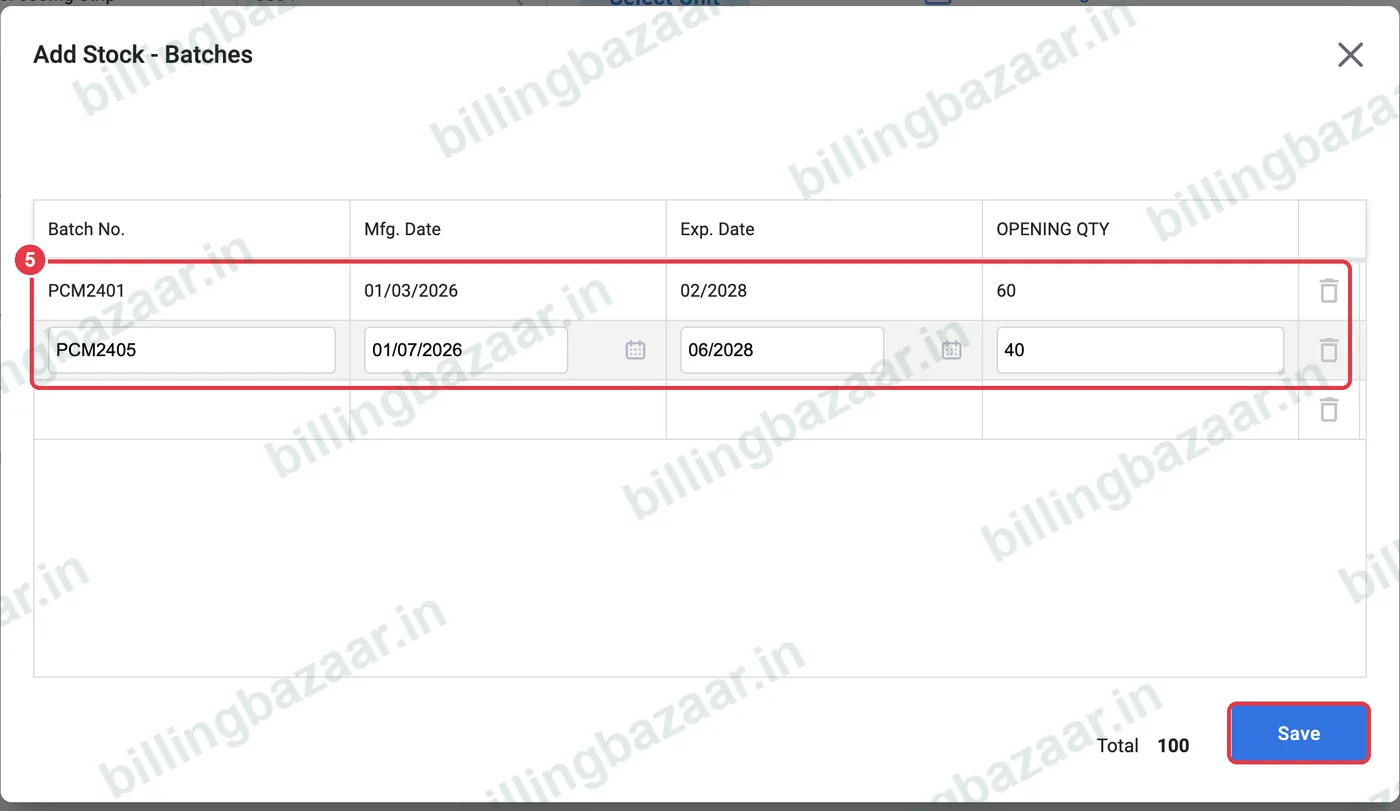
5Add each batch
In Add Stock - Batches, enter the Batch No., Mfg. Date, Exp. Date and Opening Qty for each batch. A new row appears for the next one. The total is shown at the bottom. Click Save, then save the item.
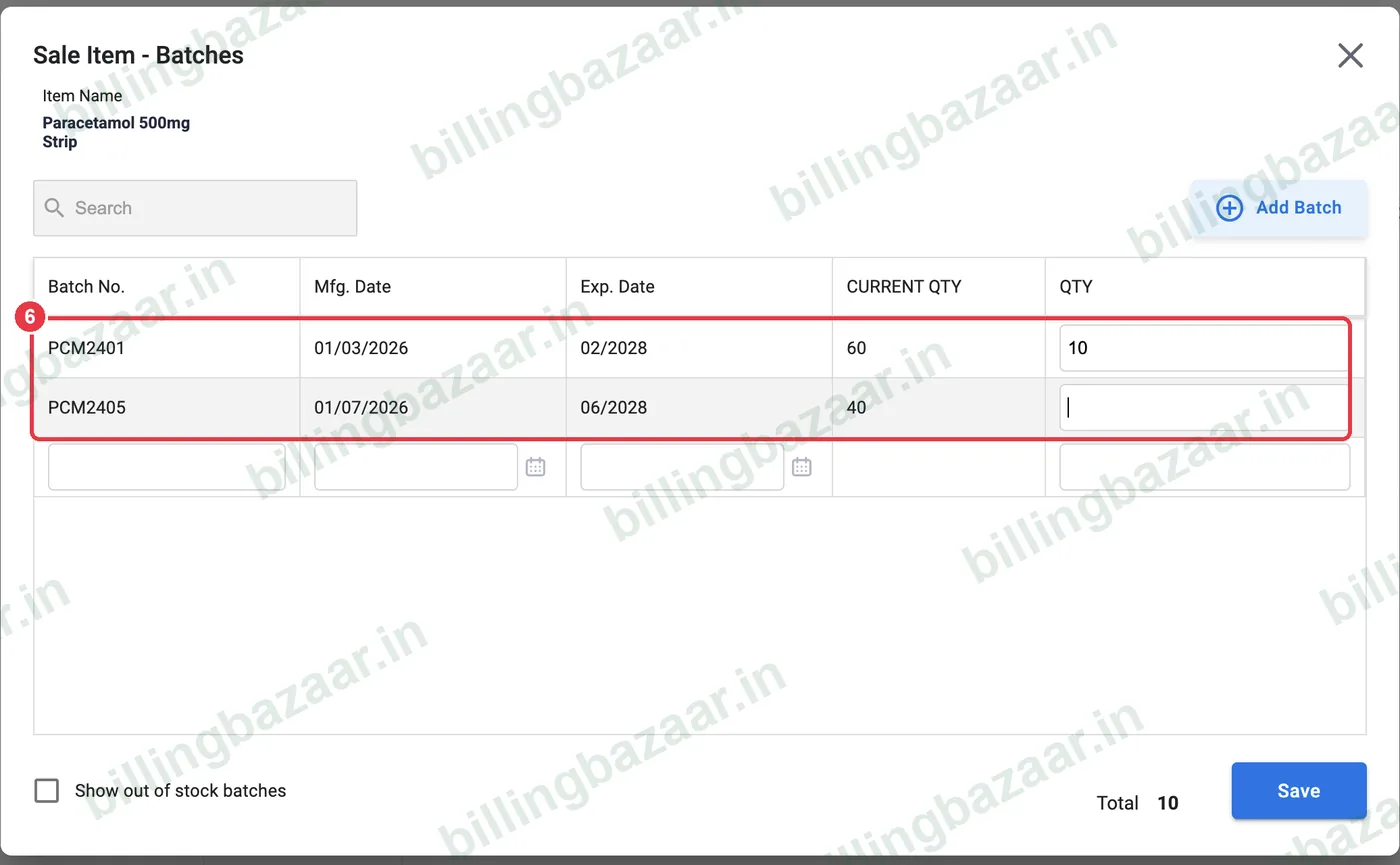
6Choose the batch while billing
When you add the item to a sale, Sale Item - Batches opens with each batch's dates and Current Qty. Enter the quantity against the batch you are selling, usually the one that expires first, and click Save.
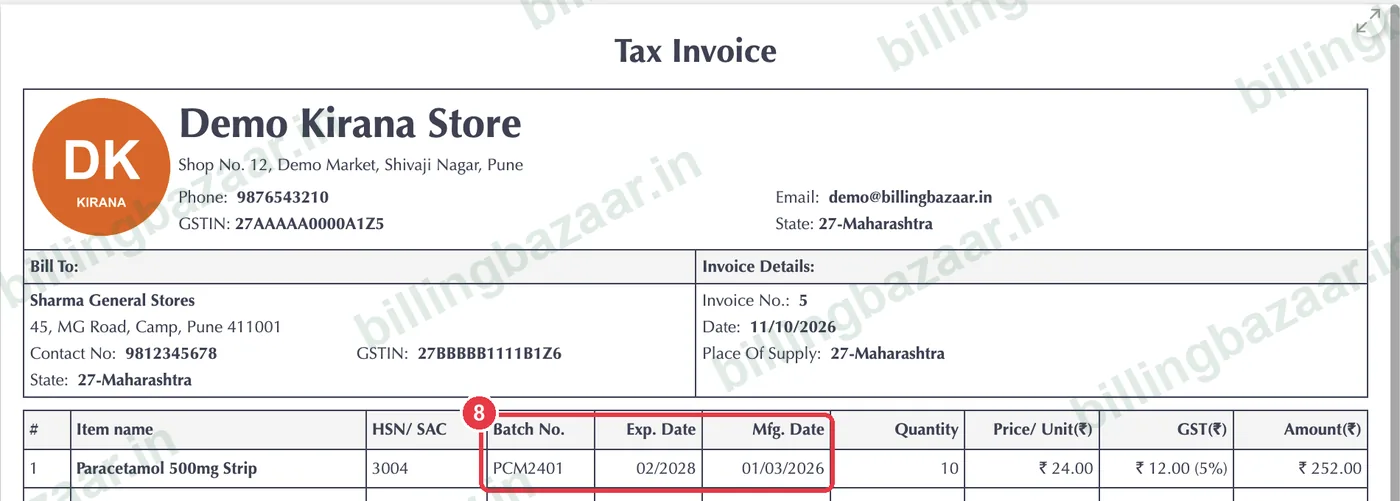
7Check the invoice line
The invoice line now shows Batch No., Exp. Date and Mfg. Date next to the item.

8Print batch details
The printed invoice includes Batch No., Exp. Date and Mfg. Date columns, which pharmacies and distributors need.
Good to know
- Sell the batch that expires first (FEFO) to reduce expired stock.
- Tick Show out of stock batches in the picker to see finished batches.
- Add new batches through purchase bills; the batch picker opens there too.
Questions people ask
How do I add batch and expiry in Vyapar?
Turn on Batch No., Exp Date and Mfg Date in Settings > Item, select Batch Tracking on the item, and enter batches from the Batch button in the stock tab or on purchase bills.
Can I choose which batch to sell?
Yes. When you add a batch item to an invoice, Vyapar shows all batches with their current quantity so you can pick one or split across batches.
Does the expiry date print on the invoice?
Yes. Batch No., Exp. Date and Mfg. Date appear as columns on the invoice.
Is batch tracking available on all plans?
Batch and expiry tracking is part of Vyapar's paid plans; check your plan if the setting is locked.
Related guides
- How to add items with HSN code and GST rate in Vyapar
- How to track serial and IMEI numbers in Vyapar
- How to enter a purchase bill in Vyapar
- How to see the stock summary report in Vyapar
Screenshots are from a demo company in Vyapar Desktop for Mac, October 2026. Menus can move slightly between app versions. Guide by Billing Bazaar, a Vyapar partner.