 Billing Bazaar
How to update item prices and GST in bulk in Vyapar
When prices or GST rates change, editing items one by one takes hours. Vyapar's bulk update shows every item in a table so you can change many at once.
| Time needed | 2 minutes |
|---|---|
| Steps | 5, each with a screenshot |
| Tested on | Vyapar Desktop for Mac, October 2026 |
| Last updated | 11 October 2026 |
Before you start
- The new prices or GST rates you want to apply.
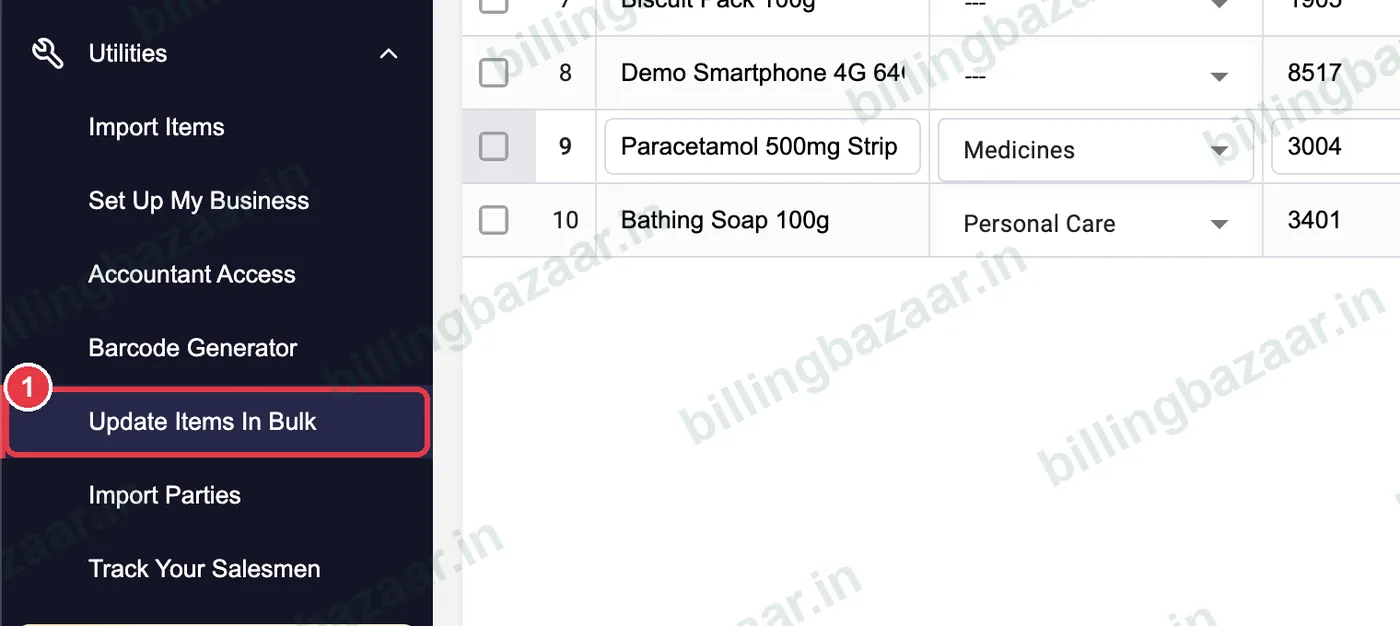
1Open Utilities > Update Items In Bulk
Click Utilities > Update Items In Bulk (or the Bulk Items Update card on the Items screen).
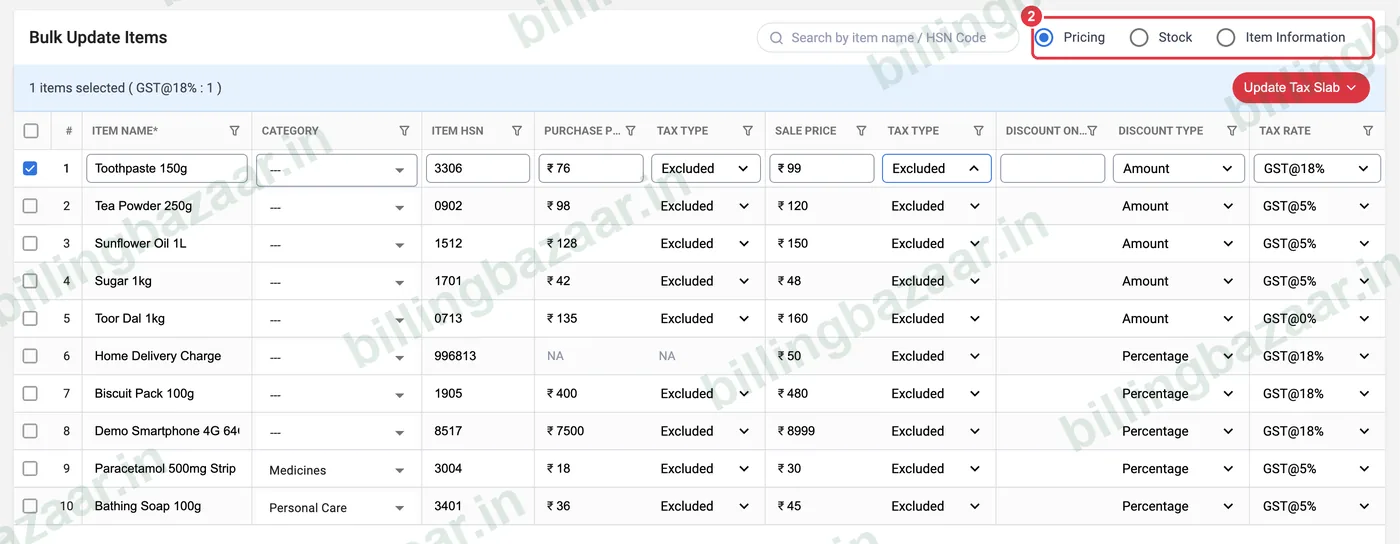
2Choose what to update
Pick Pricing, Stock or Item Information at the top. Each shows a spreadsheet-style table of all items.
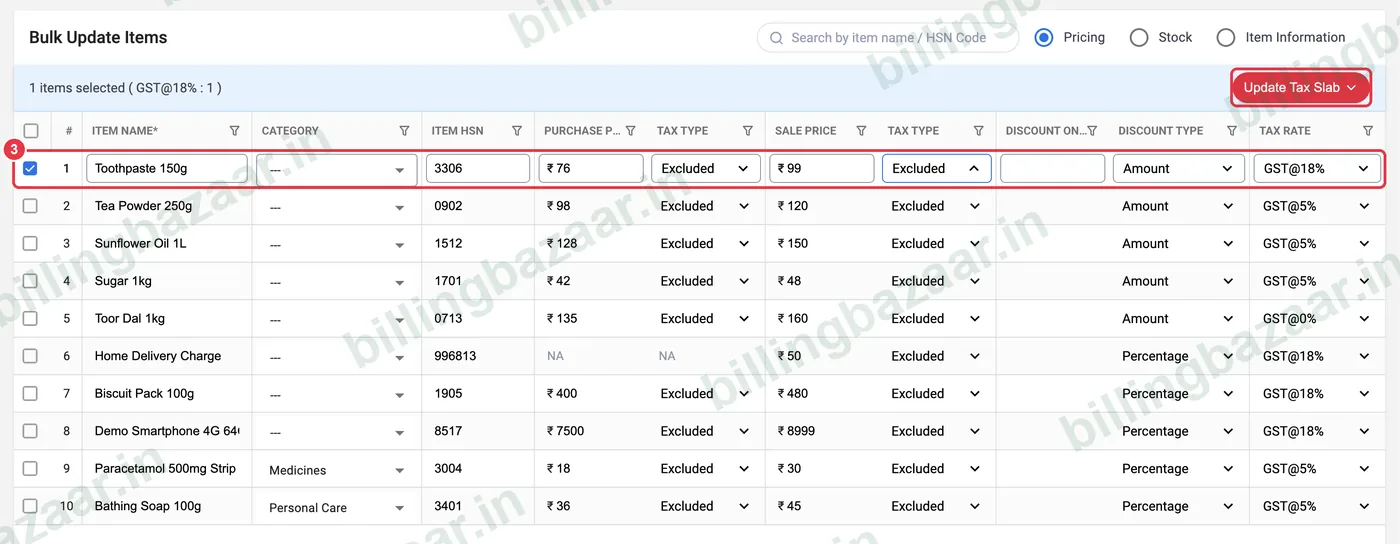
3Edit cells or update tax in one go
Click a cell and type, for example a new Sale Price. To change GST for many items, tick them and use Update Tax Slab. The footer counts pending changes.
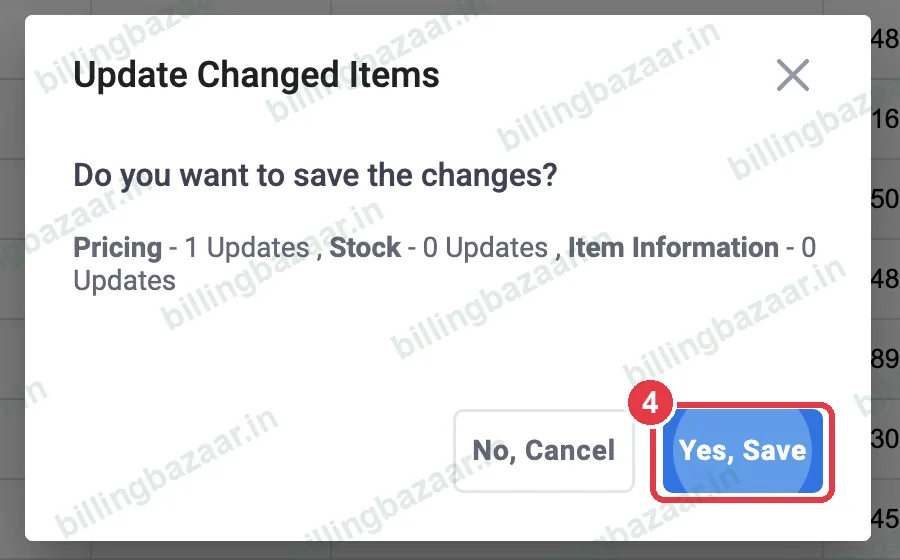
4Click Update and confirm
Click Update, check the summary and click Yes, Save.
5Done
Vyapar shows Items Updated Successfully; new invoices use the new values.

Good to know
- Filter by category or search by name/HSN to update one group at a time.
- Back up before large changes.
- Changes do not alter invoices already saved.
Questions people ask
How do I change prices of many items in Vyapar?
Utilities > Update Items In Bulk, edit the Sale Price cells and click Update.
Can I change GST rate for many items at once?
Yes. Tick the items and use Update Tax Slab.
Will old invoices change?
No. Only new transactions use the updated values.
Related guides
- How to add items with HSN code and GST rate in Vyapar
- How to import items from Excel in Vyapar
- How to turn on GST and set tax rates in Vyapar
Screenshots are from a demo company in Vyapar Desktop for Mac, October 2026. Menus can move slightly between app versions. Guide by Billing Bazaar, a Vyapar partner.