 Billing Bazaar
How to add a bank account in Vyapar (with UPI QR on invoices)
Adding your bank account lets you record payments received and made by bank, see the bank balance, and print your bank details and a UPI QR code on invoices so customers can pay quickly.
| Time needed | 2 minutes |
|---|---|
| Steps | 6, each with a screenshot |
| Tested on | Vyapar Desktop for Mac, October 2026 |
| Last updated | 11 October 2026 |
Before you start
- Your account number, IFSC code and UPI ID.
- The bank balance on the day you start using Vyapar.
1Open Cash & Bank > Bank Accounts
In the sidebar click Cash & Bank, then Bank Accounts.

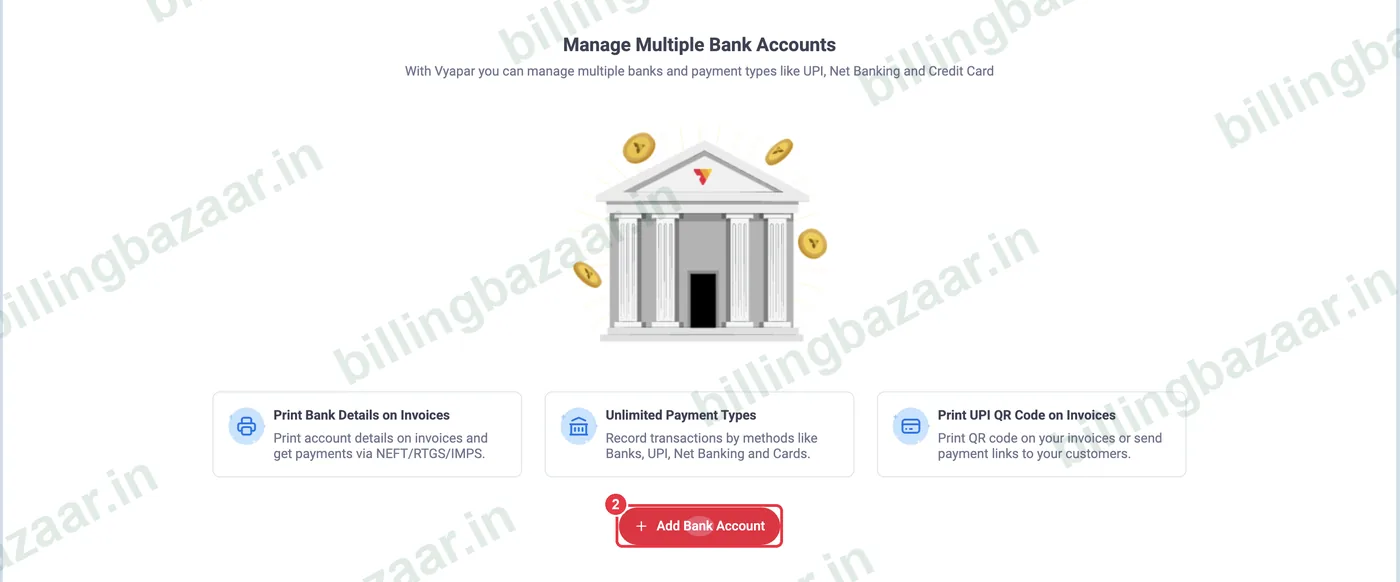
2Click Add Bank Account
On the Banks screen, click the red + Add Bank Account button. Vyapar can manage several accounts, UPI and cards.
3Enter name and opening balance
Type an Account Display Name you will recognise, the Opening Balance and the As of Date. Click + Add more fields for bank details.
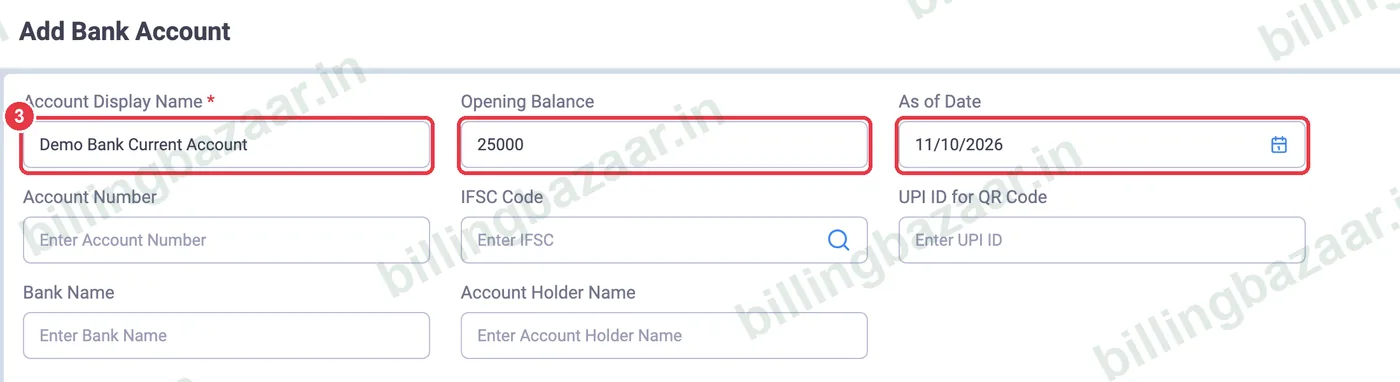
4Add bank details and UPI ID
Enter the Account Number, IFSC Code (the search icon looks up the branch), UPI ID for QR Code, Bank Name and Account Holder Name.

5Print UPI QR and bank details on invoices
Tick Print offline UPI QR on Invoices to print a scan-to-pay QR with your UPI ID, and Print Bank Details on Invoices for NEFT/RTGS payments. Click Save Details.

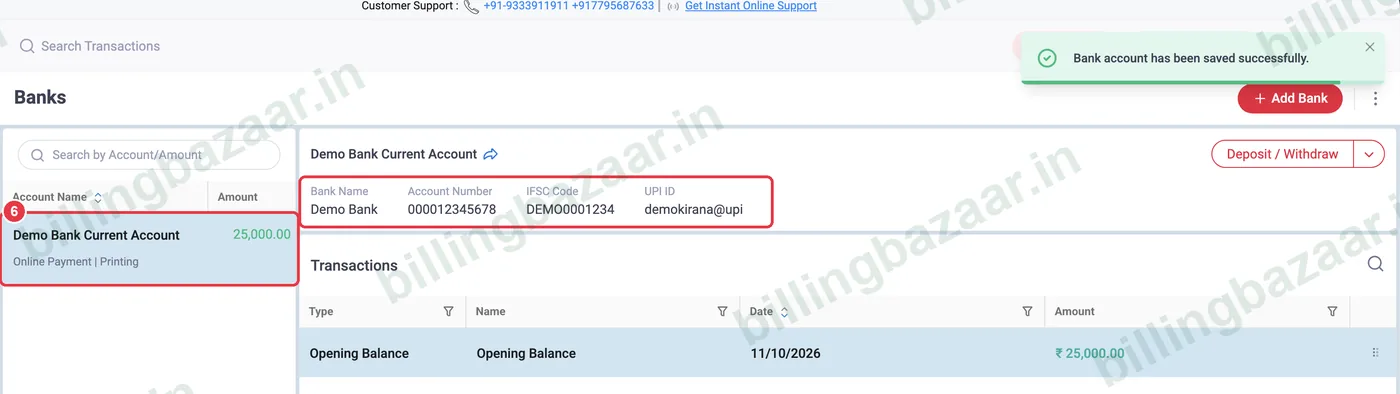
6Check the account
Vyapar shows Bank account has been saved successfully. The account appears with its balance, bank details and transactions. Use Deposit / Withdraw to move cash in or out.
Good to know
- Choose the bank account as Payment Type on invoices and payments to update its balance.
- The offline UPI QR is for any UPI app; it does not reconcile payments automatically. Use Accept Payments Online for automatic matching.
- Add each bank account separately if you use more than one.
Questions people ask
How do I add a bank account in Vyapar?
Cash & Bank > Bank Accounts > Add Bank Account, enter the name, opening balance and bank details, and click Save Details.
How do I show a UPI QR code on Vyapar invoices?
Add your UPI ID in the bank account and tick Print offline UPI QR on Invoices.
Can I print bank details on invoices?
Yes. Tick Print Bank Details on Invoices in the bank account.
Can I add more than one bank account?
Yes. Vyapar supports multiple bank accounts and payment types.
Related guides
- How to adjust cash in hand in Vyapar
- How to record a payment received (Payment In) in Vyapar
- How to add a UPI QR code on invoices in Vyapar
- How to create a GST invoice in Vyapar
Screenshots are from a demo company in Vyapar Desktop for Mac, October 2026. Menus can move slightly between app versions. Guide by Billing Bazaar, a Vyapar partner.