 Billing Bazaar
How to record a payment received (Payment In) in Vyapar
When a customer pays an old bill or clears udhaar, record it as Payment-In in Vyapar. Their balance goes down, cash or bank goes up, and Vyapar makes a payment receipt you can share on WhatsApp.
| Time needed | 1 minute |
|---|---|
| Steps | 6, each with a screenshot |
| Tested on | Vyapar Desktop for Mac, October 2026 |
| Last updated | 11 October 2026 |
Before you start
- The customer saved as a party with a balance to receive.
1Open Sale > Payment-In
In the sidebar click Sale, then the + next to Payment-In.
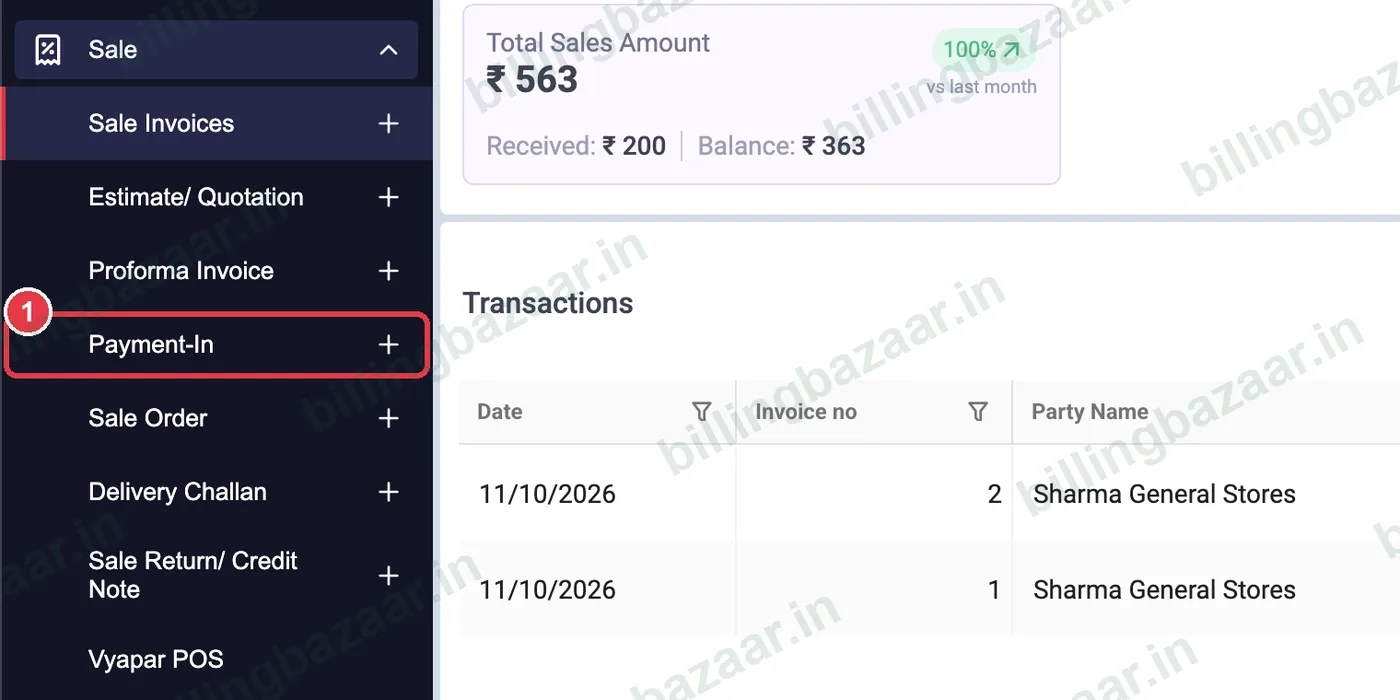
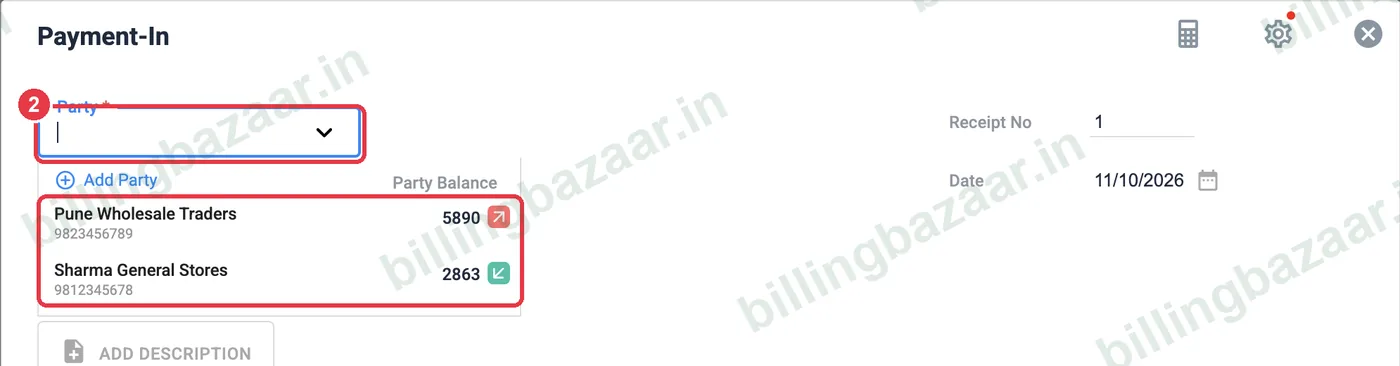
2Choose the party
Click Party and pick the customer. The list shows each party's balance; green means they owe you.
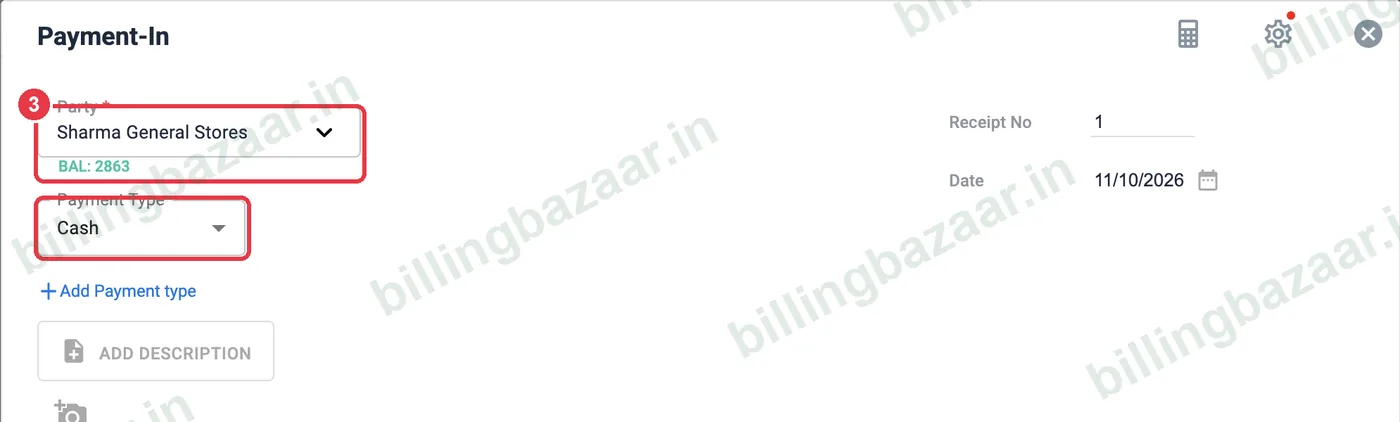
3Check balance and payment type
Vyapar shows the customer's current balance (BAL) under their name. Choose how you were paid in Payment Type: Cash, Cheque or a bank account. Use Add Payment type to split between cash and bank.
4Enter the amount received
Type the amount in Received. Receipt number and date fill in automatically; change the date if the payment was on another day.
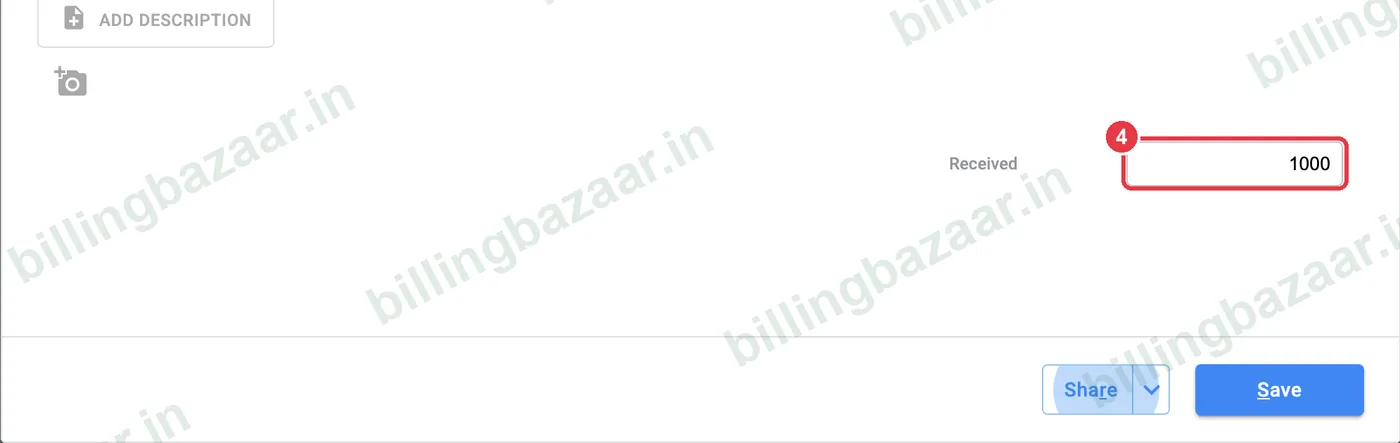
5Click Save
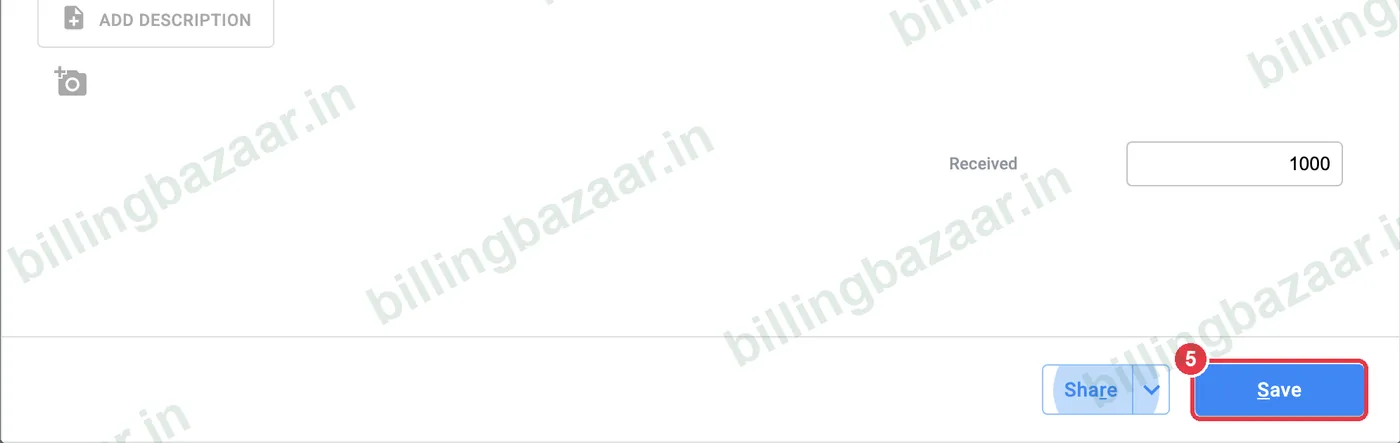
Click Save. Use the arrow next to Share to save and share in one step.
6Share the payment receipt
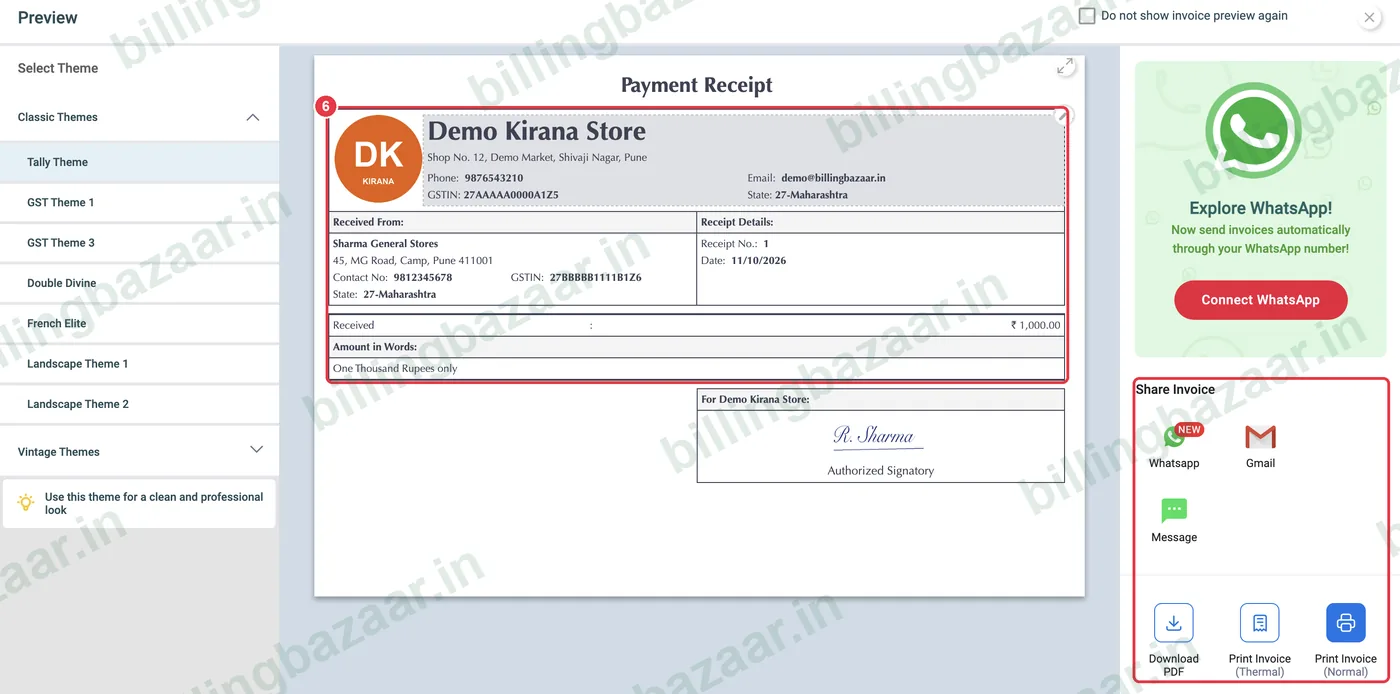
Vyapar shows a Payment Receipt with the amount in words and your signature. Send it on WhatsApp, Gmail or SMS, download a PDF, or print it. The customer's balance is reduced by the amount received.
Good to know
- Link a payment to specific unpaid invoices so they show as Paid in the sale list.
- Use the same Payment-In screen for advance payments; the balance goes negative until you bill.
- Payments received at the time of sale can be entered directly on the invoice in the Received box.
Questions people ask
How do I record a customer payment in Vyapar?
Go to Sale > Payment-In, choose the party, enter the amount received and the payment type, and click Save.
Does Payment-In reduce the customer's balance?
Yes. The amount is subtracted from what the party owes you.
Can I give the customer a receipt?
Yes. After saving, Vyapar shows a payment receipt to share on WhatsApp, email or print.
What is the difference between Payment-In and Payment-Out?
Payment-In is money you receive from a customer. Payment-Out is money you pay a supplier.
Related guides
- How to create a GST invoice in Vyapar
- How to add a party's opening balance and credit limit in Vyapar
- How to send payment reminders in Vyapar
- How to record a payment made (Payment Out) in Vyapar
Screenshots are from a demo company in Vyapar Desktop for Mac, October 2026. Menus can move slightly between app versions. Guide by Billing Bazaar, a Vyapar partner.