 Billing Bazaar
How to add customers and suppliers in Vyapar
In Vyapar, customers and suppliers are both called parties. Adding them once means their name, GSTIN and address fill in automatically on every invoice and purchase bill. This guide adds a GST-registered customer in the Vyapar desktop app.
| Time needed | 2 minutes |
|---|---|
| Steps | 7, each with a screenshot |
| Tested on | Vyapar Desktop for Mac, October 2026 |
| Last updated | 11 October 2026 |
Before you start
- The party's name, phone number and billing address.
- Their GSTIN if they are GST registered (needed for B2B invoices and GSTR-1).
1Open Parties and click Add Party
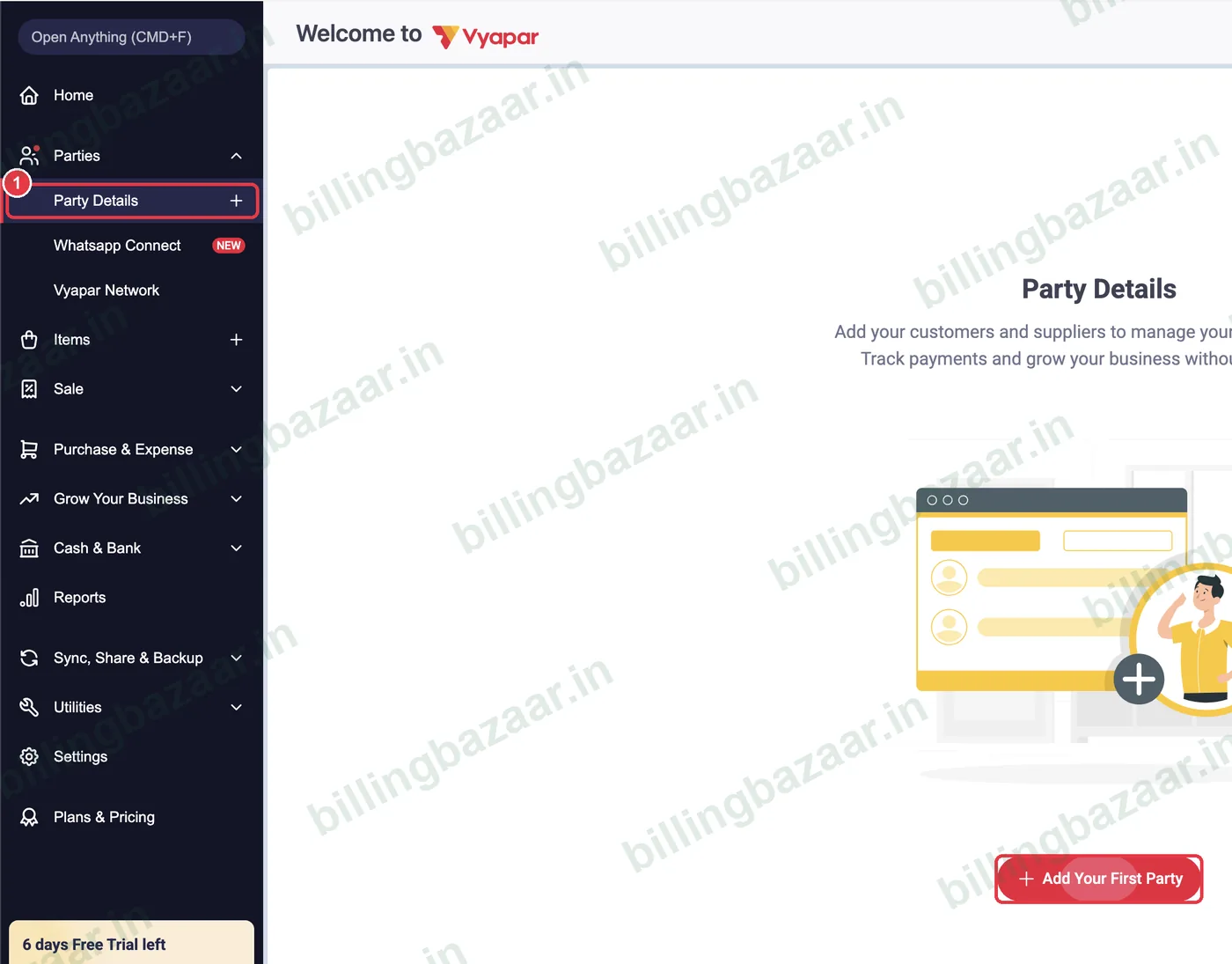
In the left sidebar click Parties > Party Details. The first time, click Add Your First Party; after that use the red + Add Party button at the top right.
2Enter name, GSTIN and phone
Type the Party Name as it should print on invoices, the 15-character GSTIN (skip for consumers) and the Phone Number. The phone number is used for WhatsApp and SMS reminders.

3Check GST type and state
On the GST & Address tab, Vyapar sets GST Type to Registered Business - Regular and fills the State from the GSTIN. For a walk-in customer without GSTIN, leave it as Unregistered/Consumer and pick the state.
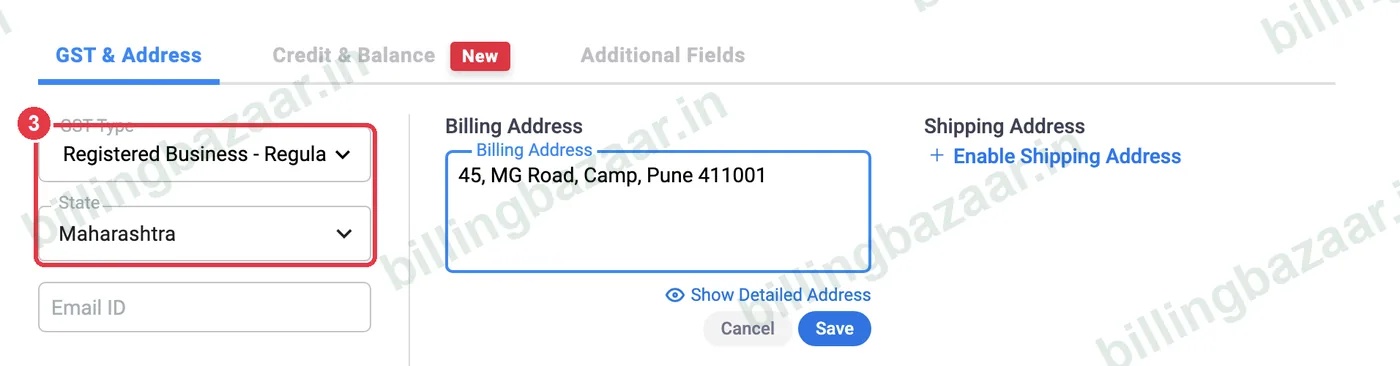
Tip: The party's state decides CGST + SGST (same state as you) or IGST (other state) on invoices.
4Add the billing address
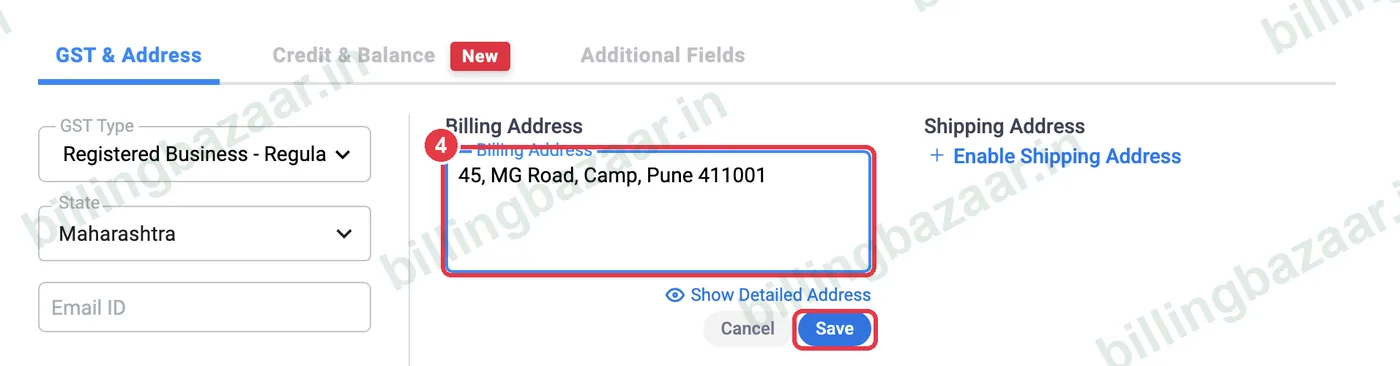
Type the Billing Address and click the small blue Save under it. Click Enable Shipping Address if goods go to a different address.
5Add the email (optional)
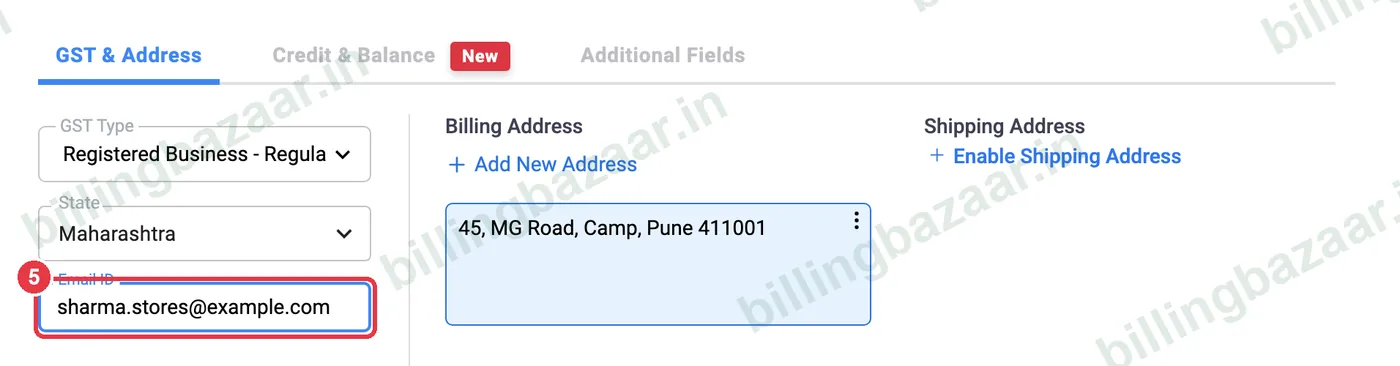
Enter an Email ID if you want to email invoices and statements to this party.
6Click Save
Click Save, or Save & New to add the next party. Opening balance and credit limit are on the Credit & Balance tab (see the related guide).

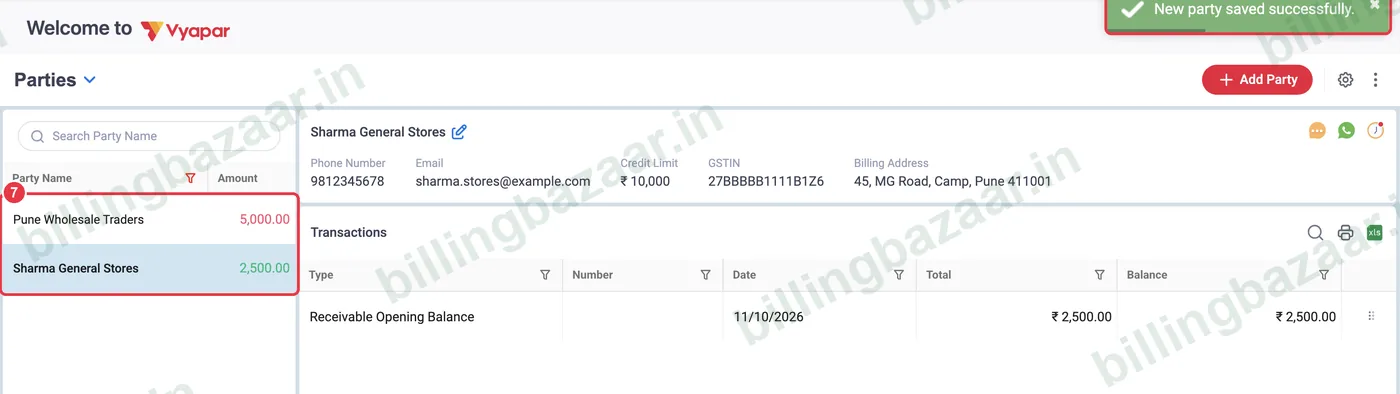
7See your parties
Vyapar shows New party saved successfully. The party list on the left shows each party's balance: green means they owe you, red means you owe them. Click a party to see its details and transactions.
Good to know
- Suppliers are added the same way; their balance shows in red when you owe them money.
- Import many parties at once from Excel, or from your phone contacts in the mobile app.
- Keep party names unique; two parties called Sharma make reports confusing.
Questions people ask
How do I add a customer in Vyapar?
Go to Parties > Party Details, click Add Party, enter the name, GSTIN, phone and address, and click Save.
Is there a separate screen for suppliers?
No. Customers and suppliers are both parties in Vyapar; add them from the same Add Party window.
Is GSTIN compulsory for a party?
No. Leave it empty for consumers and unregistered businesses. Add it for registered businesses so their invoices appear as B2B in GSTR-1.
Why did Vyapar change the GST type by itself?
When you enter a GSTIN, Vyapar sets the type to Registered Business and fills the state from the first two digits.
Where do I enter what a customer already owes?
On the Credit & Balance tab, as the opening balance with To Receive selected.
Related guides
- How to add a party's opening balance and credit limit in Vyapar
- How to import customers from Excel in Vyapar
- How to see and share a party statement (ledger) in Vyapar
- How to create a GST invoice in Vyapar
Screenshots are from a demo company in Vyapar Desktop for Mac, October 2026. Menus can move slightly between app versions. Guide by Billing Bazaar, a Vyapar partner.