 Billing Bazaar
How to add opening stock in Vyapar
Opening stock is what you have on the shelf on the day you start using Vyapar. Entering it with the cost price makes stock reports, stock value and profit correct from day one.
| Time needed | 1 minute |
|---|---|
| Steps | 5, each with a screenshot |
| Tested on | Vyapar Desktop for Mac, October 2026 |
| Last updated | 11 October 2026 |
Before you start
- A count of each item's quantity on your start date, and its purchase price.
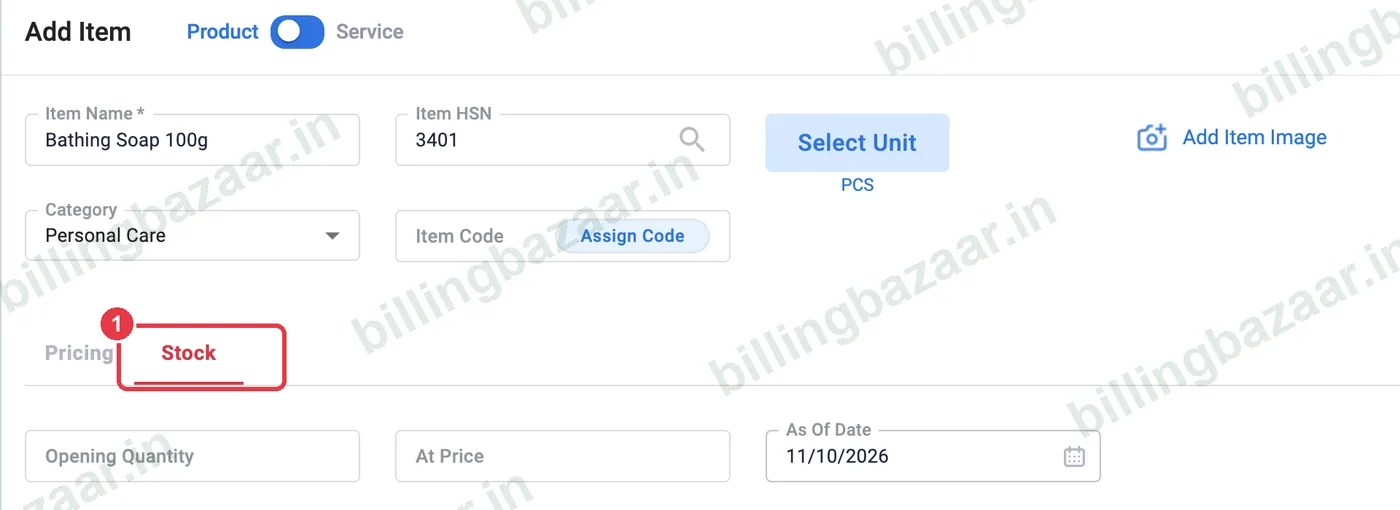
1Open the item's Stock tab
In Add Item (or edit an existing item), click the Stock tab.
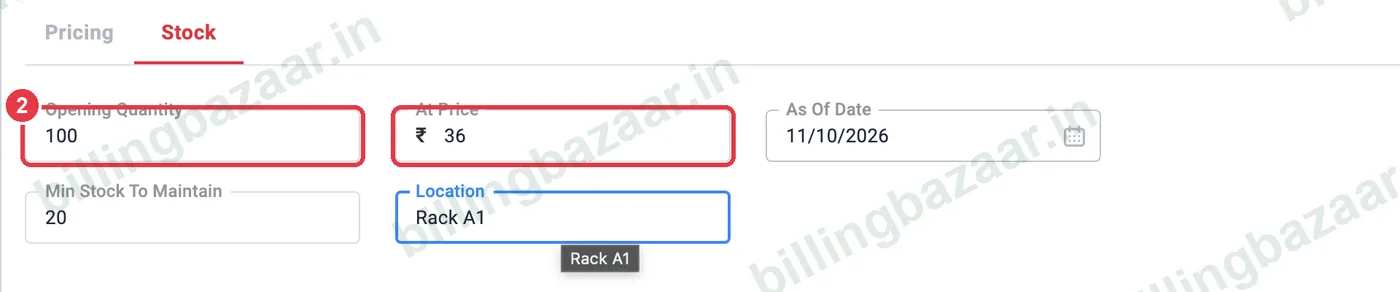
2Enter quantity and price
Type the Opening Quantity and the cost At Price (usually the purchase price per unit).
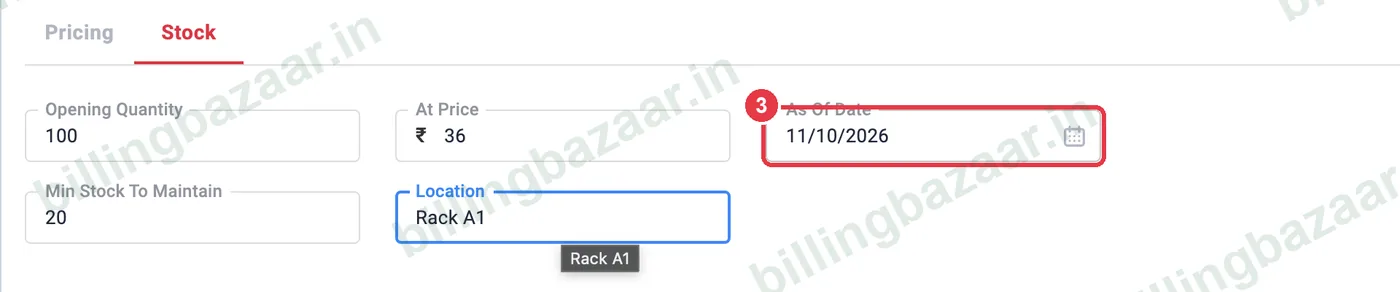
3Set the as-of date
Set As Of Date to the day your count was taken, normally the day you start using Vyapar. Save the item.
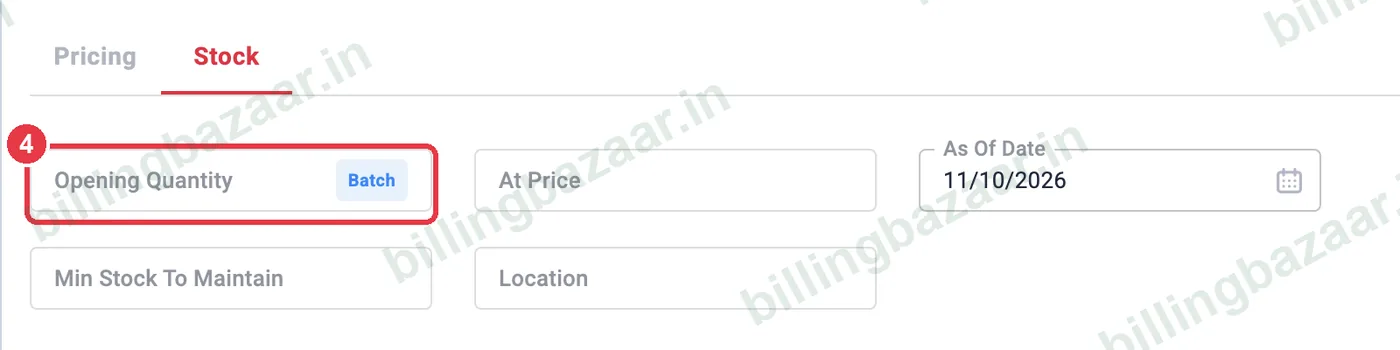
4Batch-tracked items
For items with batch tracking, click Batch in the Opening Quantity box and enter quantity per batch with batch number and dates.
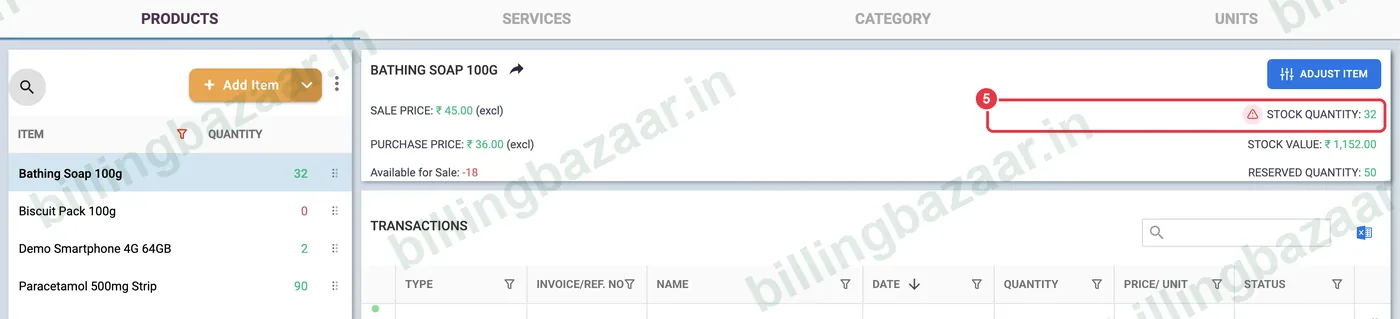
5Check stock and value
In Items, the item shows its Stock Quantity and Stock Value.
Good to know
- Use one as-of date for all items.
- Import opening stock for many items from Excel.
- Correct mistakes later with Adjust Item.
Questions people ask
How do I add opening stock in Vyapar?
Open the item, go to the Stock tab, enter Opening Quantity, At Price and As Of Date, and save.
Can I import opening stock?
Yes. Map Opening Stock Quantity when importing items from Excel.
What price should I enter?
The purchase cost per unit, so stock value is correct.
Related guides
- How to add items with HSN code and GST rate in Vyapar
- How to import items from Excel in Vyapar
- How to adjust stock in Vyapar
- How to track batch number and expiry date in Vyapar
Screenshots are from a demo company in Vyapar Desktop for Mac, October 2026. Menus can move slightly between app versions. Guide by Billing Bazaar, a Vyapar partner.