 Billing Bazaar
How to add services with SAC code in Vyapar
Shops often charge for delivery, installation or repairs alongside goods, and service businesses bill only services. In Vyapar a service is an item without stock, identified by a SAC code instead of an HSN code.
| Time needed | 1 minute |
|---|---|
| Steps | 5, each with a screenshot |
| Tested on | Vyapar Desktop for Mac, October 2026 |
| Last updated | 11 October 2026 |
Before you start
- The 6-digit SAC code for the service (for example 998713 for repairs, 996813 for delivery).
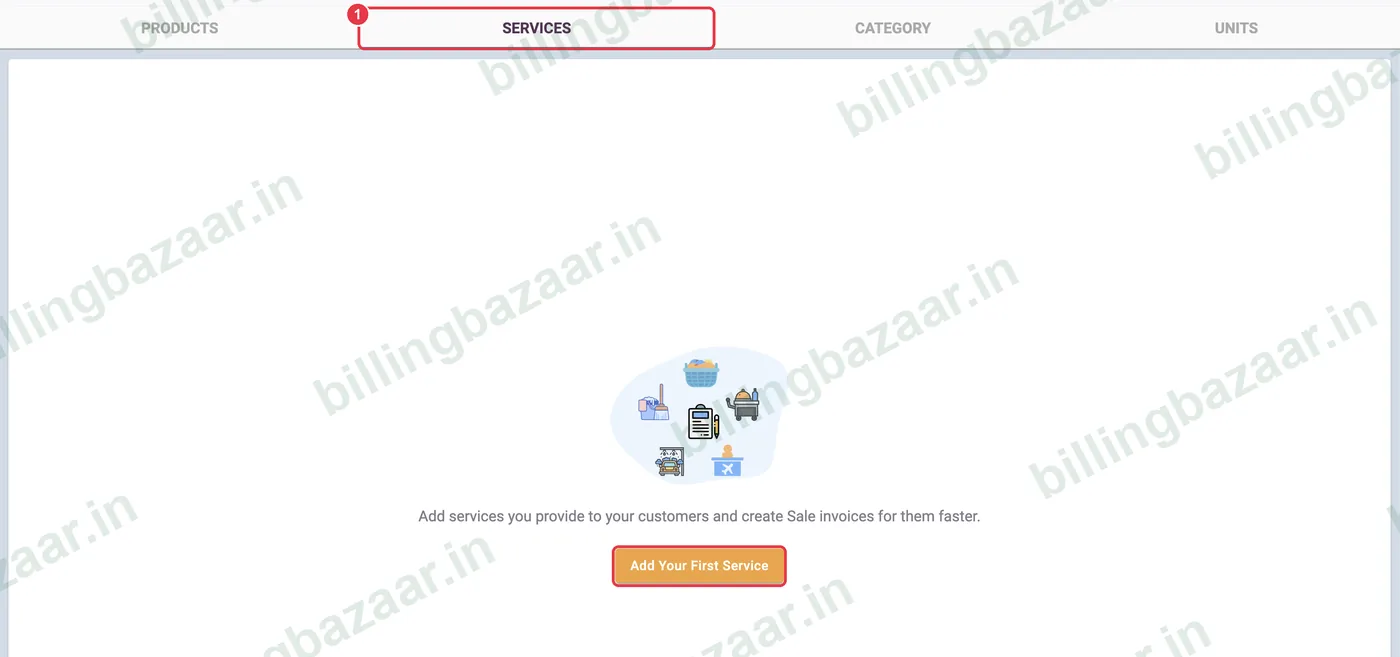
1Open Items > Services
Open Items and click the SERVICES tab. The first time, click Add Your First Service; later use Add Service.
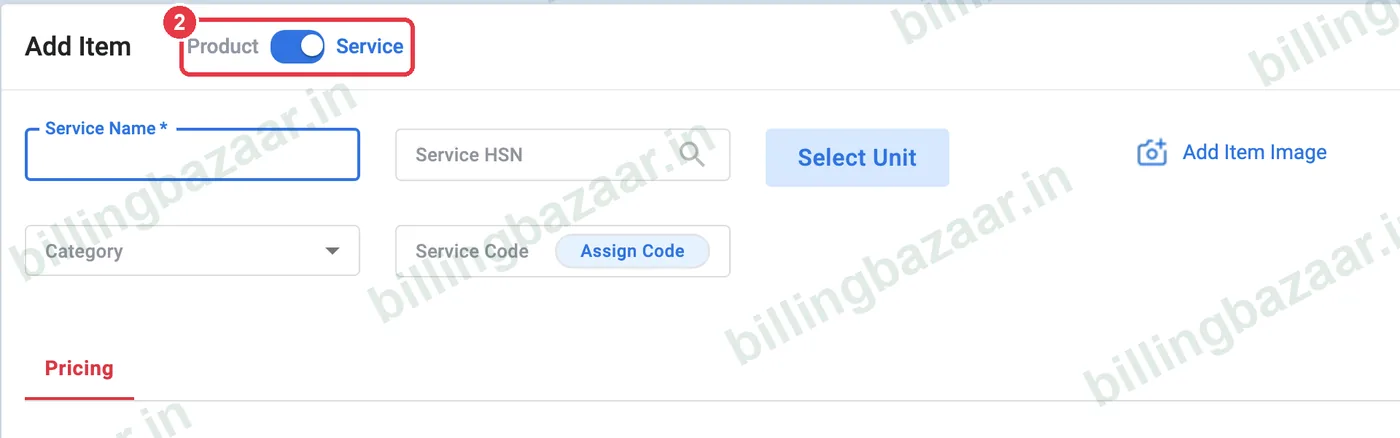
2Check the Service toggle
The Add Item window opens with the toggle on Service. Services have no stock tab, because they are not counted in inventory.
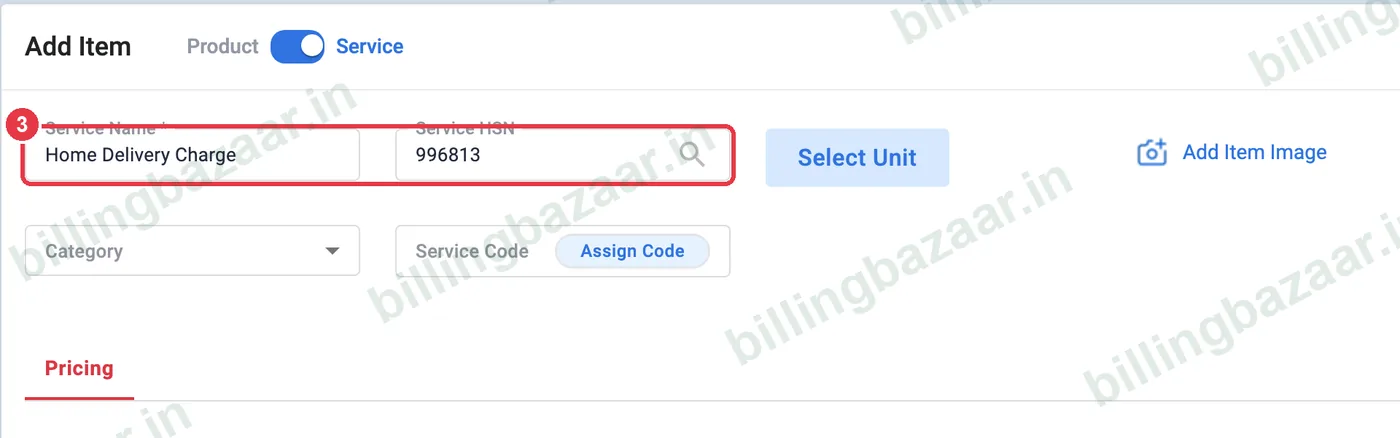
3Enter service name and SAC code
Type the Service Name as it should appear on bills (for example Home Delivery Charge) and the 6-digit SAC code in Service HSN. Use the search icon to look up the code.
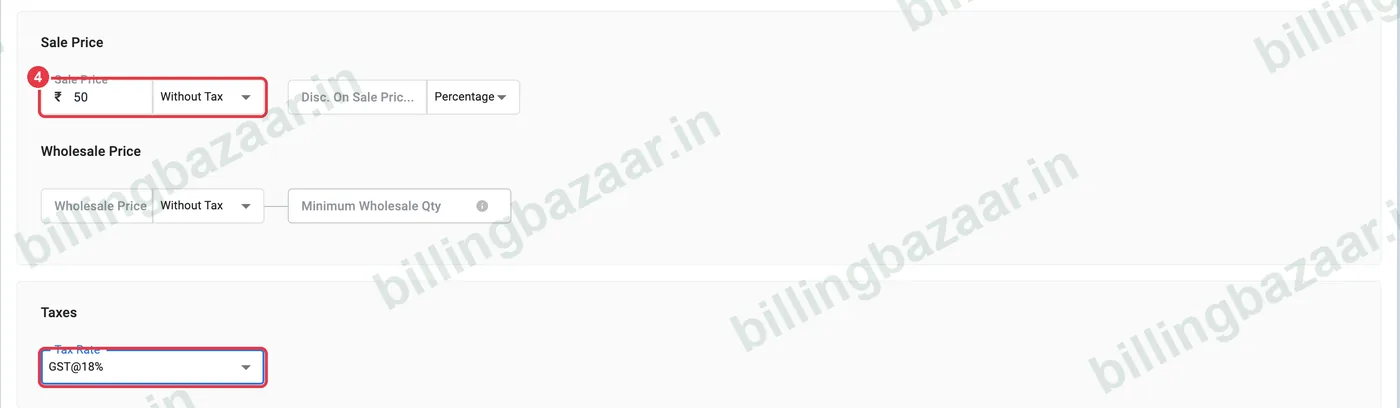
4Set price and GST
Enter the Sale Price (With or Without Tax) and pick the Tax Rate, usually GST@18% for most services.
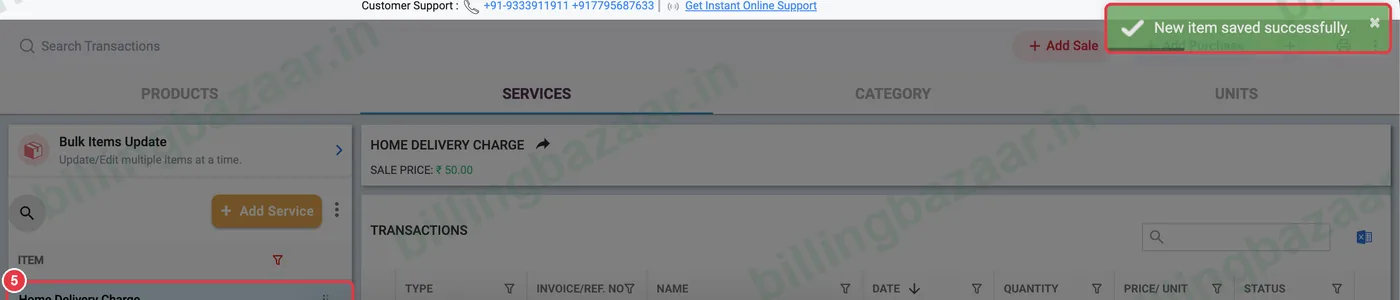
5Save
Click Save. The service appears in the Services list and can be added to any invoice like an item.
Good to know
- Most services attract 18% GST; check the rate for your SAC code.
- Services and goods can be billed on the same invoice.
- Add shipping as an additional charge instead if you do not want it as a line item.
Questions people ask
How do I add a service in Vyapar?
Items > Services > Add Service, enter the name, SAC code, price and GST, and save.
Where do I enter the SAC code?
In the Service HSN field of the service.
Does a service affect stock?
No. Services have no stock in Vyapar.
Related guides
- How to add items with HSN code and GST rate in Vyapar
- How to add HSN and SAC codes in Vyapar
- How to add shipping and other charges to an invoice in Vyapar
- How to create a GST invoice in Vyapar
Screenshots are from a demo company in Vyapar Desktop for Mac, October 2026. Menus can move slightly between app versions. Guide by Billing Bazaar, a Vyapar partner.