 Billing Bazaar
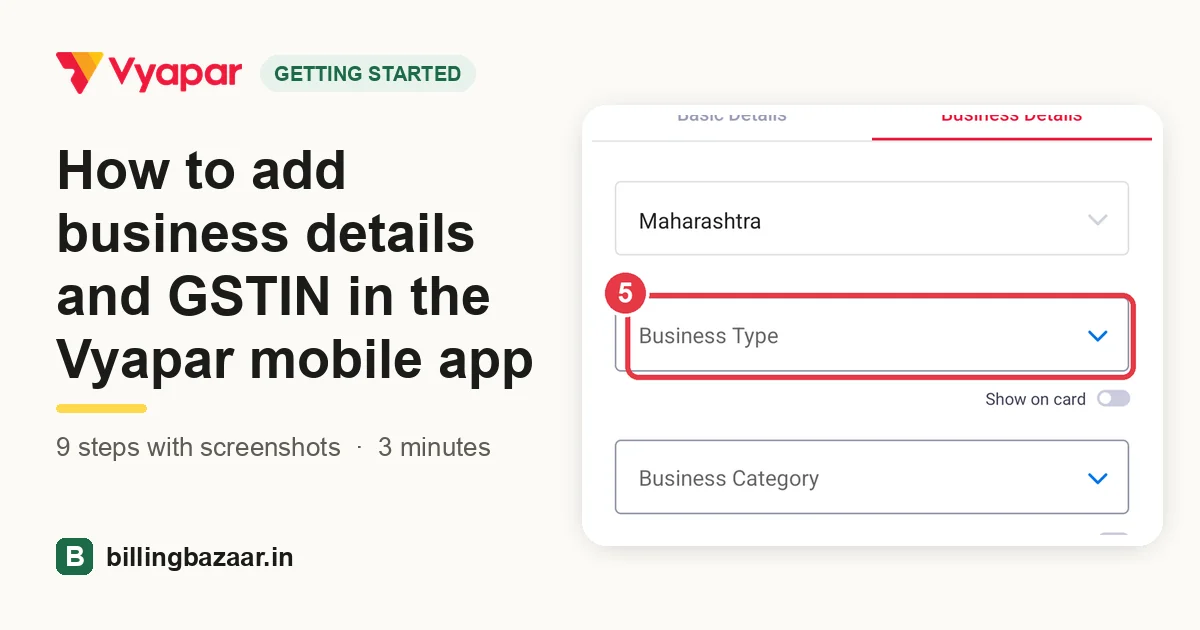
How to add business details and GSTIN in the Vyapar mobile app
Your business details print on every invoice, so set them up first. In the Vyapar app they live in Business Profile, in two tabs: Basic Details and Business Details.
Using Vyapar on a computer? See the desktop version of this guide.
| Time needed | 3 minutes |
|---|---|
| Steps | 9, each with a screenshot |
| Tested on | Vyapar Android app 29.4, October 2026 |
| Last updated | 11 October 2026 |
Before you start
- Your GSTIN, if you are GST registered.
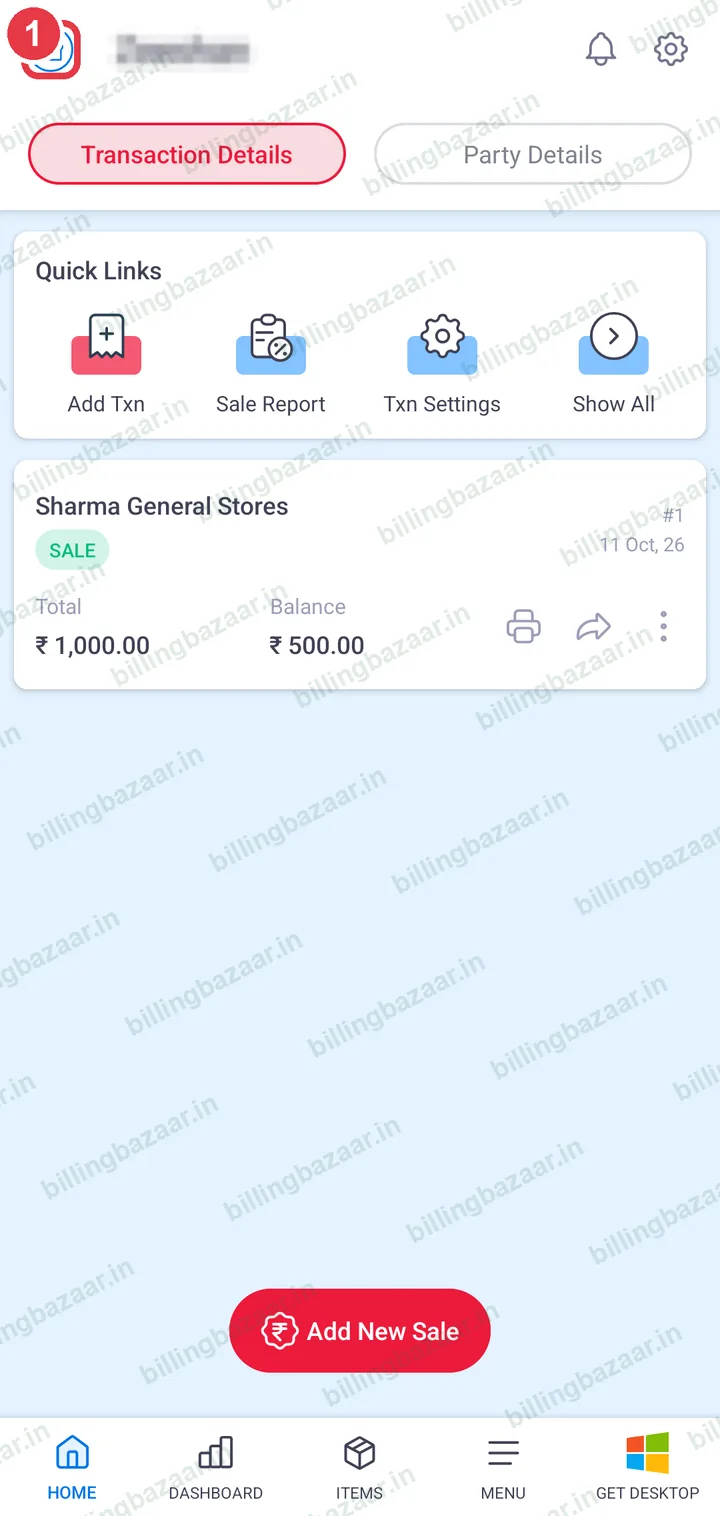
1Tap your business icon
On the home screen, tap the business icon at the top left. Business Profile opens.
2Enter name, GSTIN and phone
In Basic Details, enter the Business Name, GSTIN and Phone Number 1. Turn on Show on card to print the GSTIN on your visiting card.
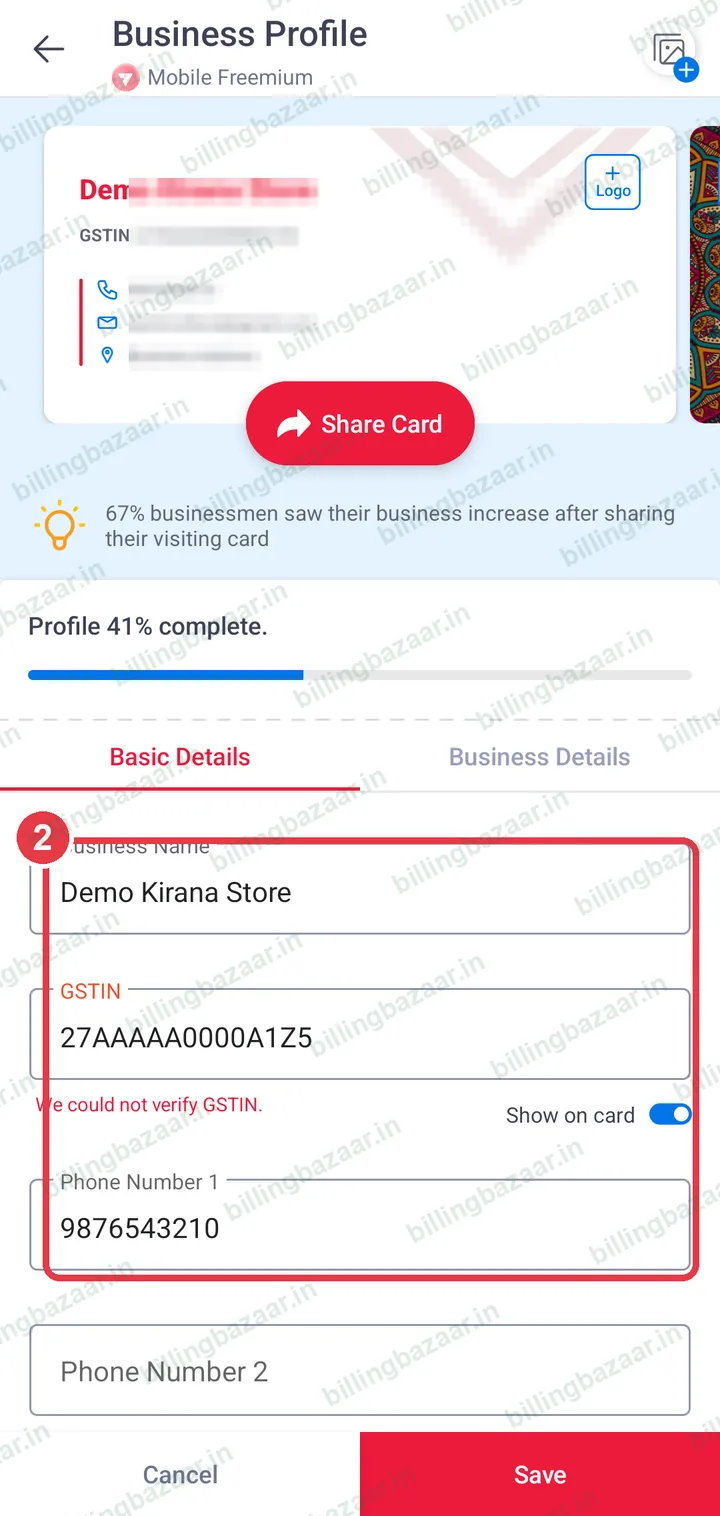
Tip: The state is picked up from the first two digits of the GSTIN.
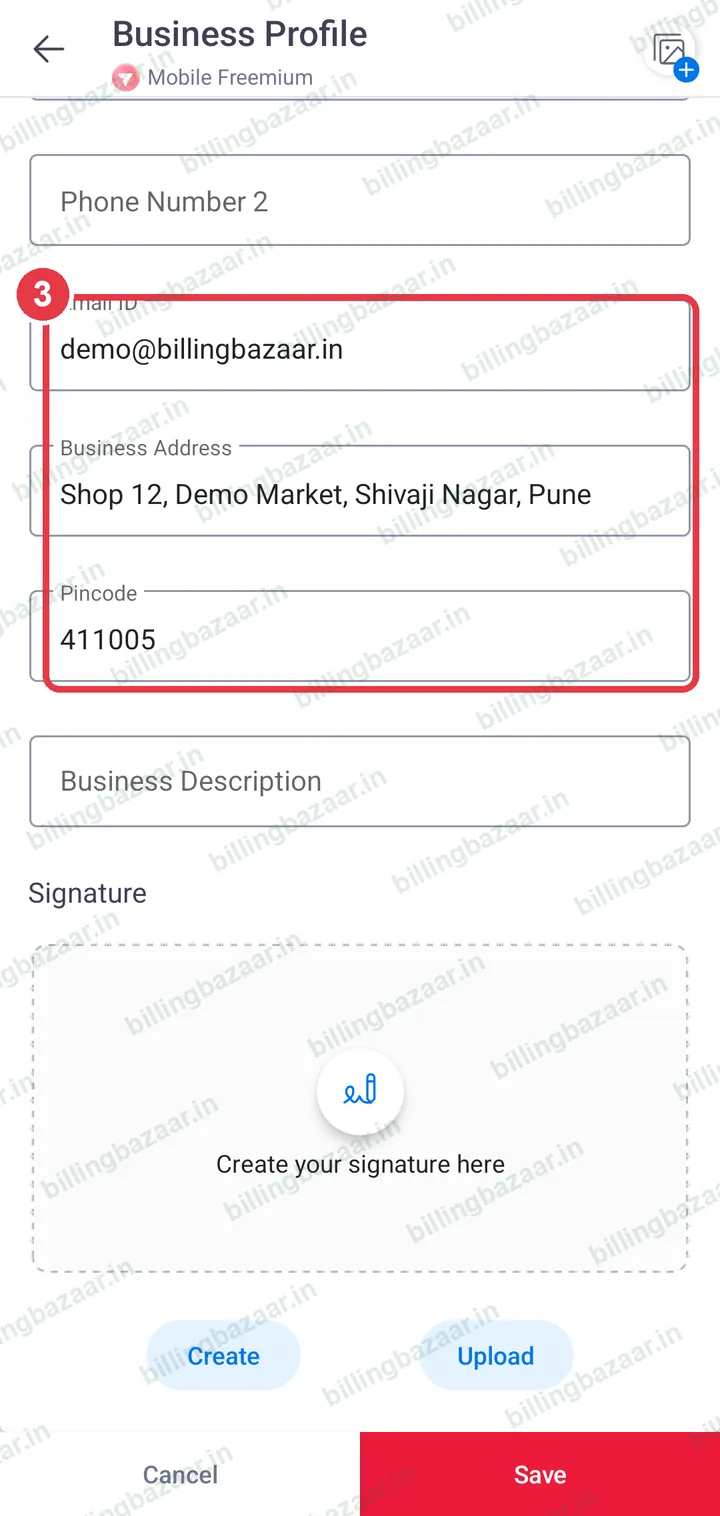
3Add email, address and pincode
Scroll down and fill Email ID, Business Address and Pincode. You can also add a signature here.
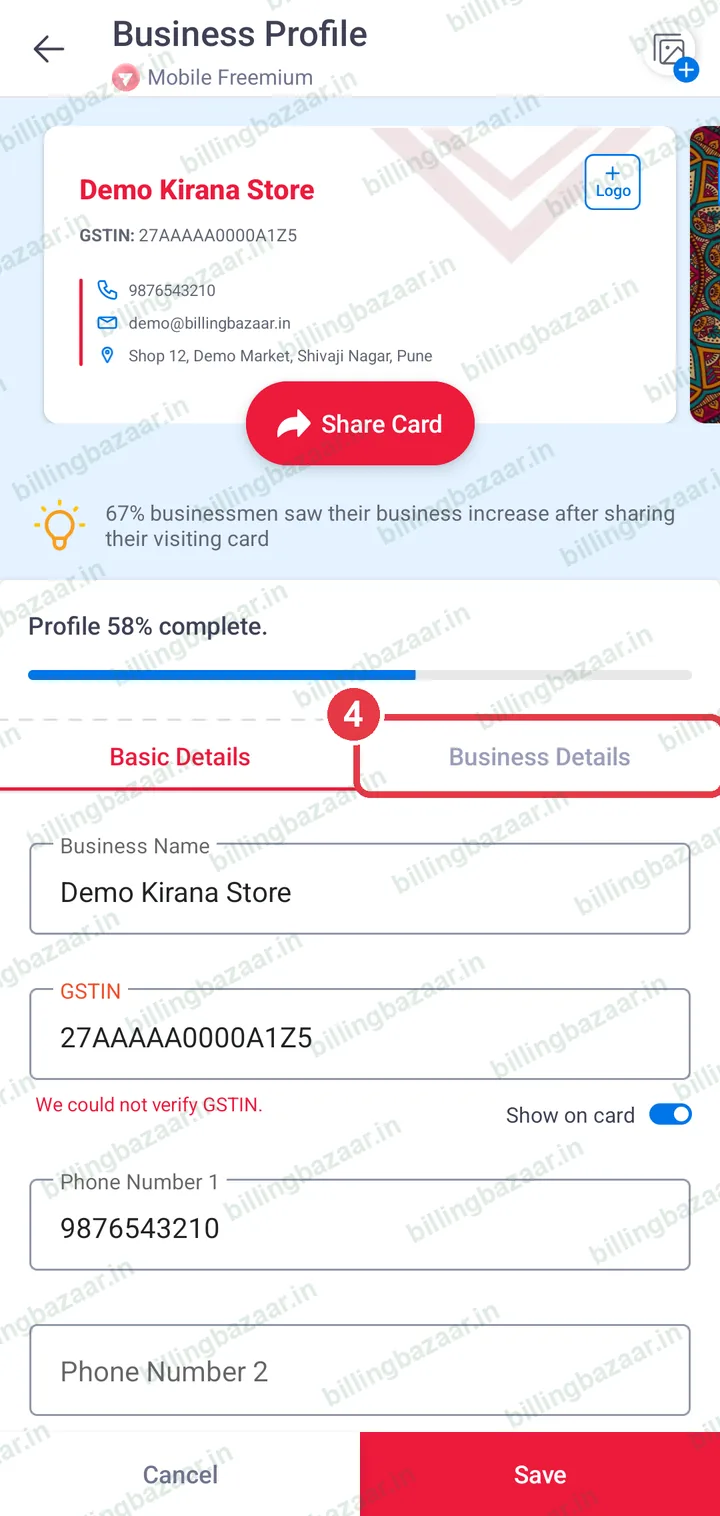
4Open Business Details
Tap the Business Details tab. The state is filled from your GSTIN.
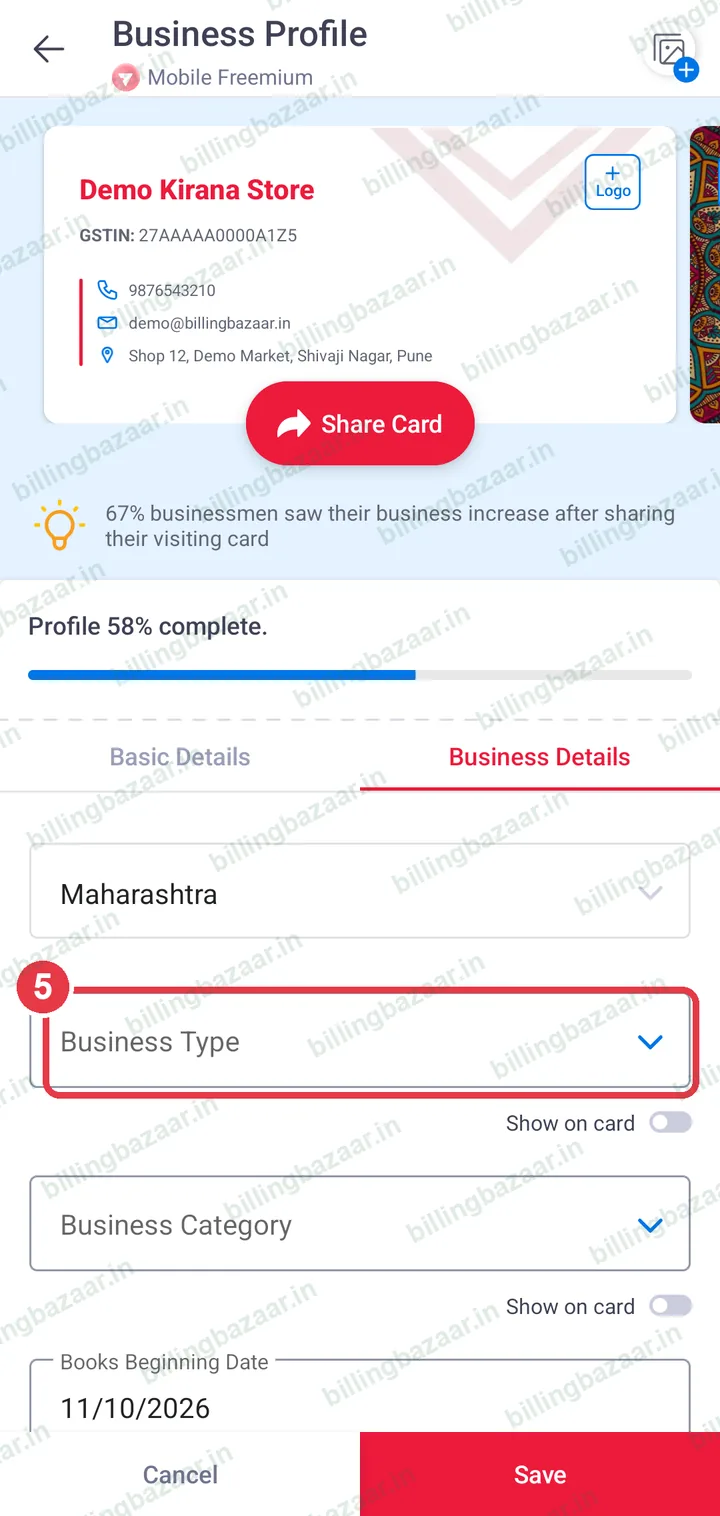
5Tap Business Type
Tap Business Type.
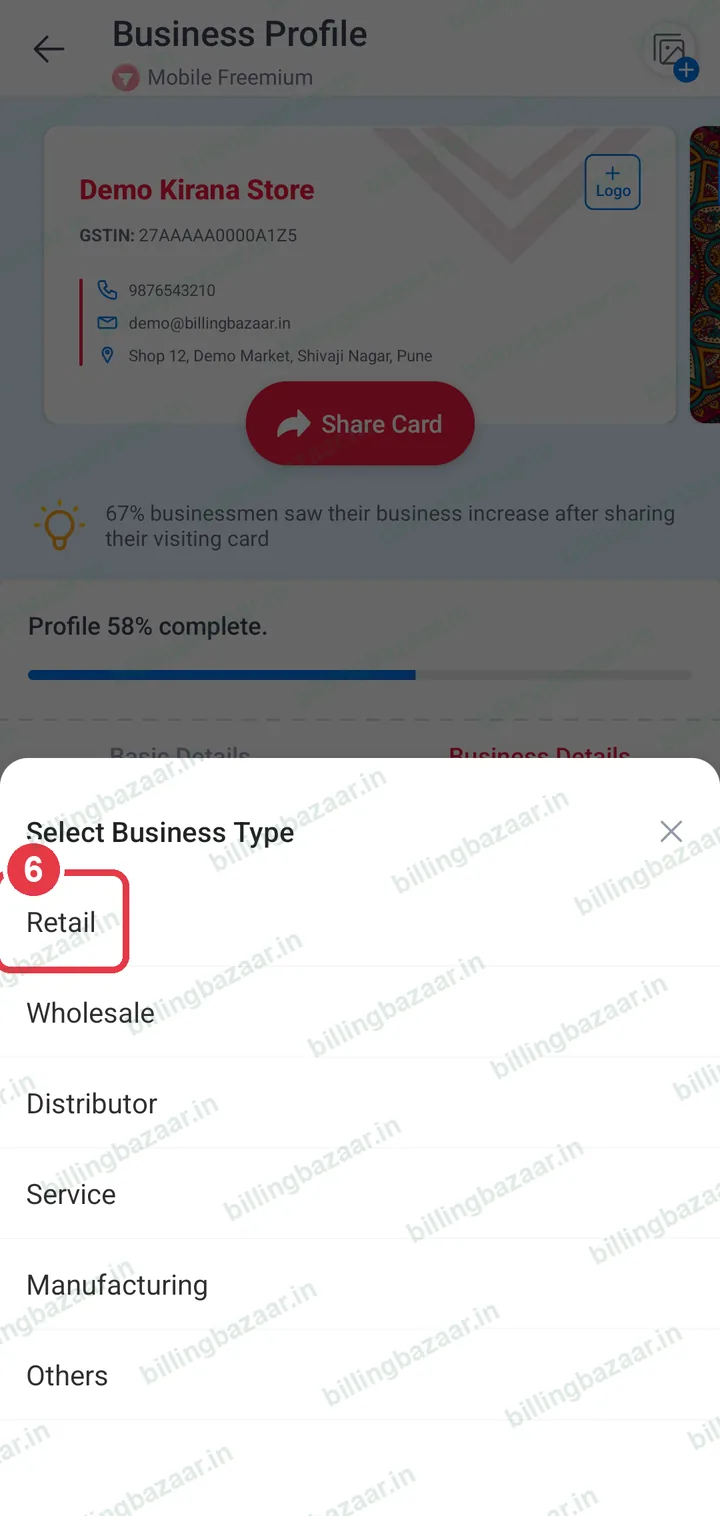
6Choose your business type
Pick Retail, Wholesale, Distributor, Service, Manufacturing or Others.
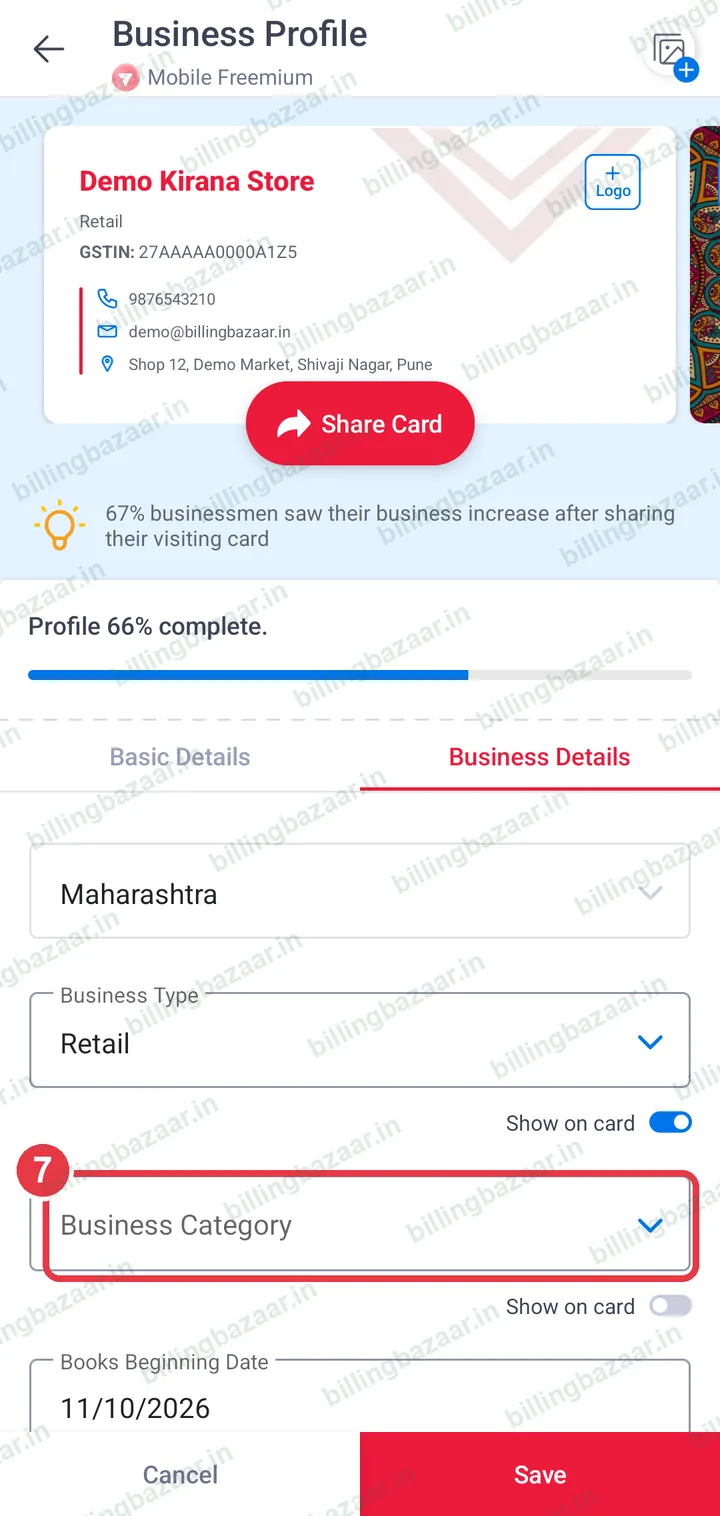
7Tap Business Category
Tap Business Category.
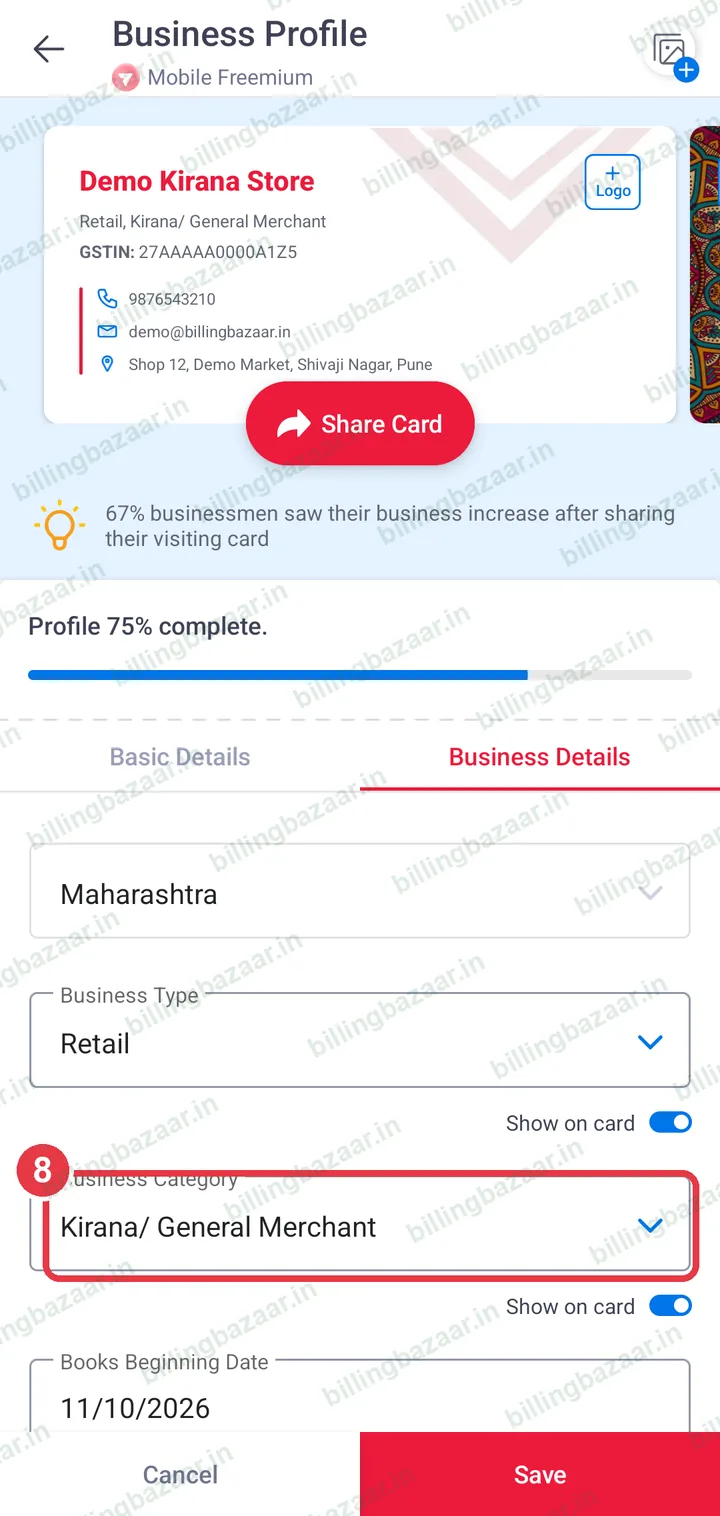
8Choose your category
Scroll the list and pick your trade, for example Kirana/ General Merchant.
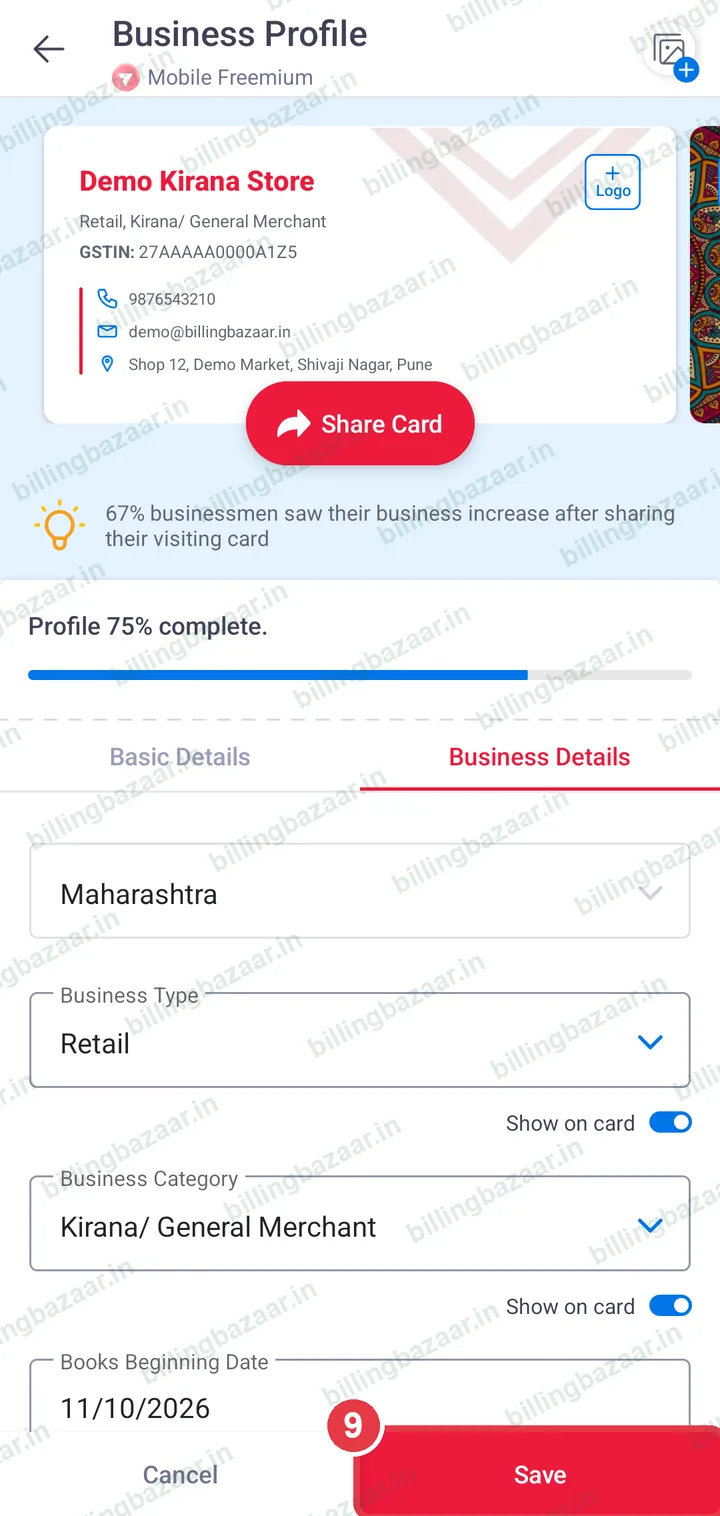
9Tap Save
Tap Save at the bottom. The business name now shows at the top of the home screen.
Good to know
- Add a logo from the Logo button on the business card at the top of Business Profile.
- The profile completion bar shows what is still missing.
Questions people ask
How do I add GSTIN in the Vyapar app?
Tap the business icon on the home screen, enter it in the GSTIN field in Basic Details and tap Save.
Why does Vyapar say it could not verify my GSTIN?
The app checks the GSTIN online. Check the number is typed correctly; the message can also appear without internet. You can still save it.
Can I change the business name later?
Yes, edit it in Business Profile at any time. New invoices use the new name.
Related guides
- How to sign up and make your first invoice in the Vyapar mobile app
- How to add items with HSN code and GST rate in the Vyapar mobile app
Useful for these businesses
- Vyapar for medical stores
- Vyapar for building material shops
- Vyapar for electronics shops
- Vyapar for mobile shops
- Vyapar for cosmetics shops
- Vyapar for furniture shops
More on Vyapar
Screenshots are from a demo company in Vyapar Android app 29.4, October 2026. Menus can move slightly between app versions. Guide by Billing Bazaar, a Vyapar partner.