 Billing Bazaar
How to add items with HSN code and GST rate in the Vyapar mobile app
Set up each item once with its HSN code, prices and GST rate; after that, billing is just picking the item. This guide adds a bathing soap for a kirana store in the Vyapar Android app.
Using Vyapar on a computer? See the desktop version of this guide.
| Time needed | 3 minutes |
|---|---|
| Steps | 10, each with a screenshot |
| Tested on | Vyapar Android app 29.4, October 2026 |
| Last updated | 11 October 2026 |
Before you start
- The item's HSN code and GST rate (from your purchase bill).
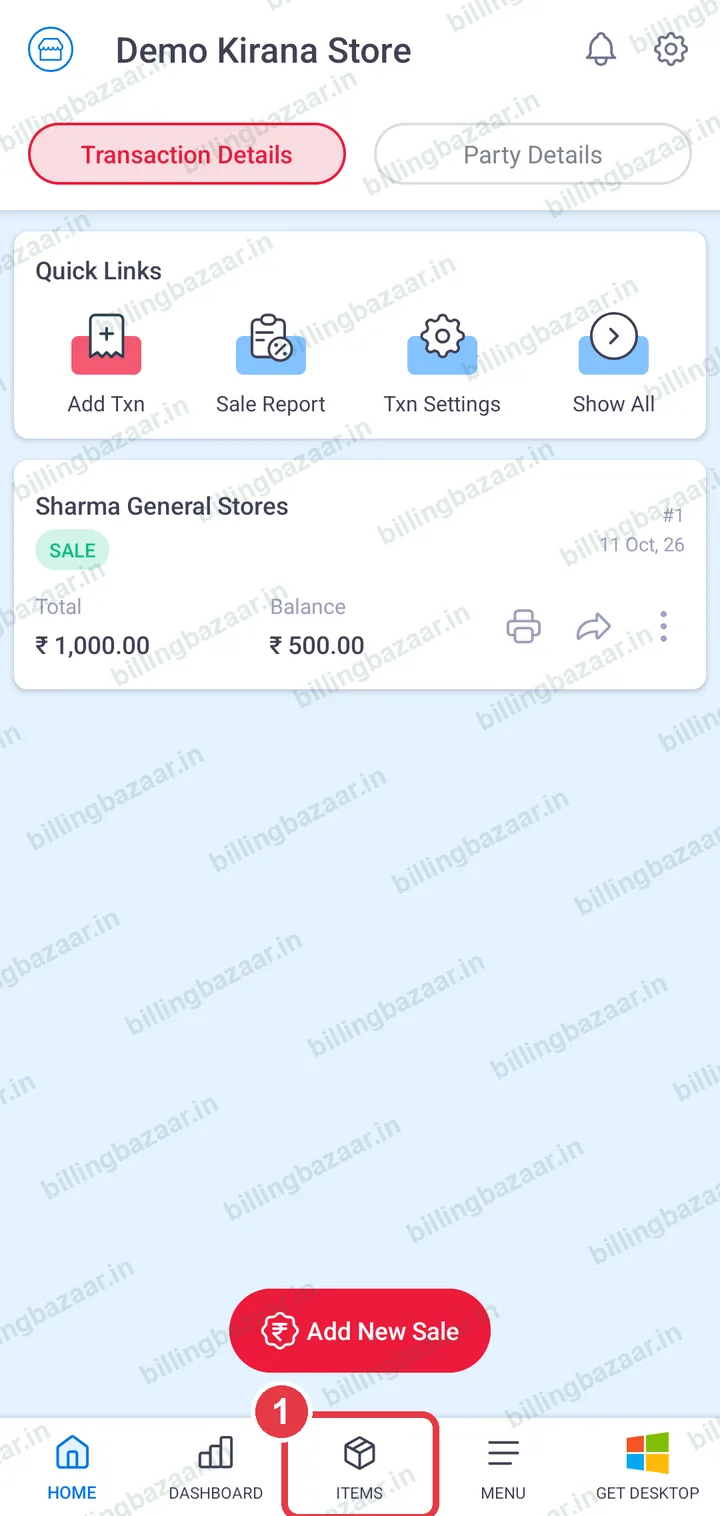
1Open the Items tab
Tap ITEMS in the bottom bar.
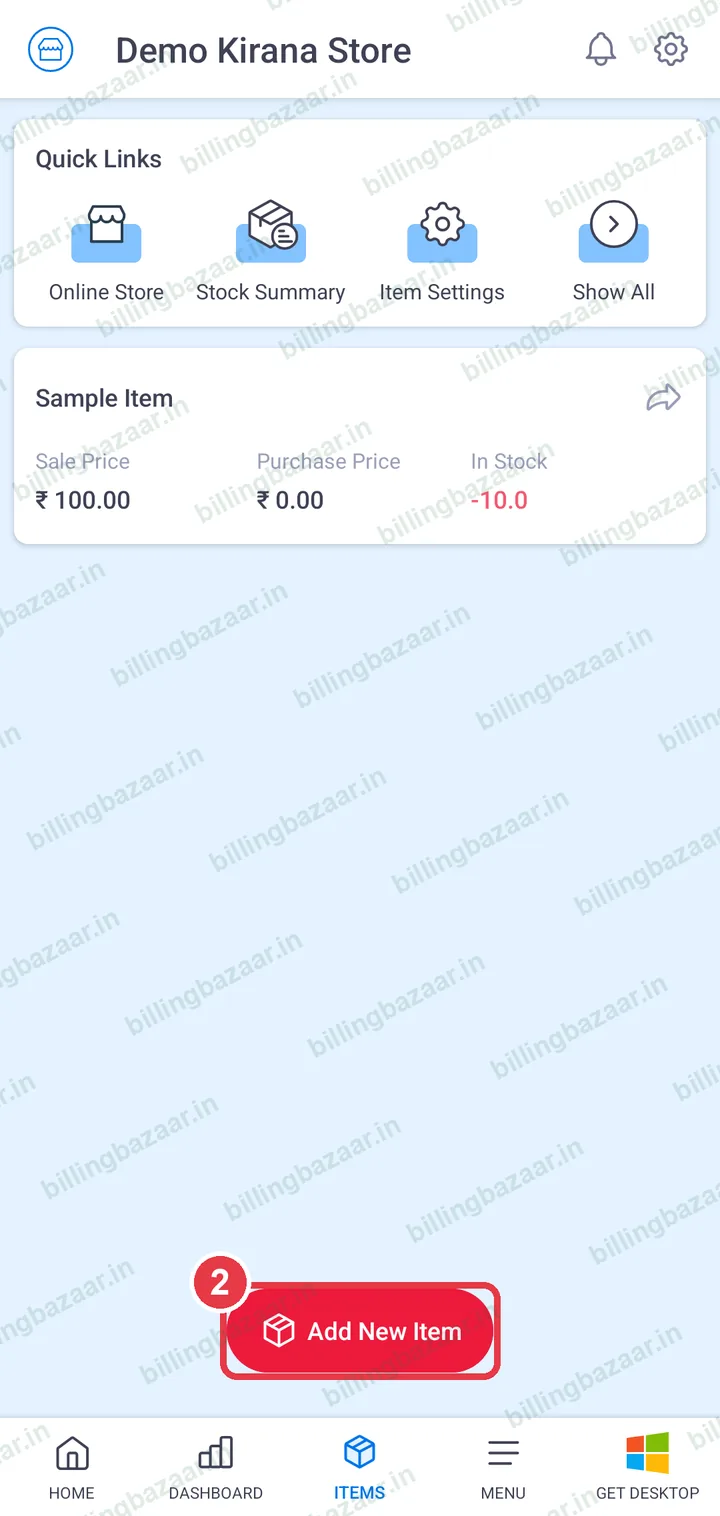
2Tap Add New Item
Tap Add New Item.
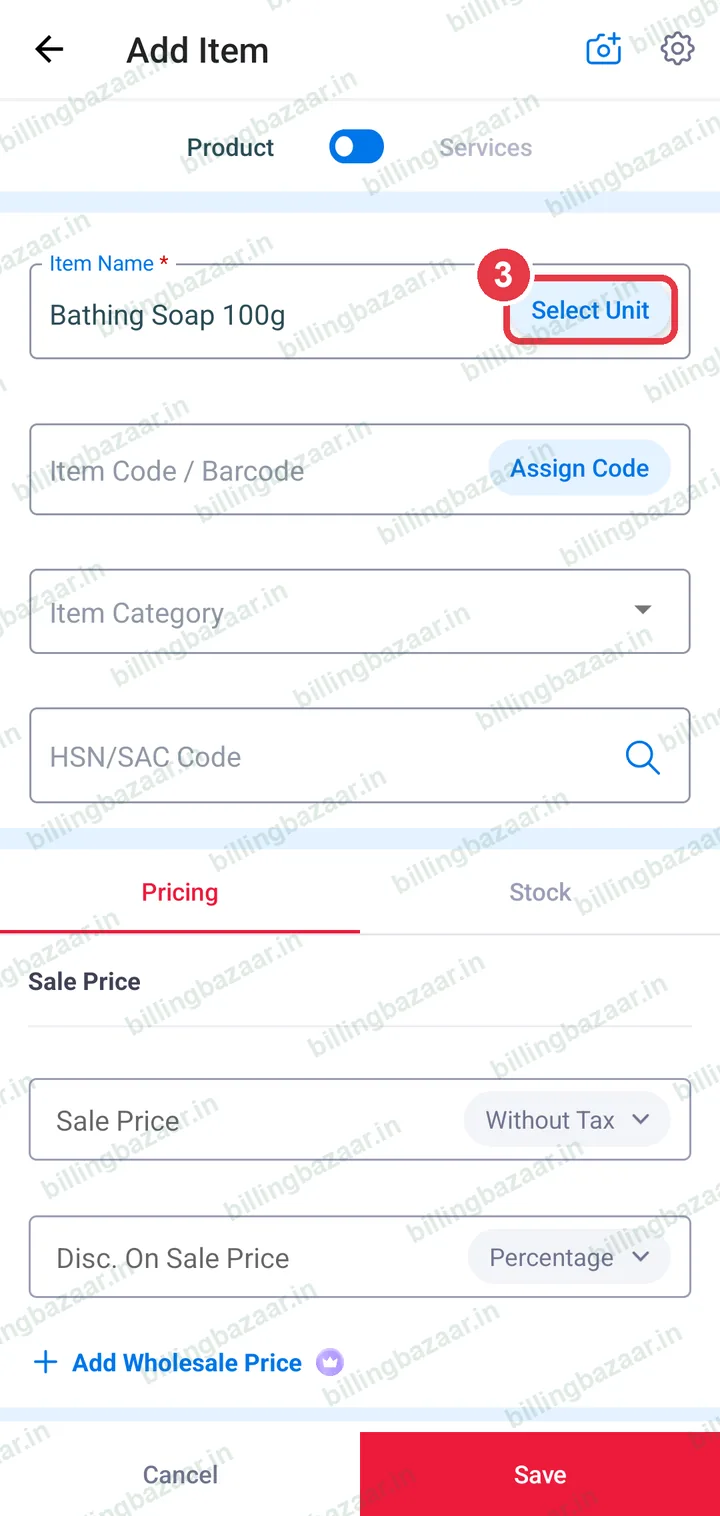
3Enter the name and tap Select Unit
Type the Item Name and tap Select Unit. Keep Product selected (switch to Services for services).
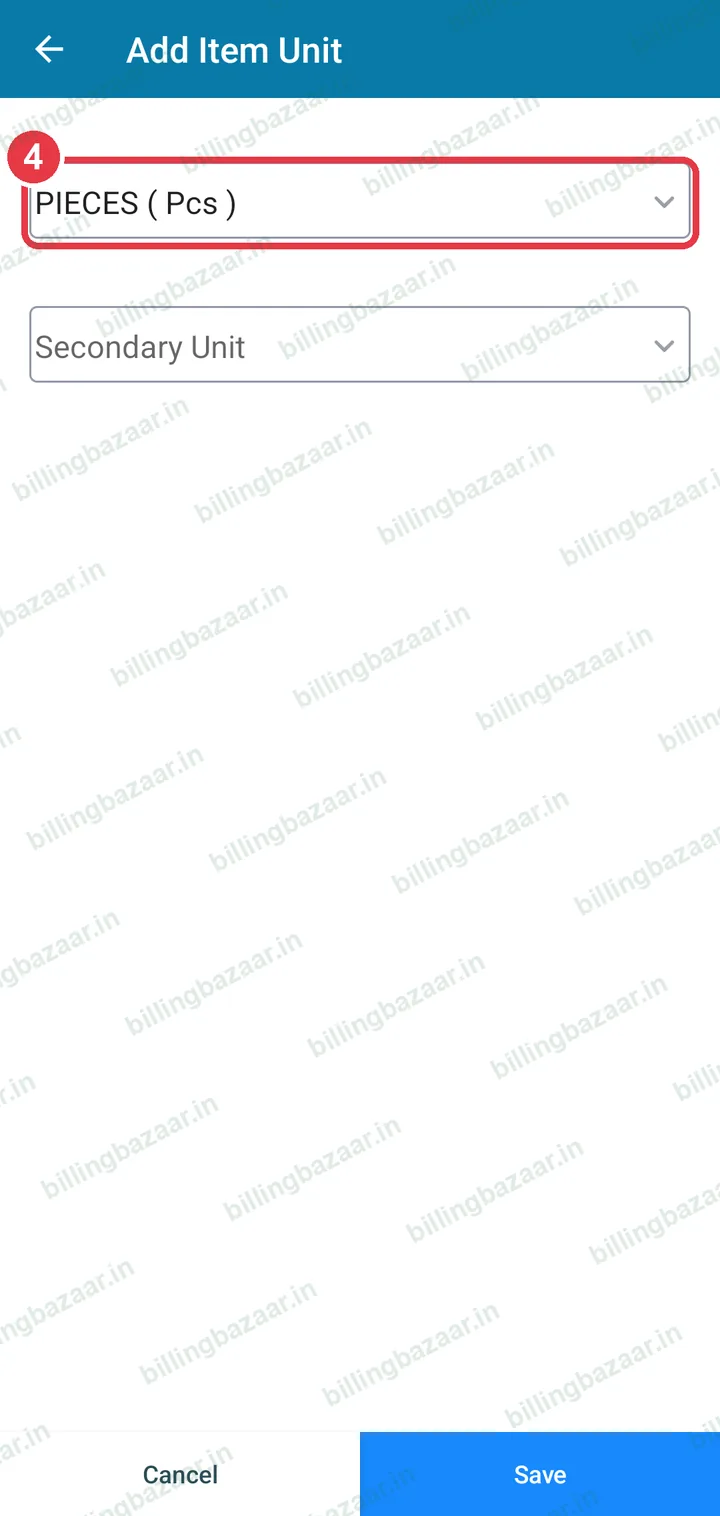
4Choose the unit
Type the unit, pick it from the list (for example PIECES (Pcs)) and tap Save. Add a secondary unit like Box if you sell in both.
5Enter HSN code and sale price
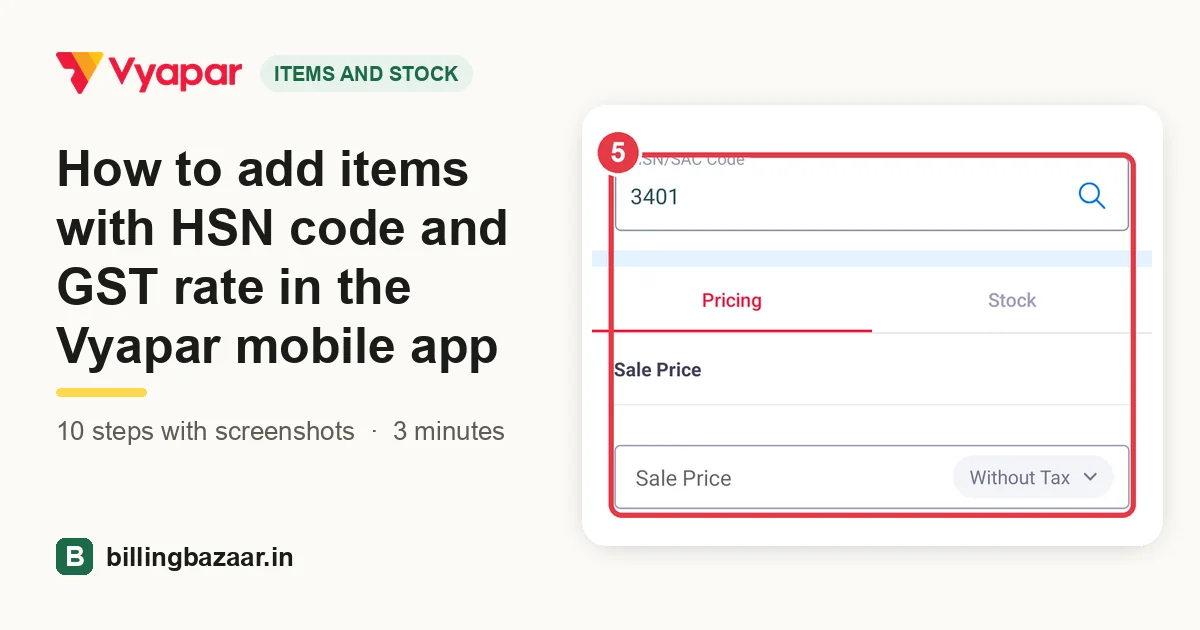
Type the HSN/SAC Code, then the Sale Price. Choose Without Tax or With Tax next to the price.
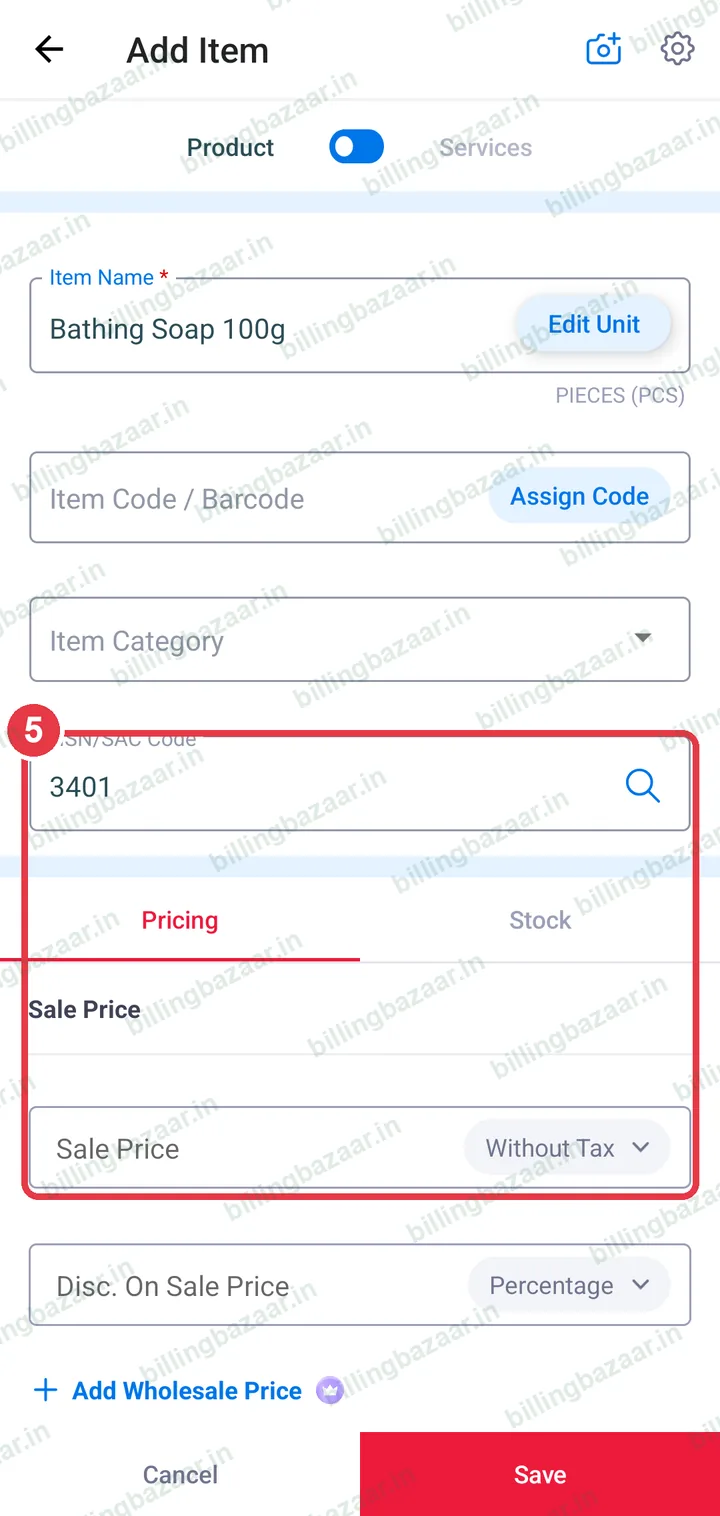
Tip: Tap the search icon in the HSN field to find a code by product name.
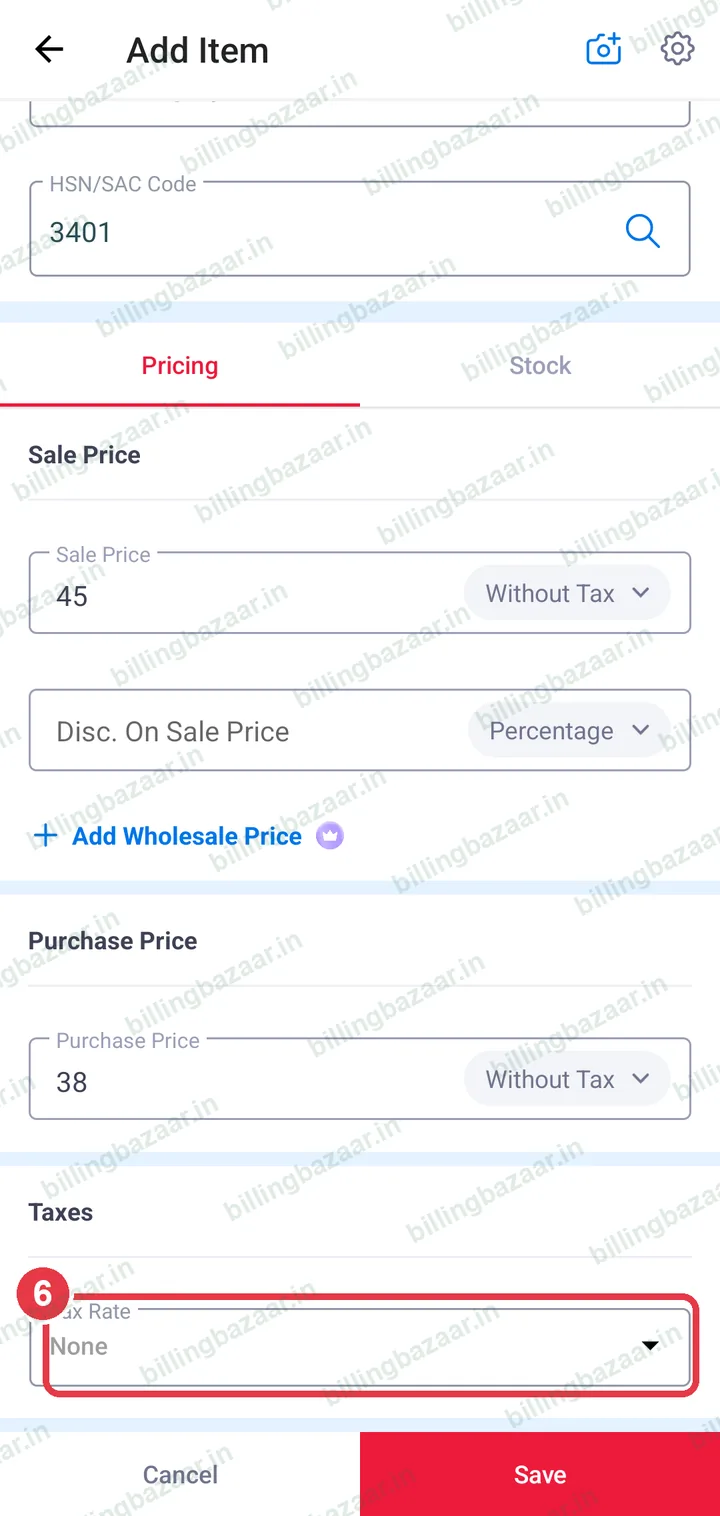
6Enter the purchase price and tap Taxes
Scroll down, enter the Purchase Price and tap the tax rate under Taxes.
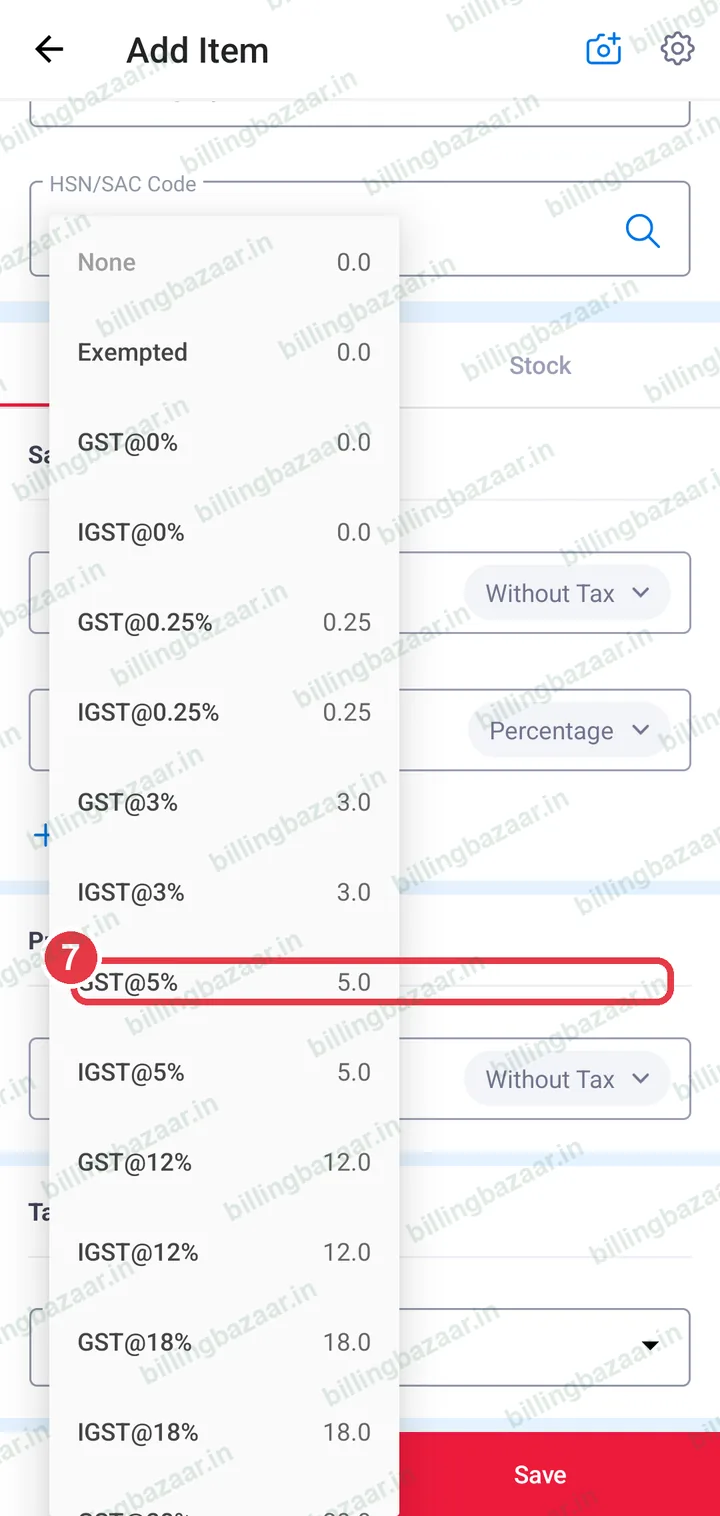
7Pick the GST rate
Choose the GST rate for the item, for example GST@5%. Vyapar applies CGST + SGST or IGST on invoices automatically.
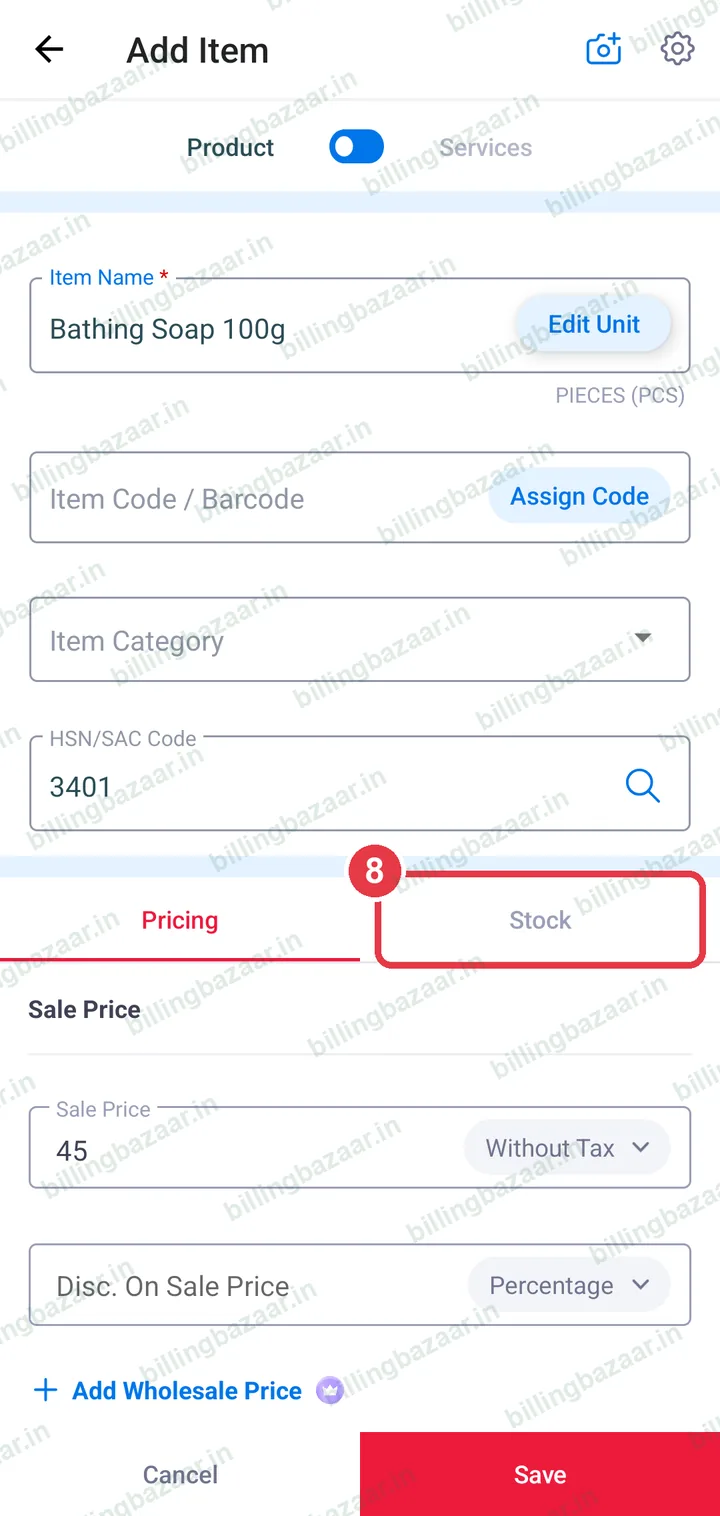
8Open the Stock tab
Scroll up and tap Stock.
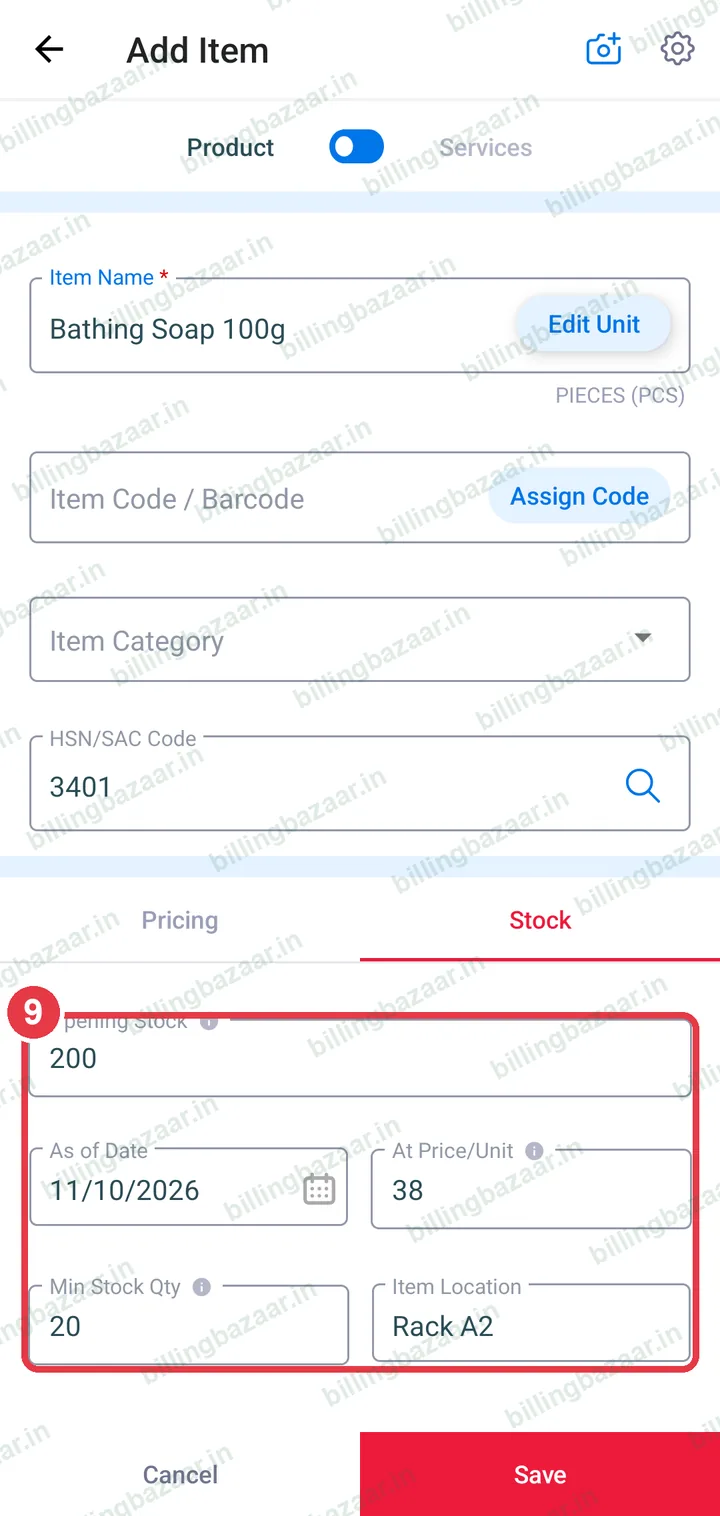
9Add opening stock
Enter Opening Stock, the date, the At Price/Unit value, a Min Stock Qty for low-stock alerts and the Item Location if you use racks.
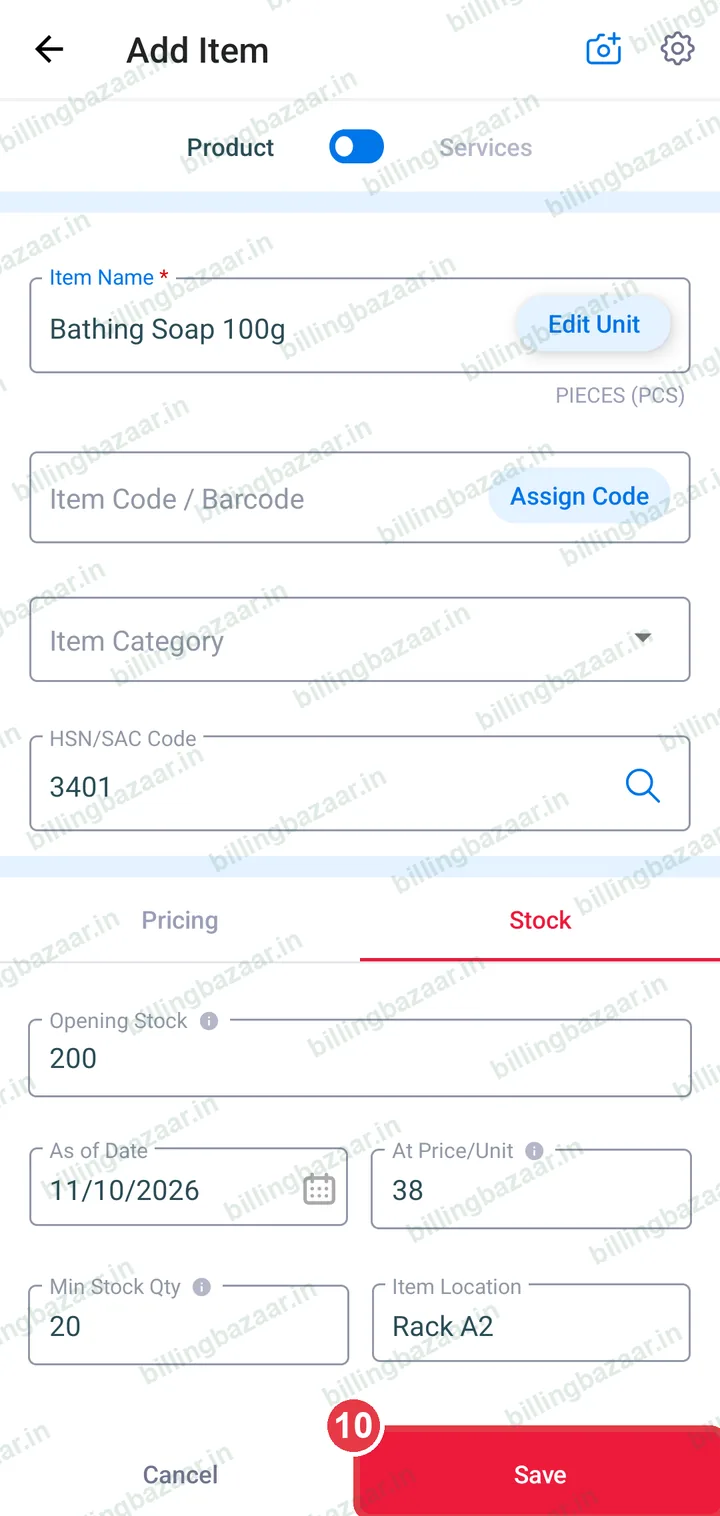
10Tap Save
Tap Save. The item appears in the Items tab with its sale price and stock.
Good to know
- Set Min Stock Qty so Vyapar warns you before an item runs out.
- Tap Assign Code to give the item a barcode for faster billing.
Questions people ask
How do I add HSN code in the Vyapar app?
In Add Item, type it in the HSN/SAC Code field or tap the search icon in that field to look it up.
Should I enter the price with or without tax?
Either. Choose With Tax if your price already includes GST (like an MRP item), or Without Tax if GST is added on top.
Can I add items faster?
Yes. The Items tab has Import Items from Excel, and you can also add a new item directly while making an invoice.
Related guides
- How to create a GST invoice in the Vyapar mobile app
- How to add customers and suppliers in the Vyapar mobile app
Useful for these businesses
- Vyapar for kirana stores
- Vyapar for supermarkets
- Vyapar for medical stores
- Vyapar for garment shops
- Vyapar for hardware stores
- Vyapar for electronics shops
More on Vyapar
Screenshots are from a demo company in Vyapar Android app 29.4, October 2026. Menus can move slightly between app versions. Guide by Billing Bazaar, a Vyapar partner.