 Billing Bazaar
How to create a GST invoice in the Vyapar mobile app
With items and customers saved, a GST invoice on the Vyapar app takes about a minute. Vyapar fills in the rates and GST, splits it into CGST and SGST (or IGST), and gives you a tax invoice to share on WhatsApp.
Using Vyapar on a computer? See the desktop version of this guide.
| Time needed | 2 minutes |
|---|---|
| Steps | 10, each with a screenshot |
| Tested on | Vyapar Android app 29.4, October 2026 |
| Last updated | 11 October 2026 |
Before you start
- Items saved with HSN code and GST rate.
- The customer saved as a party (you can also add a new one from the invoice).
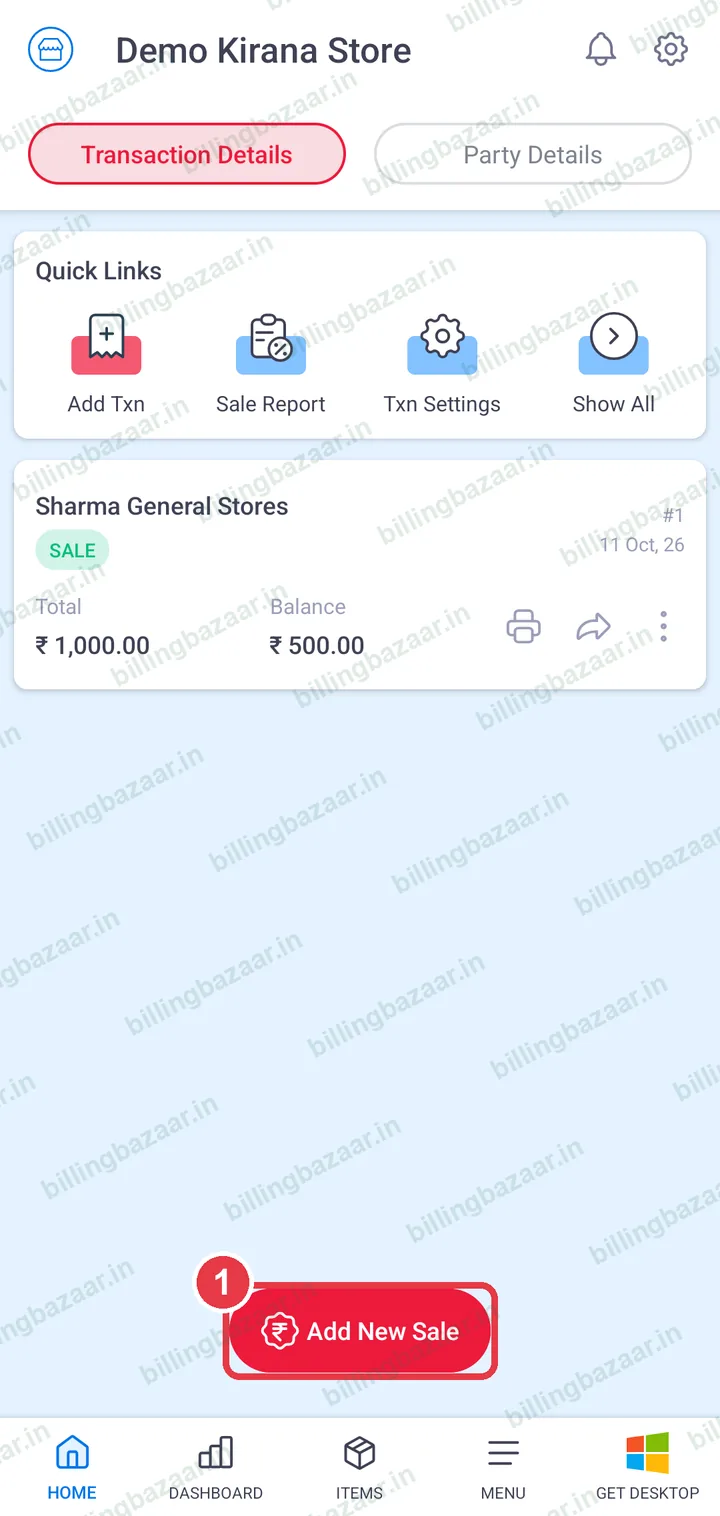
1Tap Add New Sale
On the home screen, tap Add New Sale. Choose Credit or Cash at the top.
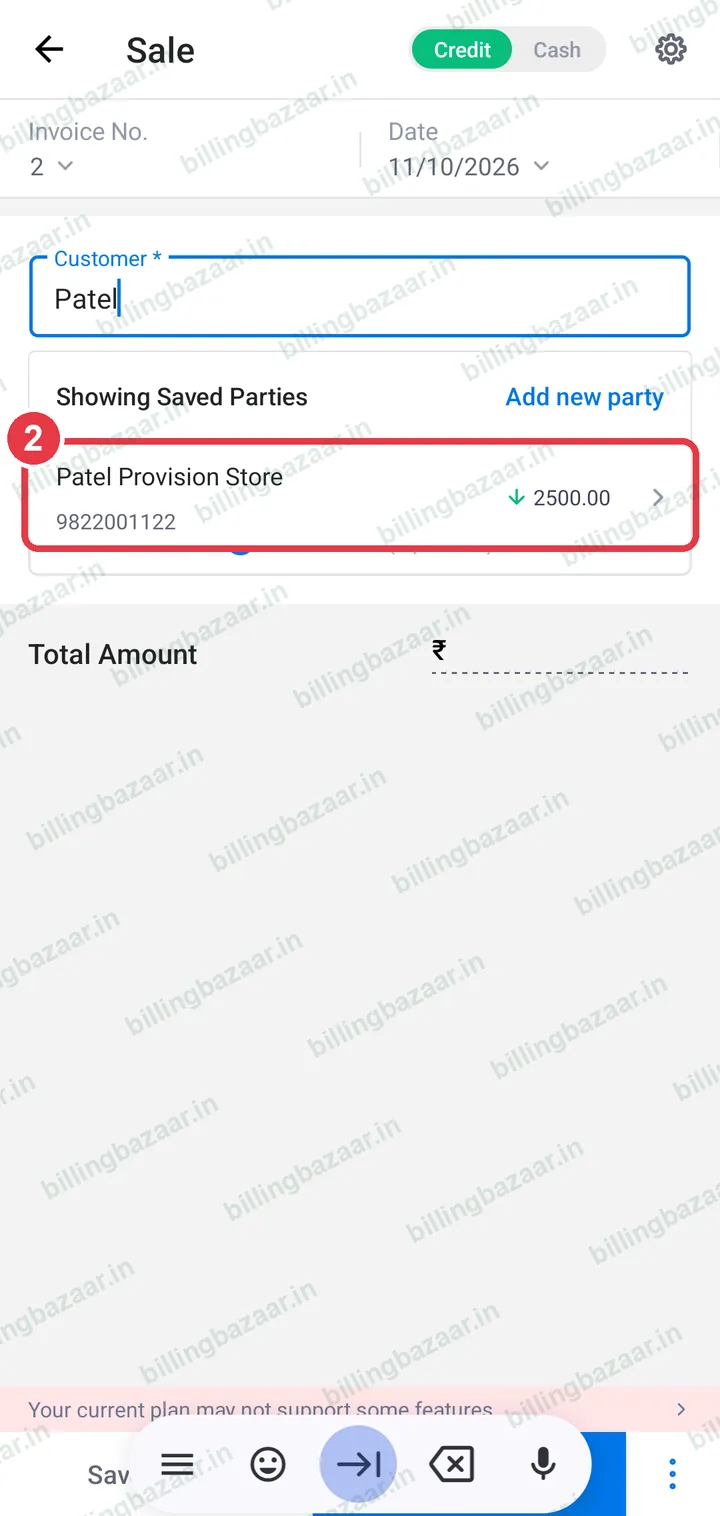
2Choose the customer
Type part of the name in Customer and pick the party. Their phone number and balance fill in.
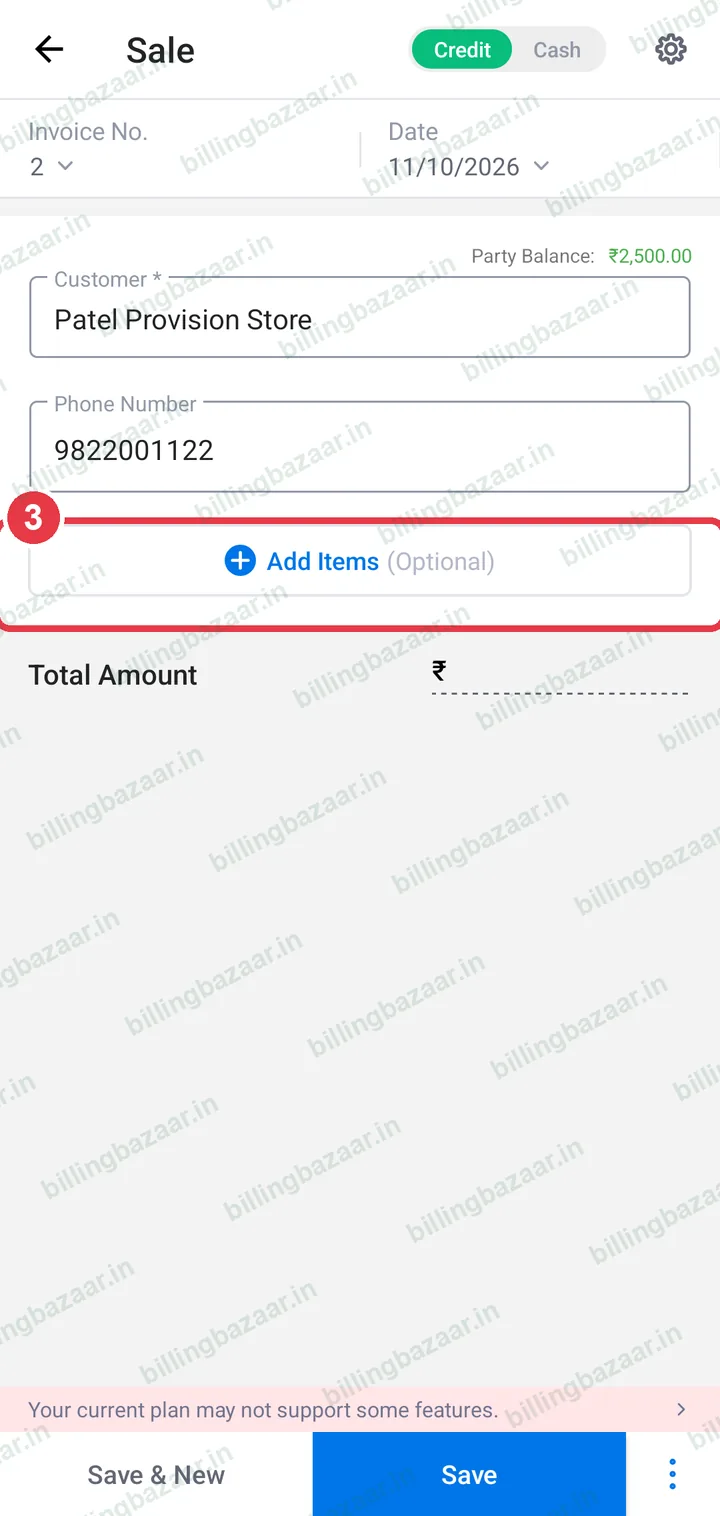
3Tap Add Items
Tap Add Items.
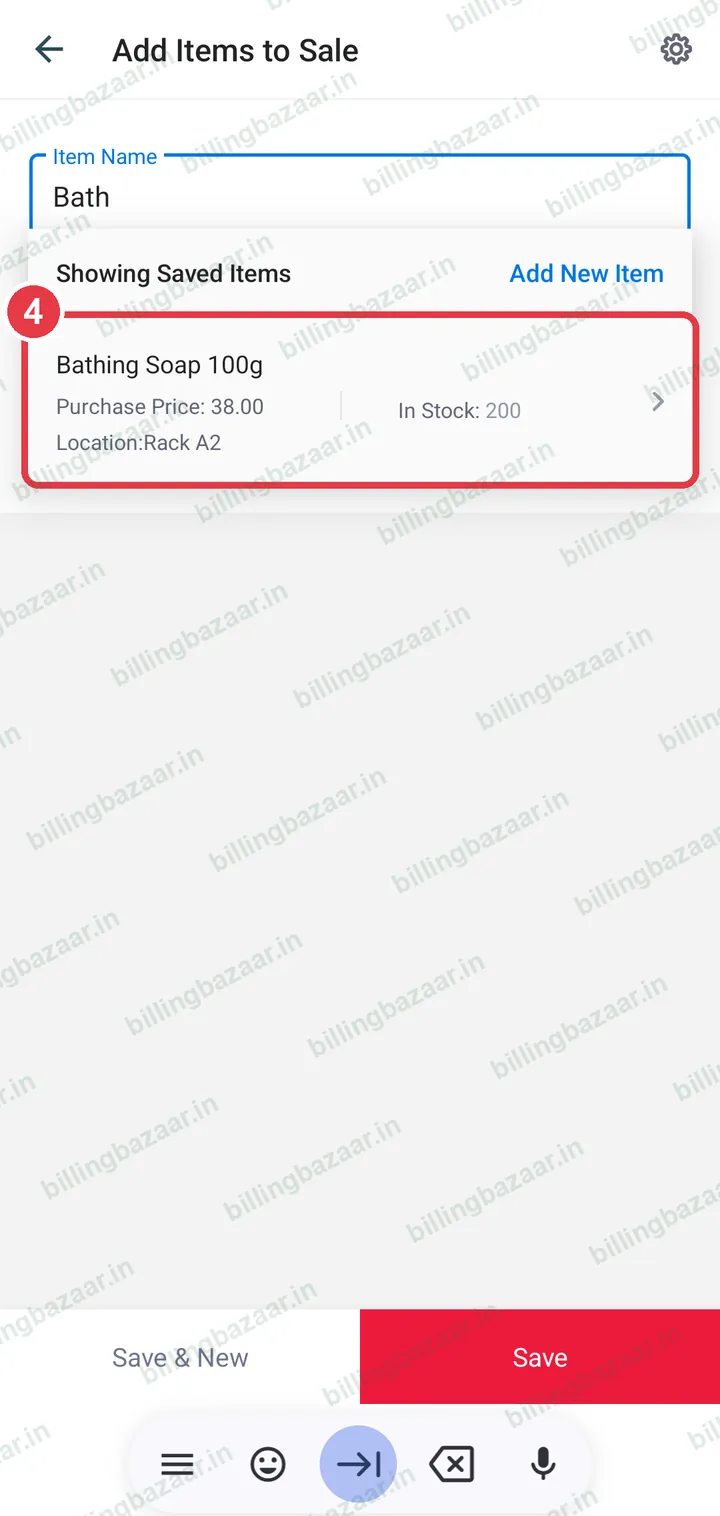
4Pick the item
Type part of the item name and pick it. The list shows purchase price, stock and location.
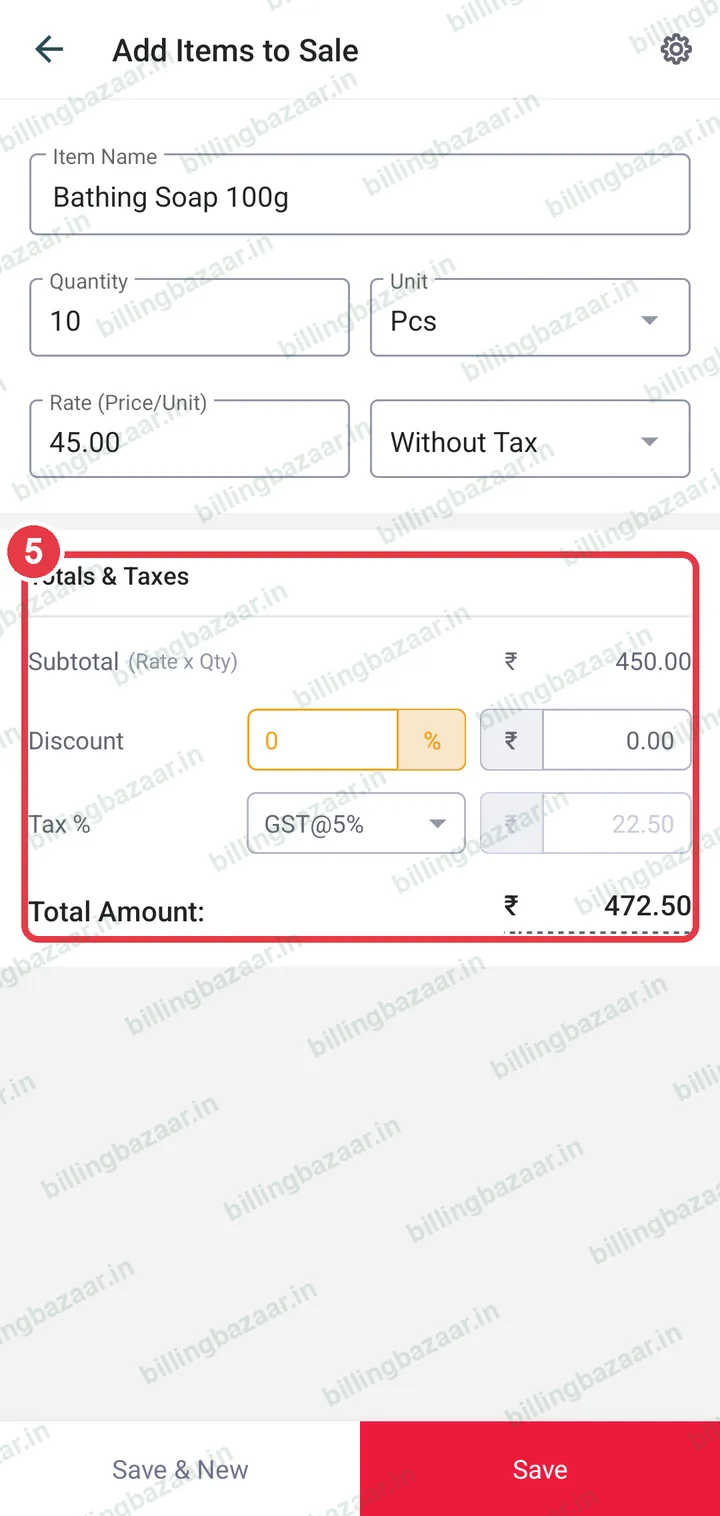
5Enter the quantity
Type the Quantity. Rate and GST rate fill in from the item, and Totals & Taxes shows the tax and total.
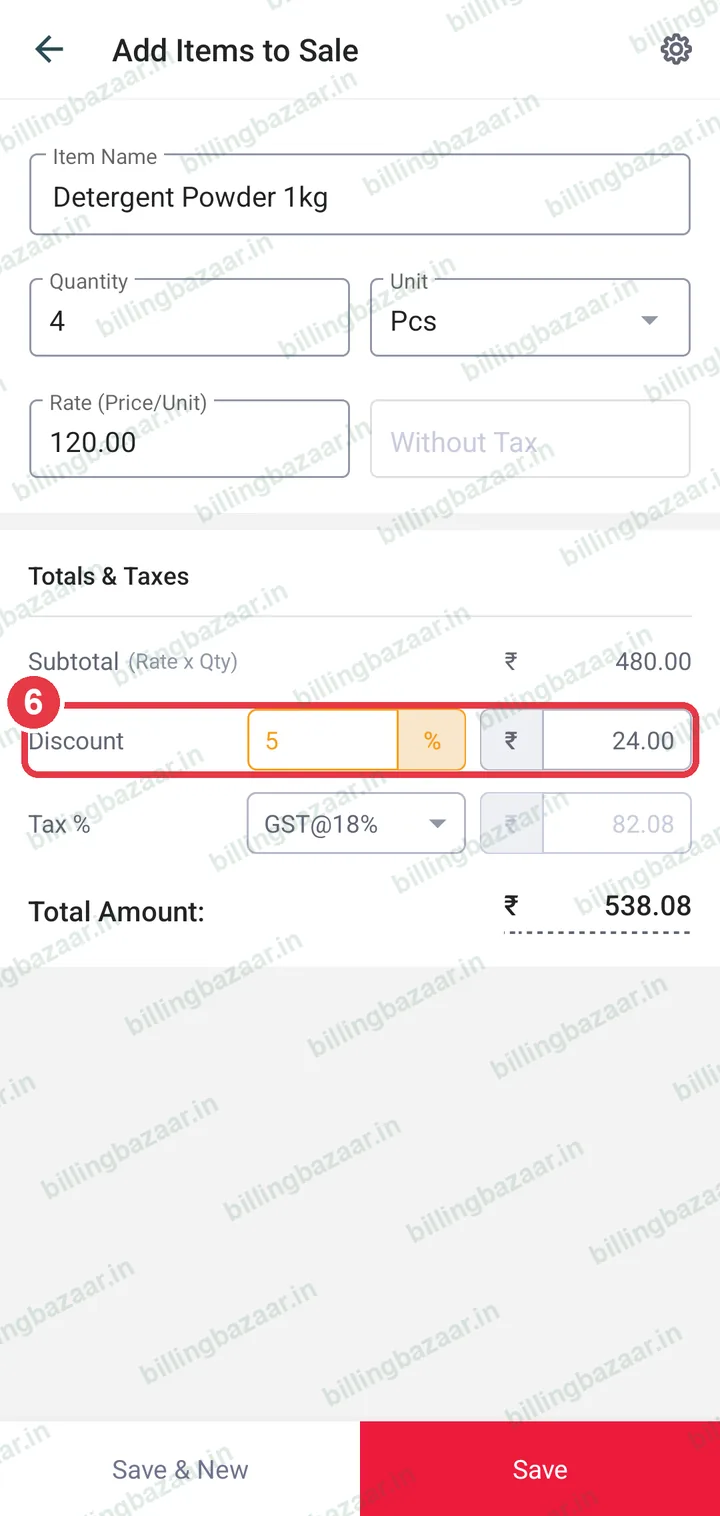
6Add a discount if needed
For the next item, use Save & New. Enter a discount in % or ₹; GST is worked out on the discounted amount. Tap Save when all items are added.
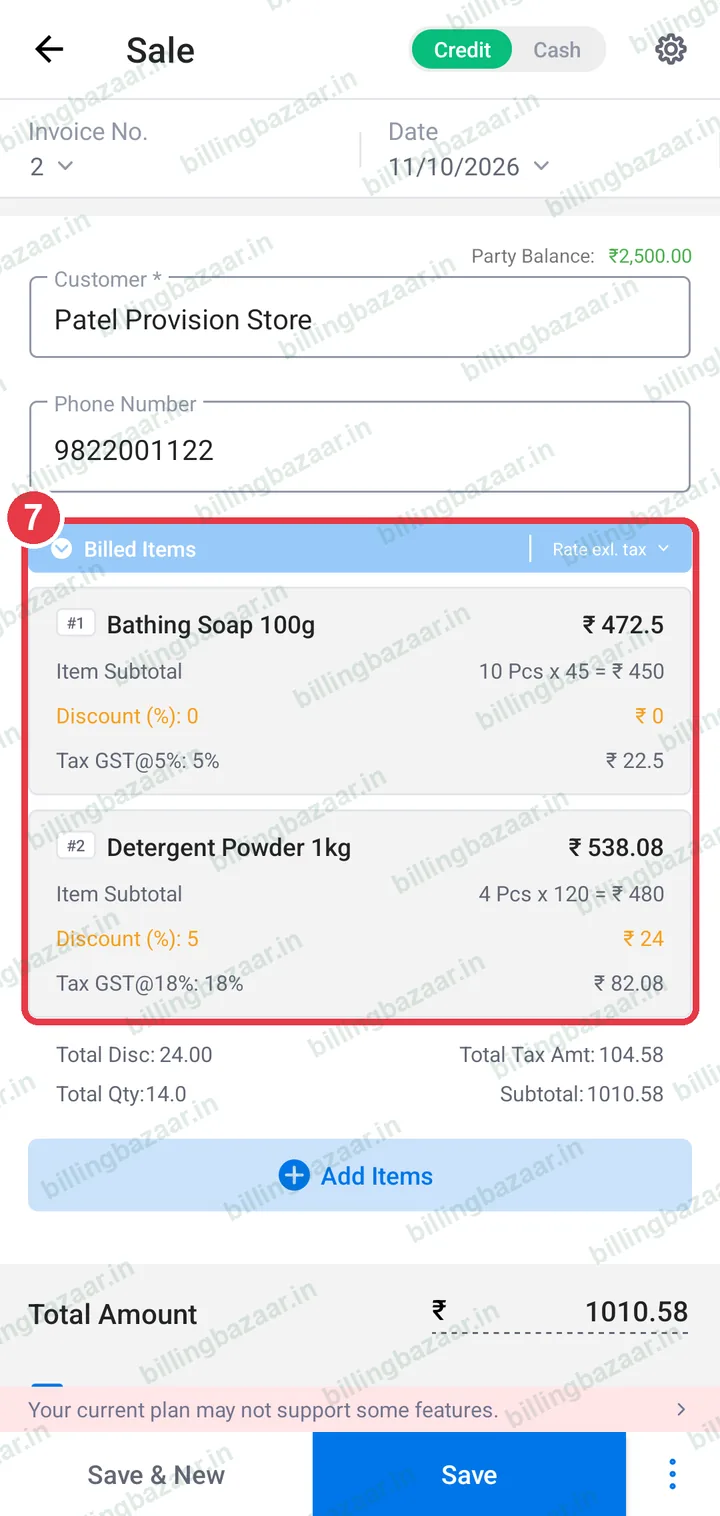
7Check the billed items
The Sale screen lists each item with subtotal, discount and GST.
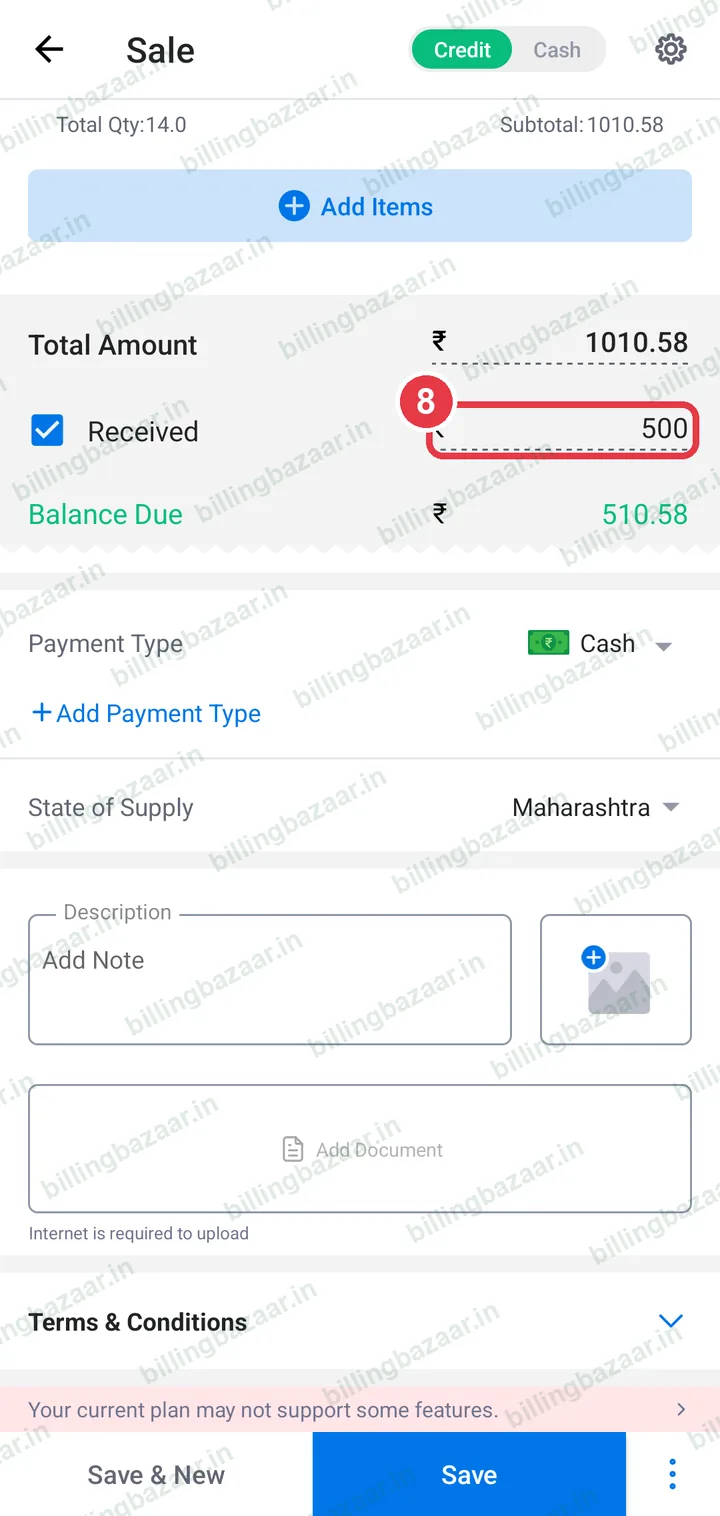
8Enter the amount received
Scroll down. Enter what the customer paid in Received; the rest is added to their balance. Check Payment Type and State of Supply.
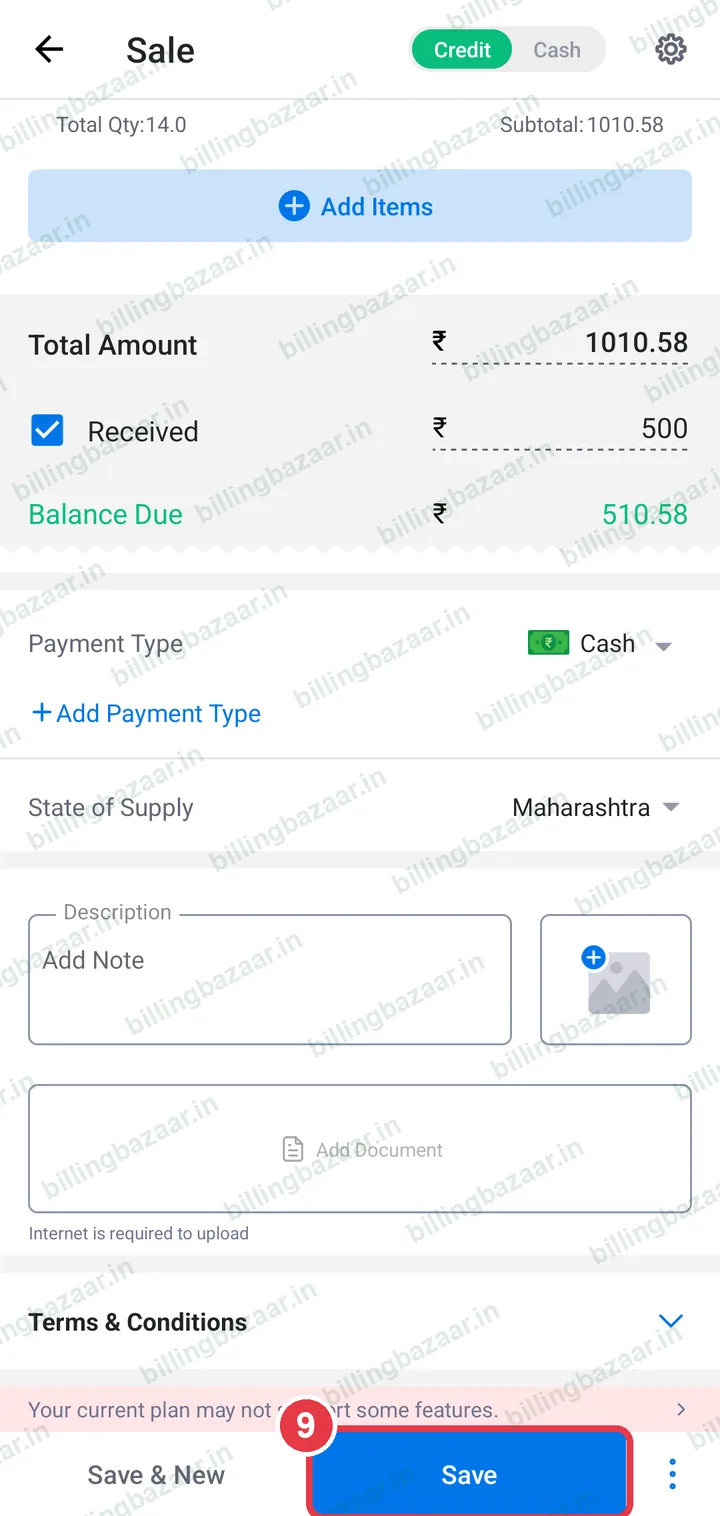
9Tap Save
Tap Save. The tax invoice preview opens.
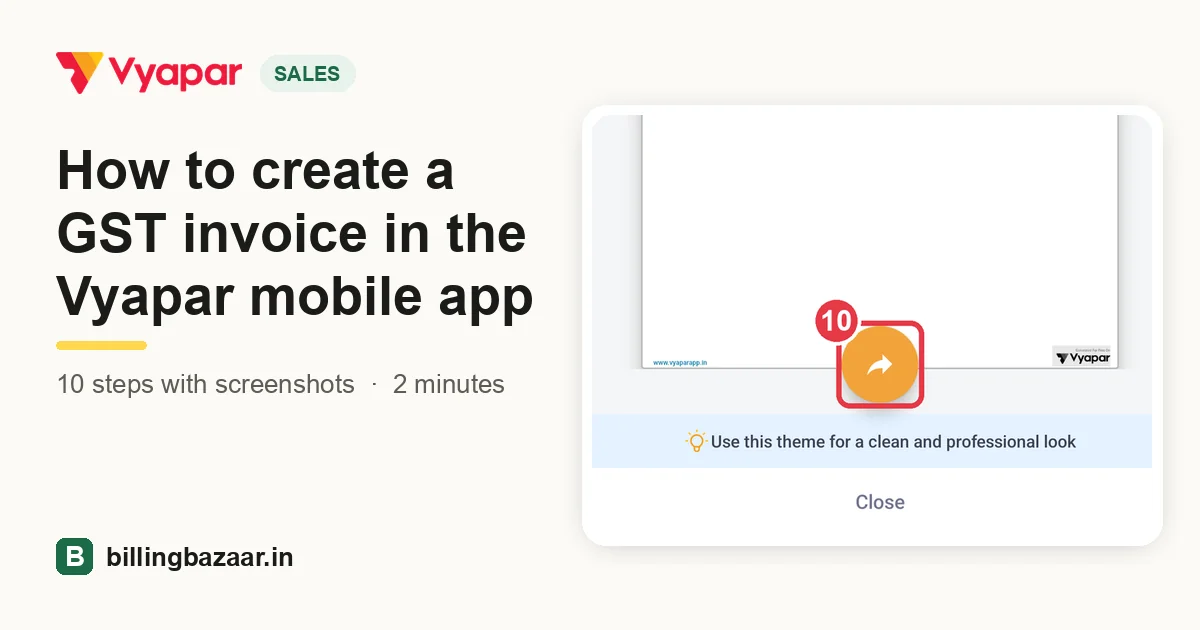
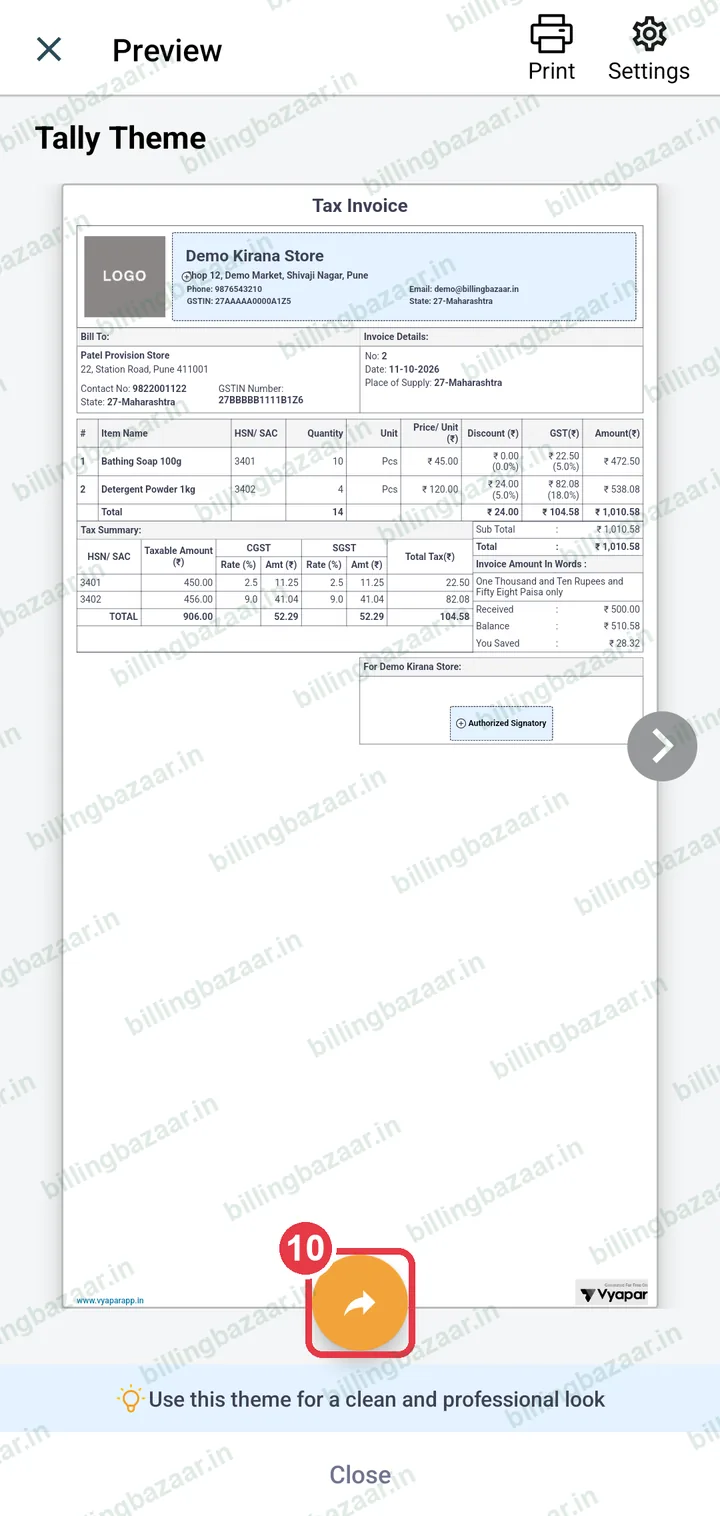
10Share the invoice
Tap the share button and choose Share as PDF or Share as Image, then pick WhatsApp. Use Print at the top for a printer.
Good to know
- Tap the settings gear on the Sale screen to turn on fields like transport details or a different invoice prefix.
- Change the invoice theme from Settings on the preview screen.
Questions people ask
How do I make a GST bill in the Vyapar app?
Tap Add New Sale, choose the customer, add items with quantity, enter the amount received and tap Save. Share the invoice from the preview.
How does Vyapar decide CGST/SGST or IGST?
From the State of Supply. If it matches your business state, GST is split into CGST and SGST; otherwise IGST is charged.
Can I share the invoice as PDF on WhatsApp?
Yes. After saving, tap the share button on the preview and choose Share as PDF.
Related guides
- How to add items with HSN code and GST rate in the Vyapar mobile app
- How to add customers and suppliers in the Vyapar mobile app
Useful for these businesses
- Vyapar for medical stores
- Vyapar for garment shops
- Vyapar for building material shops
- Vyapar for electronics shops
- Vyapar for mobile shops
- Vyapar for cosmetics shops
More on Vyapar
Screenshots are from a demo company in Vyapar Android app 29.4, October 2026. Menus can move slightly between app versions. Guide by Billing Bazaar, a Vyapar partner.