 Billing Bazaar
How to add customers and suppliers in the Vyapar mobile app
Customers and suppliers are called parties in Vyapar. Saving them once fills their details on every invoice and keeps a running balance of what they owe you.
Using Vyapar on a computer? See the desktop version of this guide.
| Time needed | 2 minutes |
|---|---|
| Steps | 10, each with a screenshot |
| Tested on | Vyapar Android app 29.4, October 2026 |
| Last updated | 11 October 2026 |
Before you start
- The party's GSTIN, if they are GST registered.
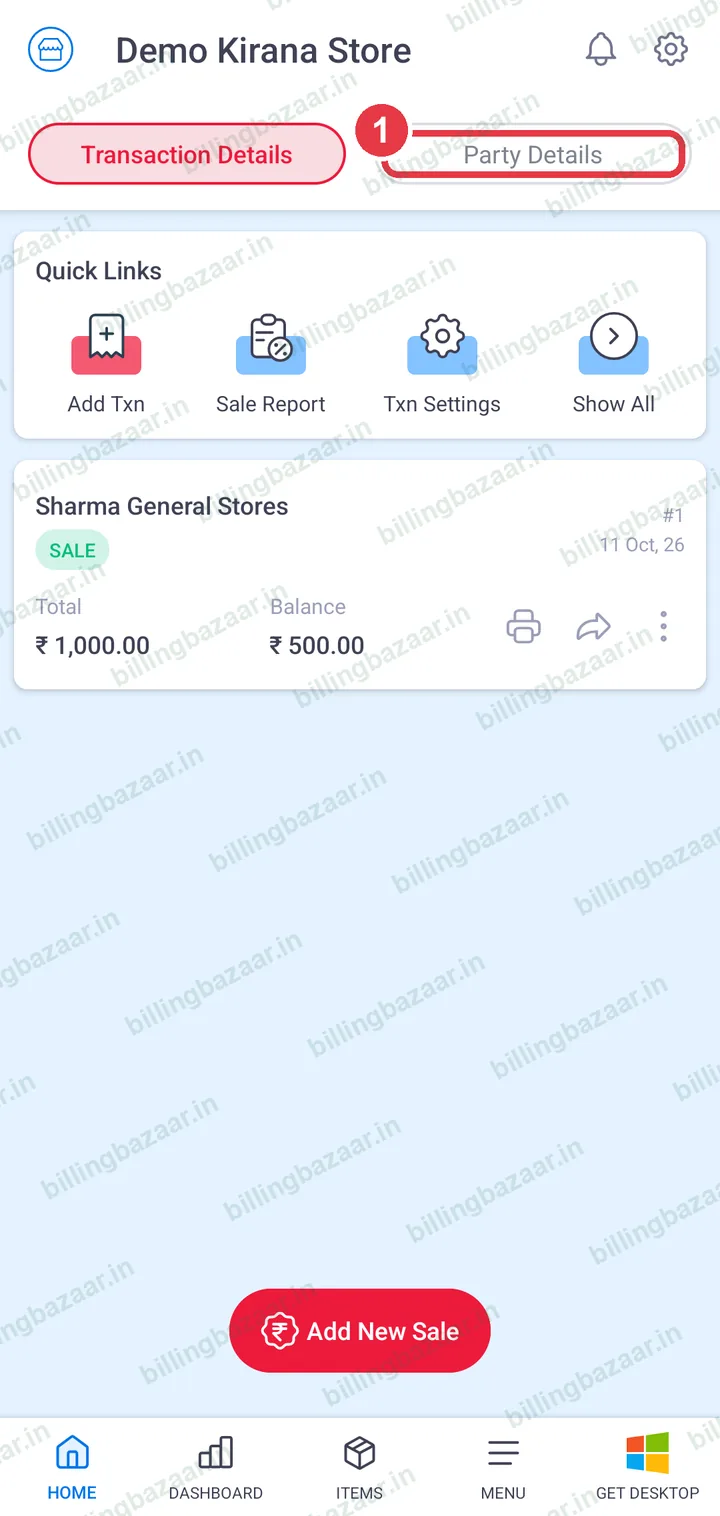
1Open Party Details
On the home screen, tap the Party Details tab.
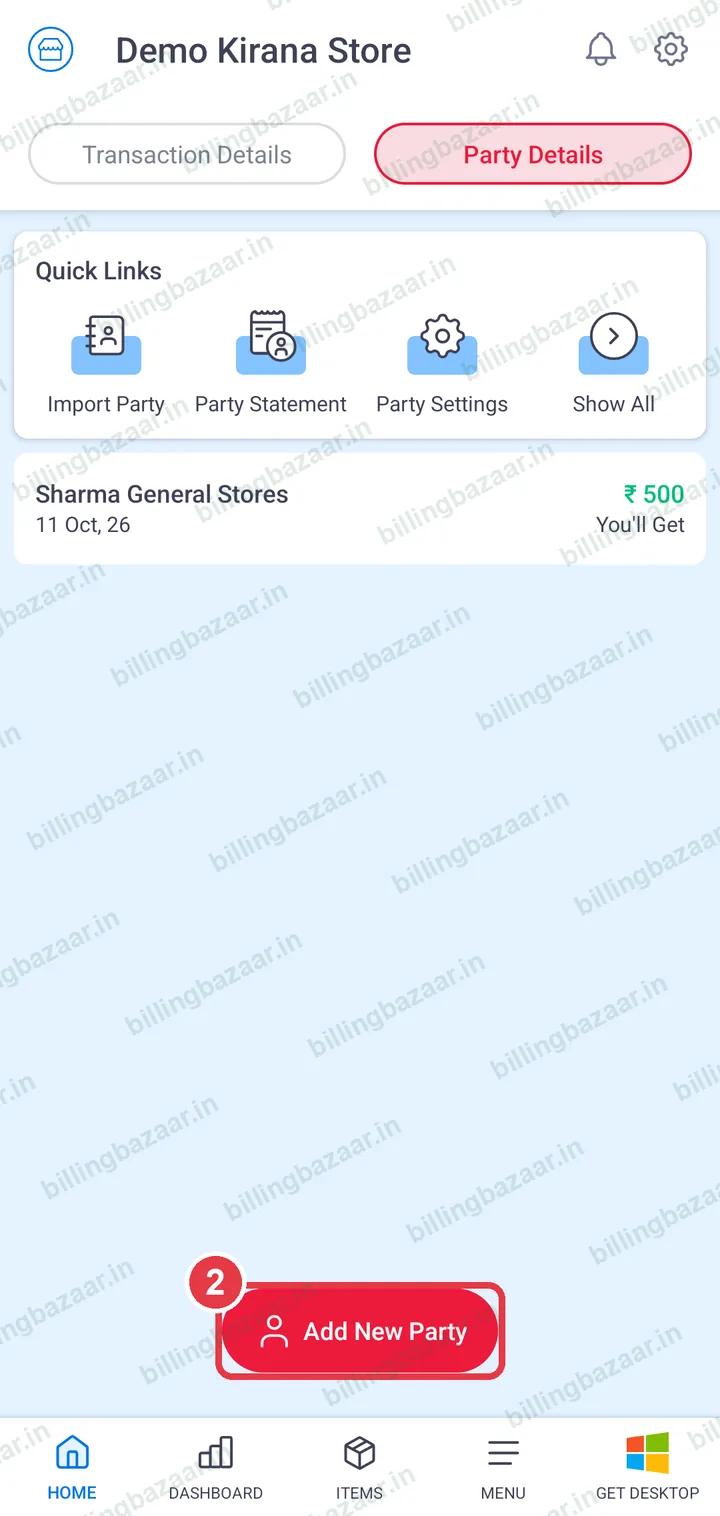
2Tap Add New Party
Tap Add New Party.
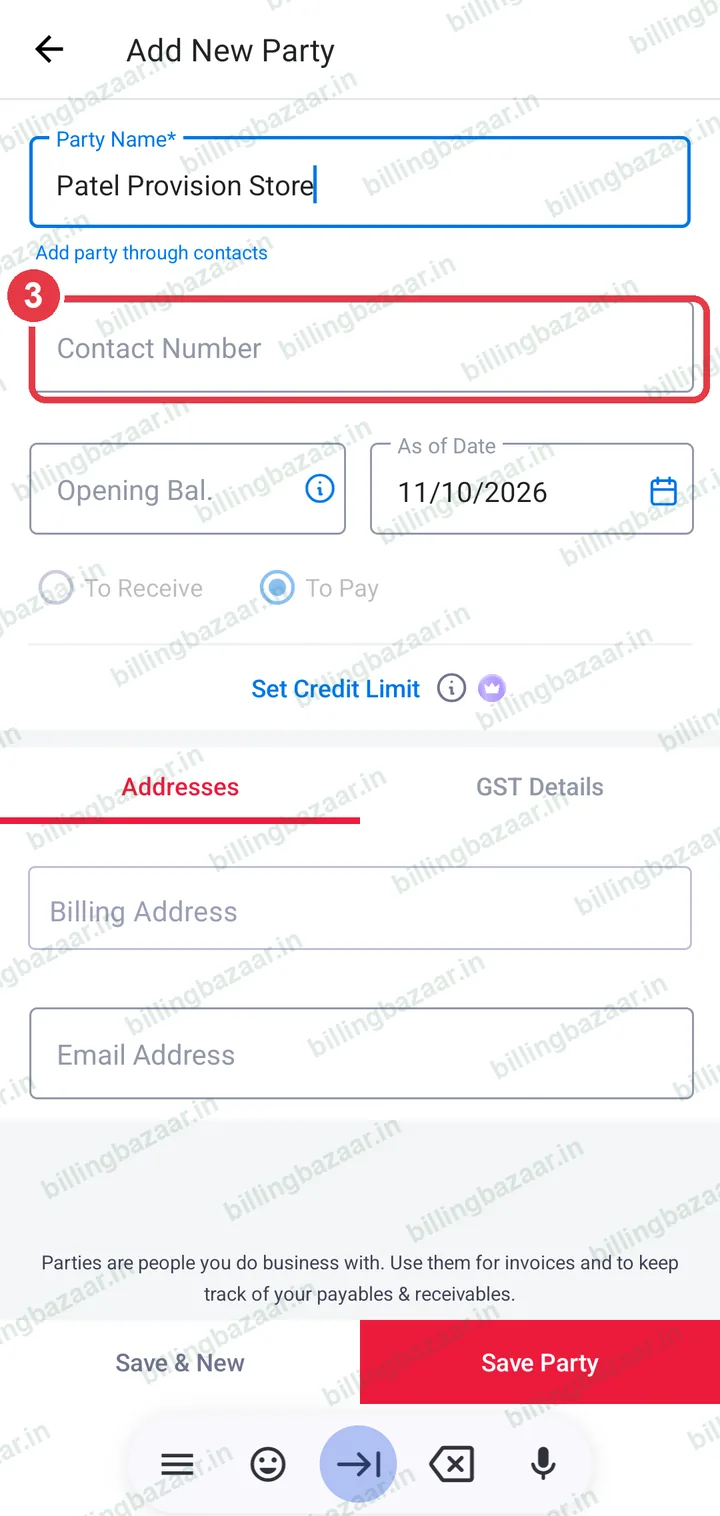
3Enter name and contact number
Type the Party Name and Contact Number. You can also tap Add party through contacts to pick from your phone.
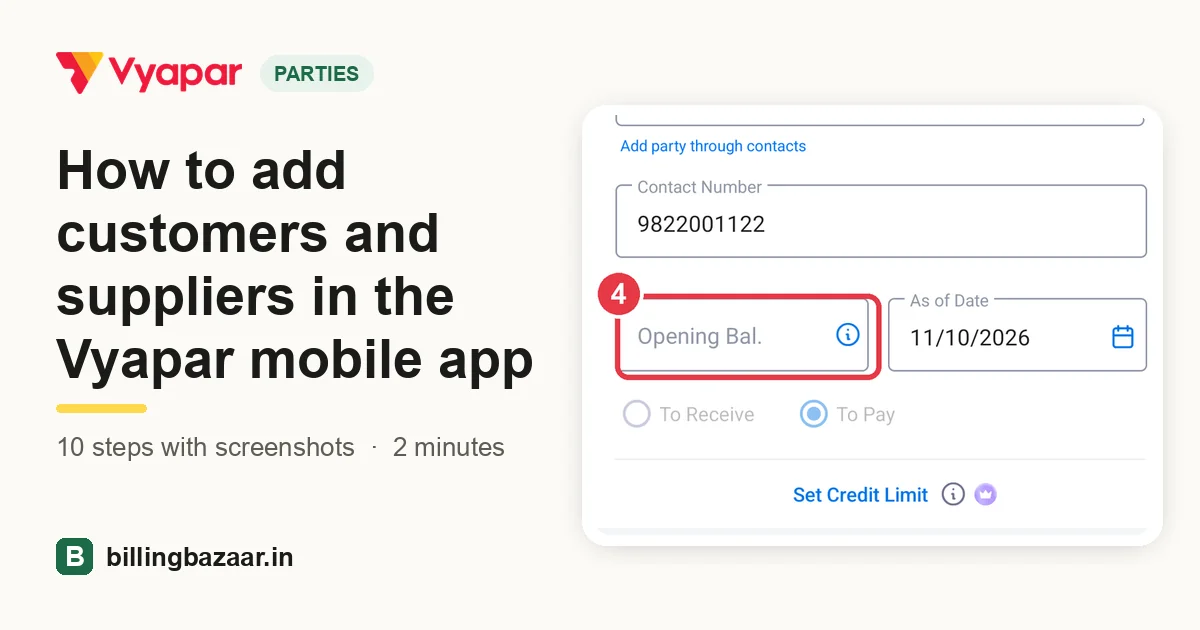
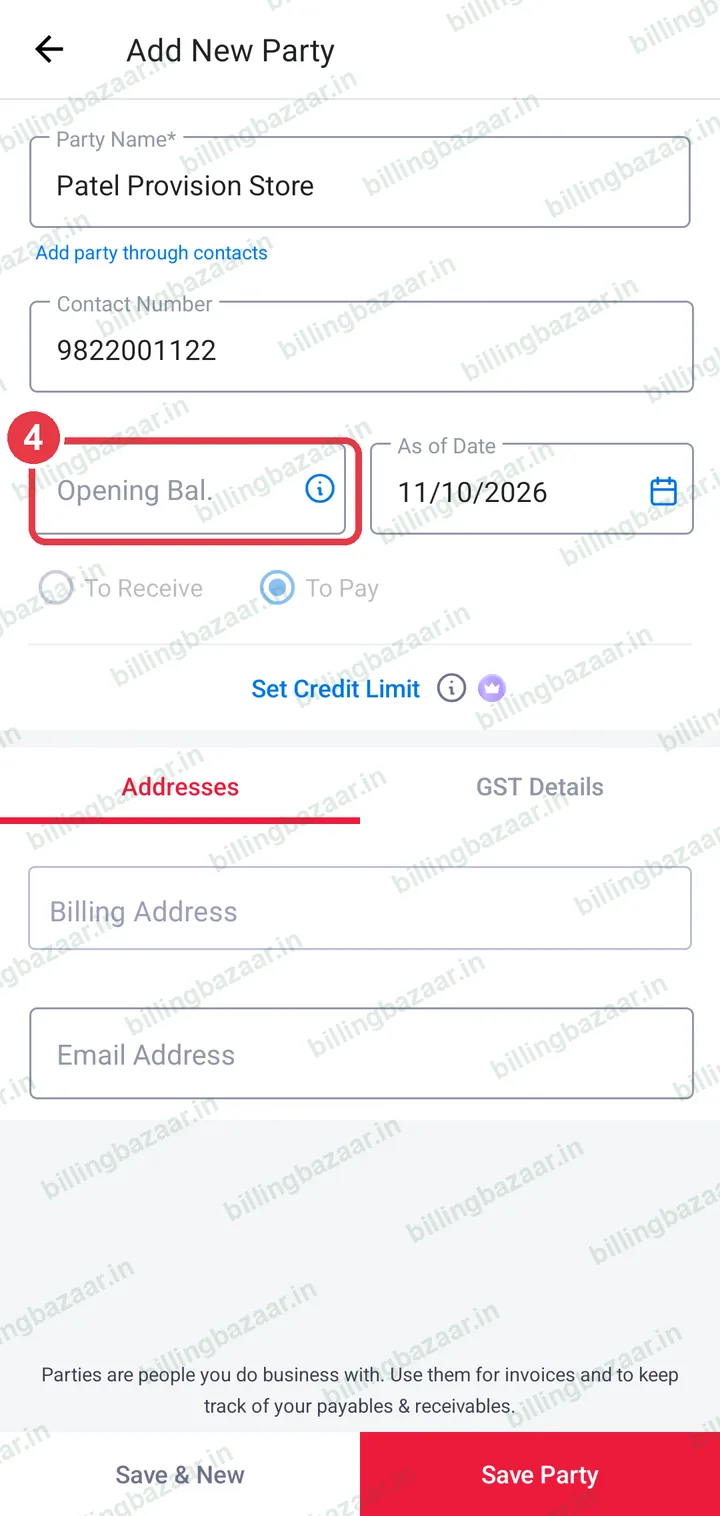
4Add the opening balance
If they already owe you money, enter it in Opening Bal., set As of Date and choose To Receive. Choose To Pay if you owe them.
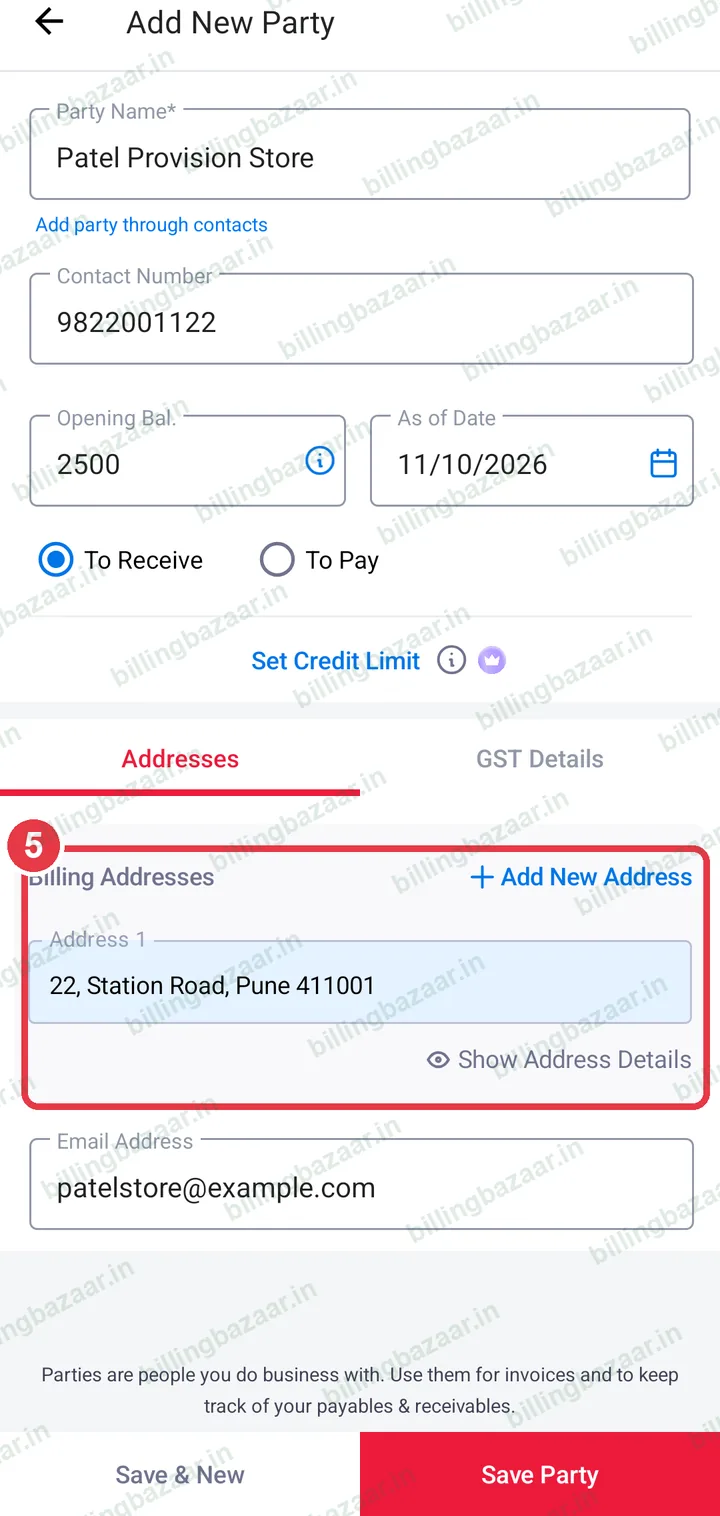
5Add address and email
In Addresses, add the Billing Address and Email Address.
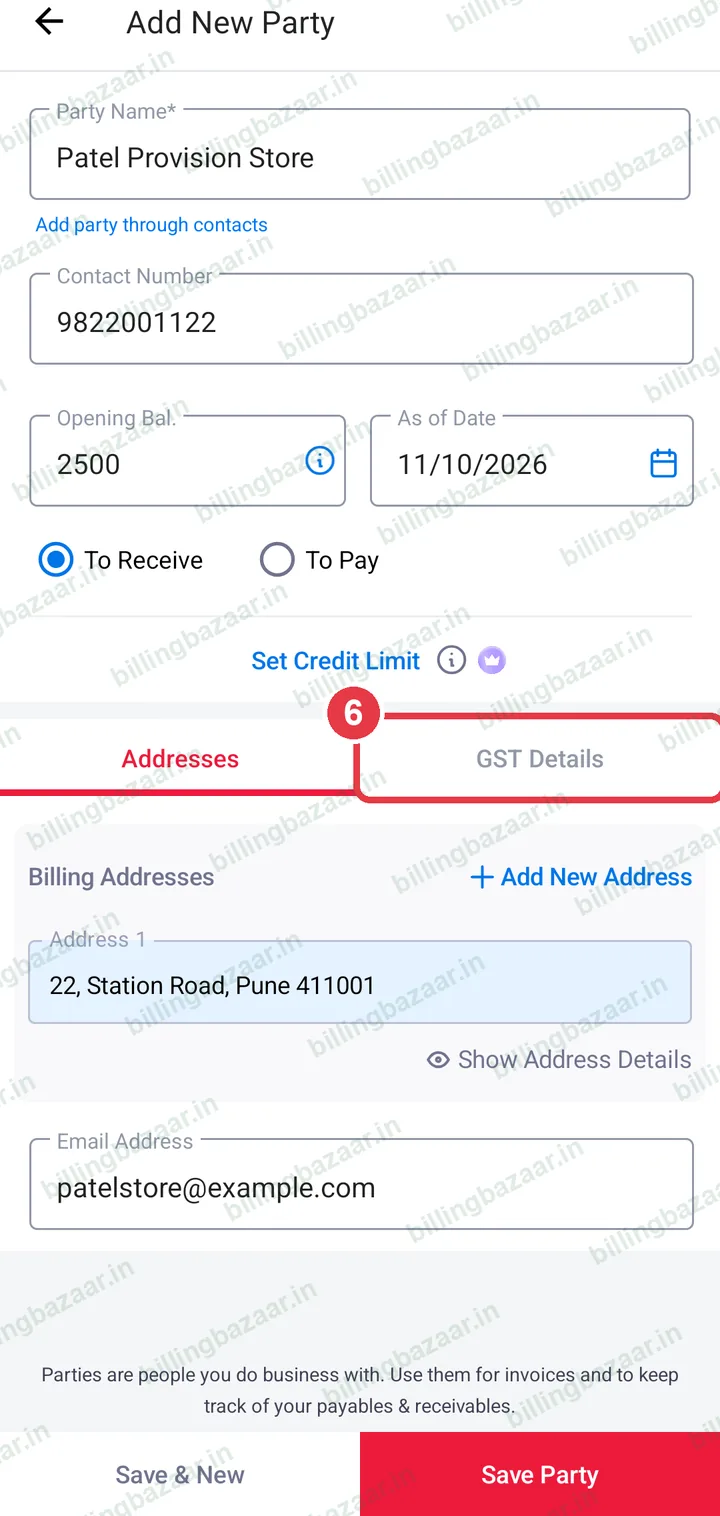
6Open GST Details
Tap the GST Details tab.
7Tap GST Type
Tap GST Type.
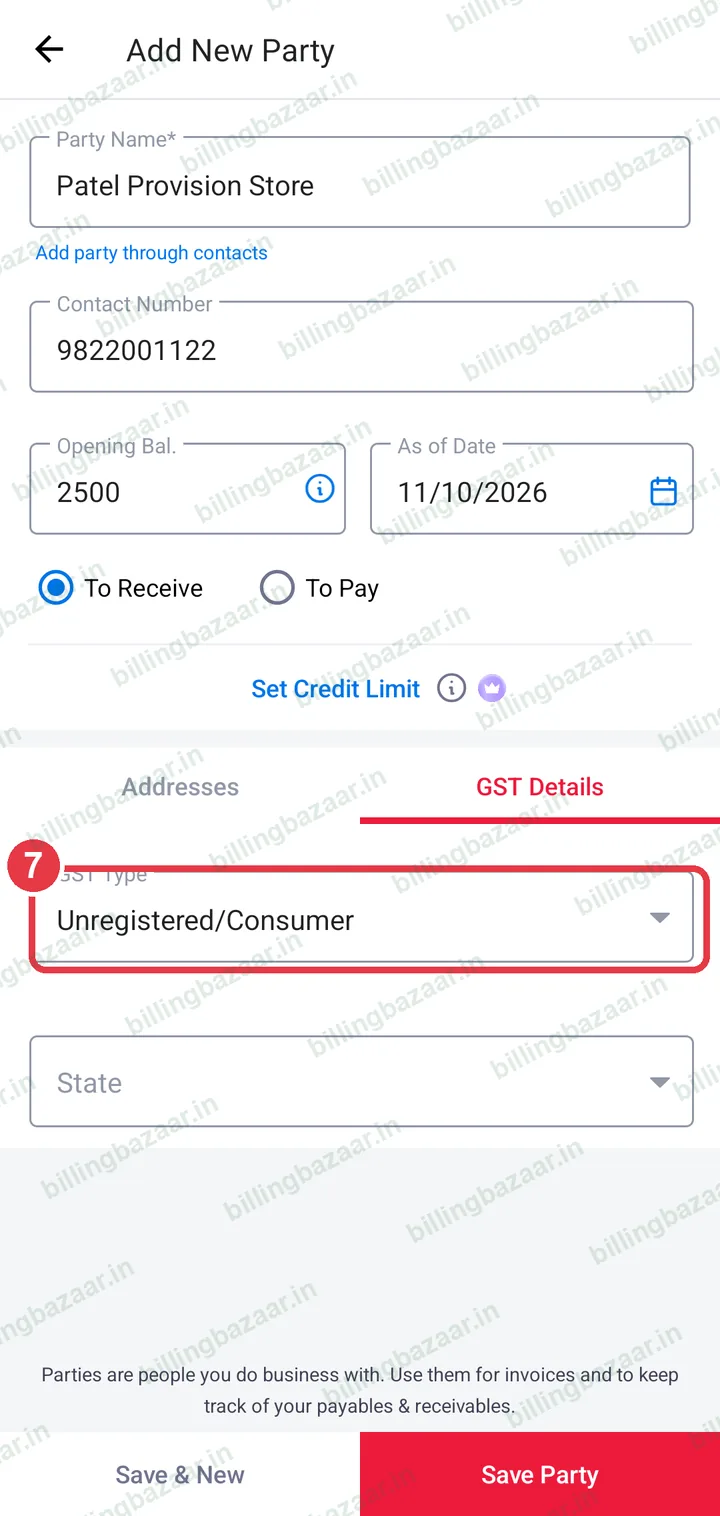
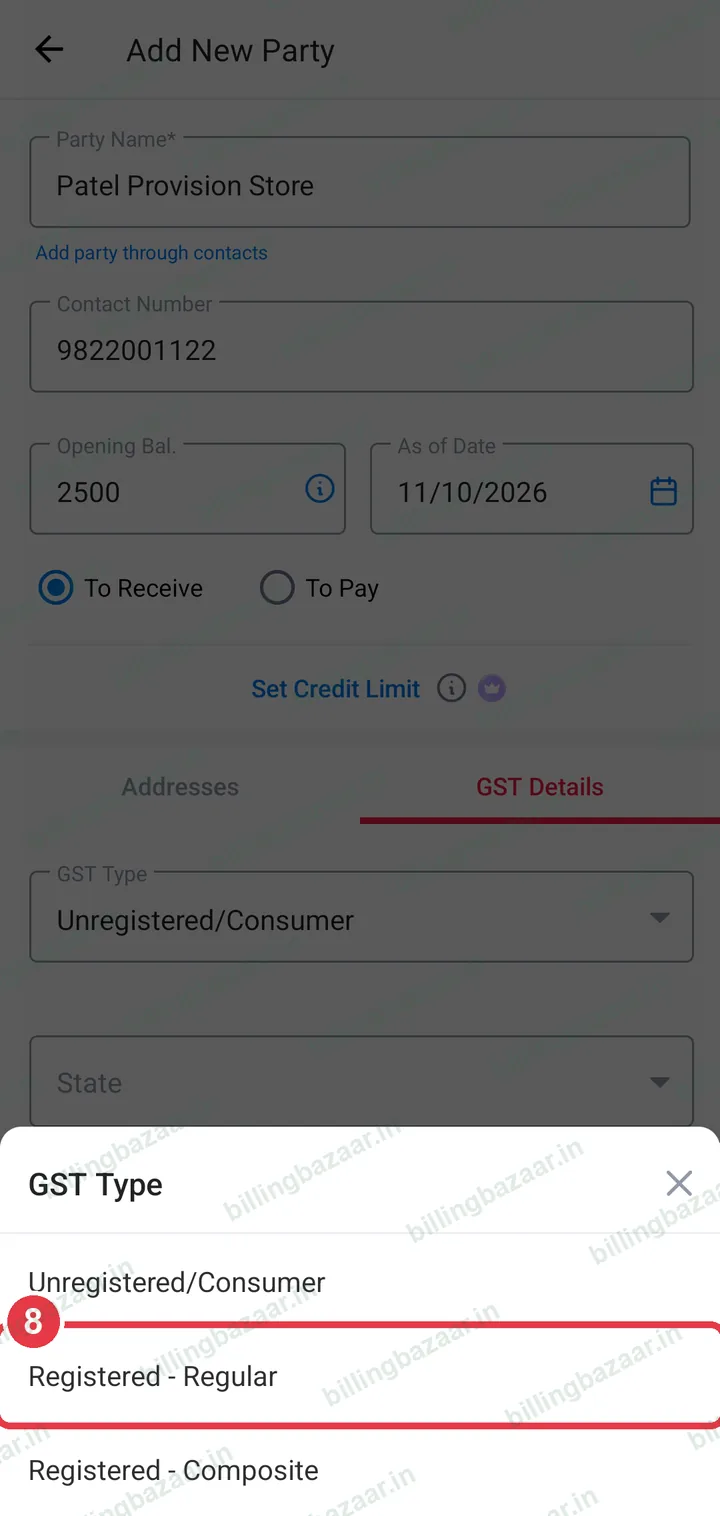
8Choose the GST type
Pick Registered - Regular for a GST-registered business, Registered - Composite for composition dealers, or Unregistered/Consumer.
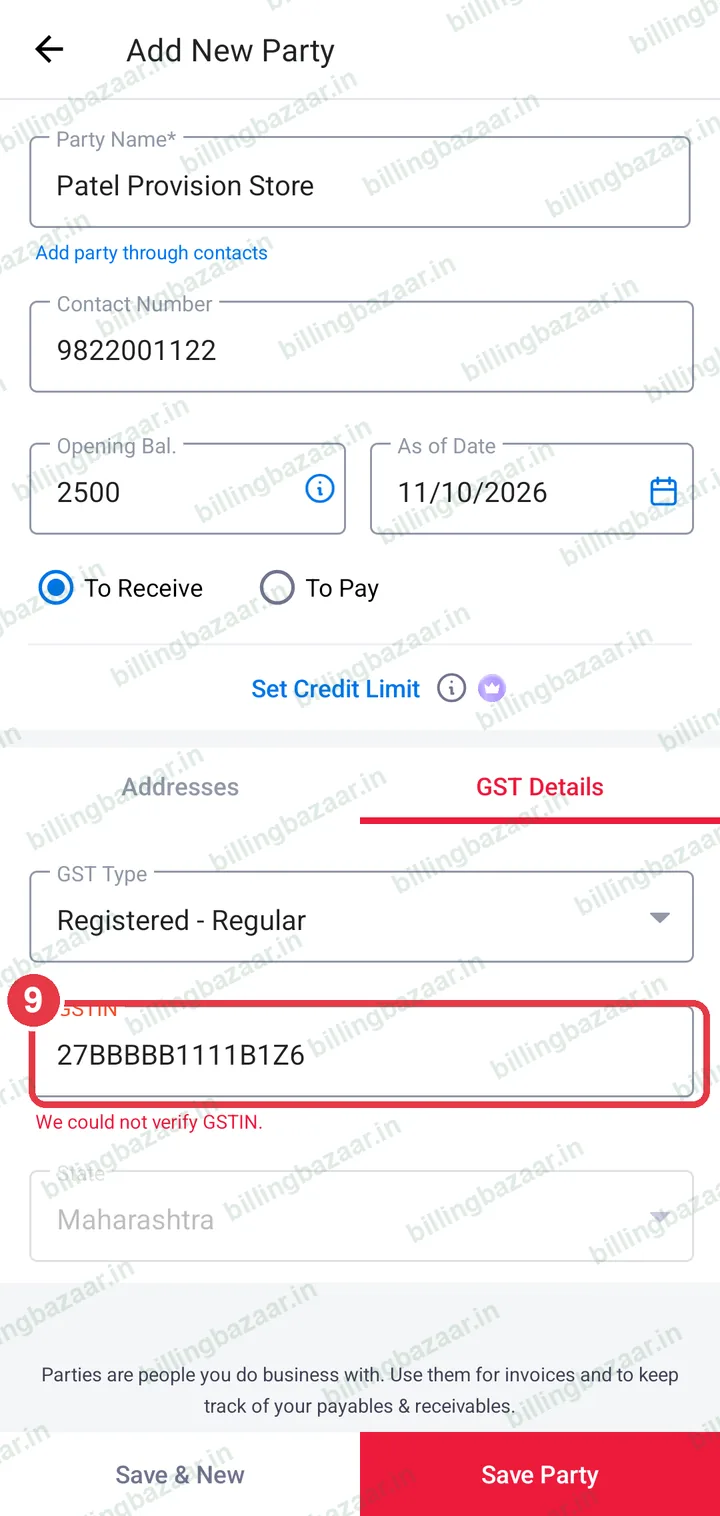
9Enter the GSTIN
Type the party's GSTIN. The State fills in from it and decides CGST + SGST or IGST on their invoices.
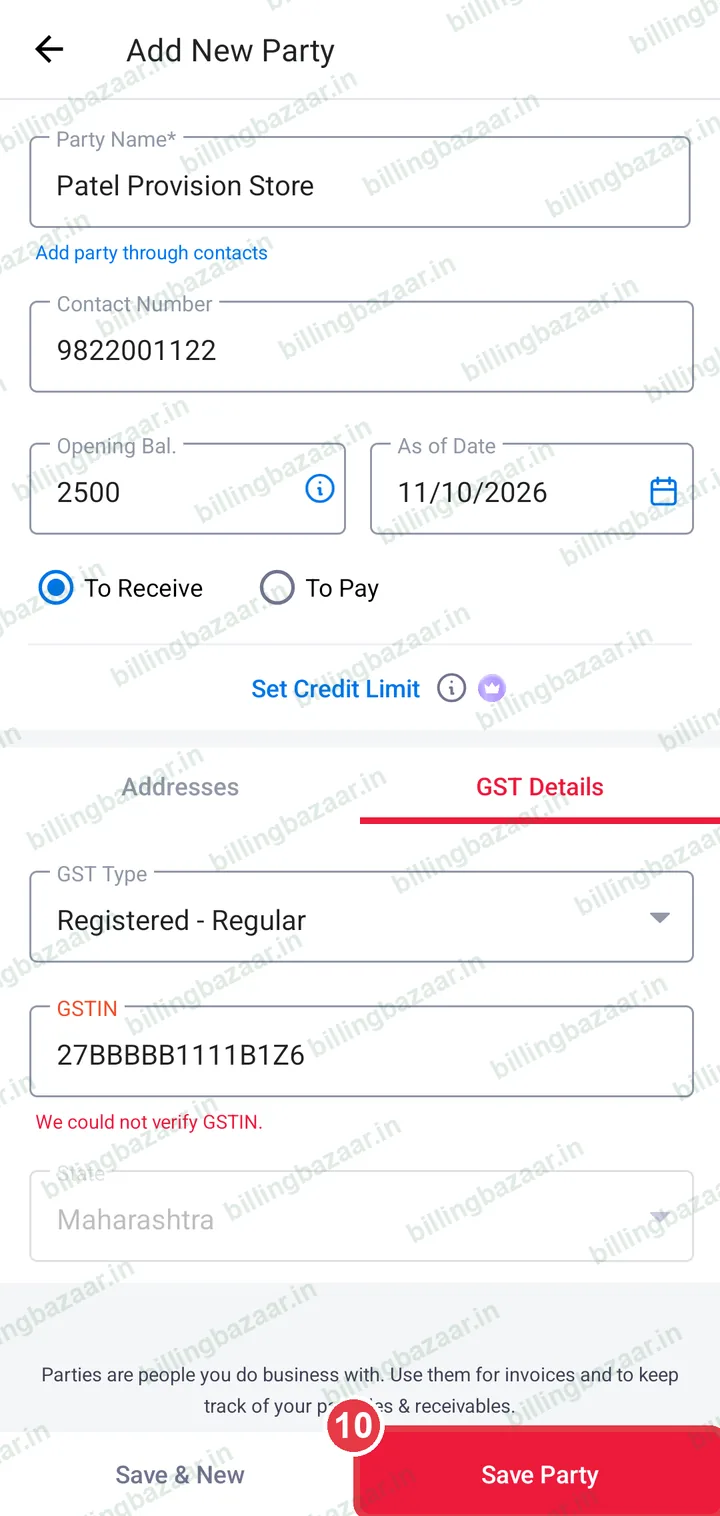
10Tap Save Party
Tap Save Party. The party shows in Party Details with their balance (You'll Get / You'll Give).
Good to know
- Use Save & New to add several parties in a row.
- Set Credit Limit to get a warning when a customer's balance goes over it.
Questions people ask
How do I add a customer in the Vyapar app?
Open Party Details on the home screen, tap Add New Party, enter the name and phone number and tap Save Party.
What is opening balance for a party?
Money they already owed you (To Receive) or you owed them (To Pay) before you started using Vyapar.
Why does the state matter?
Vyapar compares the party's state with yours to charge CGST + SGST (same state) or IGST (other state).
Related guides
- How to create a GST invoice in the Vyapar mobile app
- How to add items with HSN code and GST rate in the Vyapar mobile app
Useful for these businesses
- Vyapar for kirana stores
- Vyapar for medical stores
- Vyapar for pharma distributors
- Vyapar for textile traders
- Vyapar for hardware stores
- Vyapar for building material shops
More on Vyapar
Screenshots are from a demo company in Vyapar Android app 29.4, October 2026. Menus can move slightly between app versions. Guide by Billing Bazaar, a Vyapar partner.